
ChatGPT Export conversations.json Is Unreadable? How to Open It
Your ChatGPT export arrives as one huge conversations.json, or several numbered files. Here's how to open it, read its message tree and find a lost chat.
You asked ChatGPT for your data, waited, unzipped the download and double-clicked conversations.json. Now Notepad has stopped responding, or it opened a single line of text that seems to go on forever. Nothing is broken. That file was written for software to read, and it doesn't care whether you can read it.
These steps take you from the export request to the one old chat you actually wanted. They also cover a newer problem: your zip may not contain a conversations.json at all.
Step 1: Request the export, then download it the same day
- Sign in on the web, open your profile menu and go to Settings, then Data controls.
- Under Export data, select Export and confirm.
- Wait for the message. Small accounts often hear back quickly, but OpenAI's page on exporting your data says it can take up to 7 days.
- Download right away. That same page says the link expires 24 hours after you receive it. Miss the window and you start over with a new request.
Business and Enterprise workspaces don't get this button. Their owners control access to the data, so ask yours.
Step 2: Can't find your ChatGPT export conversations.json? Check the folder
Unzip the download and look at the top of the folder. On older exports you'll see chat.html, conversations.json, user.json, message_feedback.json and any images you shared.
Skip chat.html if you have more than a few dozen chats. It tries to put your whole history on one page, and a browser tab will struggle long before you get to the chat you came for.
Now the catch. A developer on OpenAI's own forum reported that exports started arriving differently around mid-February 2026, with conversations-000.json, conversations-001.json and so on in place of one file. A small manifest file may sit beside them. Each numbered file seems to be the same kind of list, just cut into pieces, and the behaviour appears tied to export size. OpenAI doesn't document the layout, so go by what's in your own folder.
If you see numbered files, don't panic and don't delete anything. Your chats are there. They're just spread across more than one file, which matters in steps 3 and 5.
Step 3: Open your ChatGPT export conversations.json in a viewer, not a text editor
Text editors load the whole file before they show you anything, and a heavy user's export can run to hundreds of megabytes. You also wouldn't gain much if it did load, as you're about to see in step 4.
I use the ChatGPT export viewer here on this site for this job, partly because the page runs entirely in your browser. It reads the file in 4 MB slices and doesn't upload your chats anywhere, which matters for a file holding everything you've ever typed into ChatGPT. Pick the file, and the screen shows its name and size above an Open Export button.
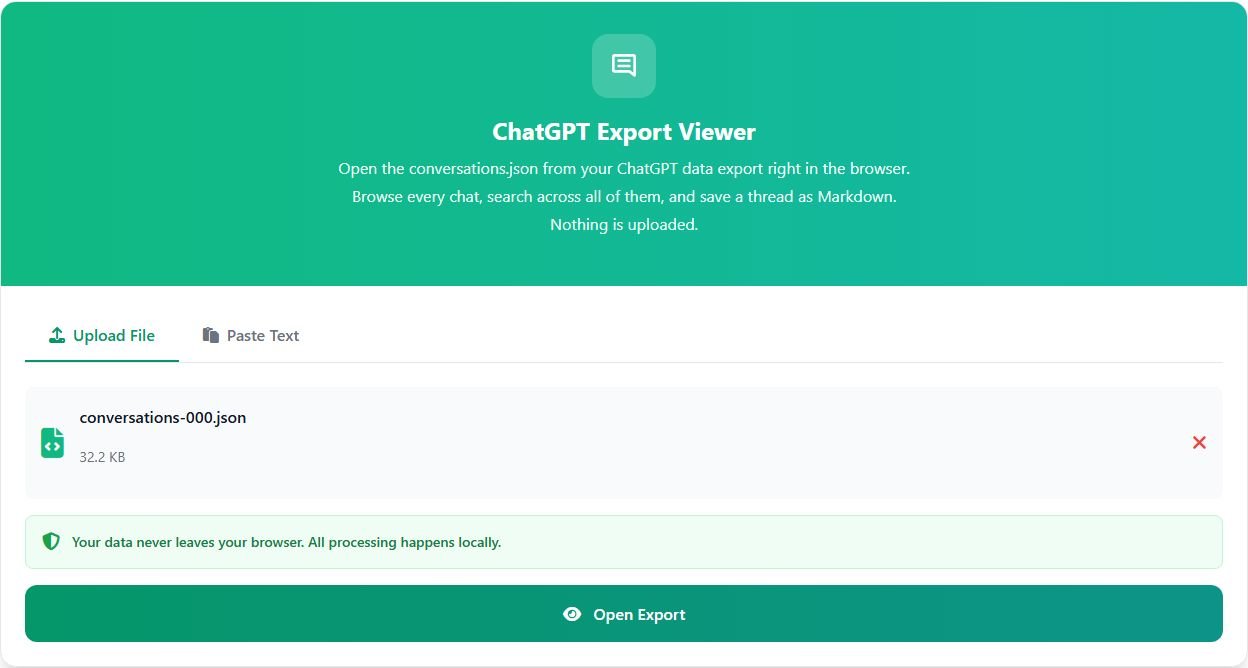
Three things to know before you click:
- Single-file export: drop the zip or the JSON file. Either works, though zips over 1 GB are refused, so unzip those first.
- Numbered files: unzip first. The viewer's zip mode looks for a file named exactly
conversations.json, so a zip holding only numbered files gets the message "conversations.json was not found inside this zip." I tested that with a sample zip. Openingconversations-000.jsondirectly worked fine. - One file at a time: the viewer won't combine numbered files, so each one is its own session.
Step 4: Understand why a ChatGPT export conversations.json looks so strange
You can skip this if you only want your chat back. Read it if you're writing a script, or if the message counts look wrong.
A conversation in the export isn't a list of messages. It's a tree. Each one has a mapping object keyed by node id, and every node points to a parent and a list of children. Edit a question or hit regenerate and ChatGPT keeps the old path and grows a new branch beside it. A field called current_node marks the last message on the branch you were viewing. Times are Unix seconds, so 1704100000.123 is really the morning of January 1, 2024, in UTC.
To get the conversation you remember, start at current_node and walk up through the parents, then flip the result:
import json

chats = json.load(open("conversations.json", encoding="utf-8"))
chat = next(c for c in chats if "nginx" in (c.get("title") or "").lower())

node, thread = chat["current_node"], []
while node:
    item = chat["mapping"][node]
    if item.get("message"):
        thread.append(item["message"])
    node = item.get("parent")

for msg in reversed(thread):
    print(msg["author"]["role"], msg["content"].get("parts"))
Be aware that json.load pulls the whole file into memory, so a very large export needs a machine with plenty of RAM. The viewer walks the same path for you and tells you what it left out. In the sample below, a grey line says three messages sit on other branches.
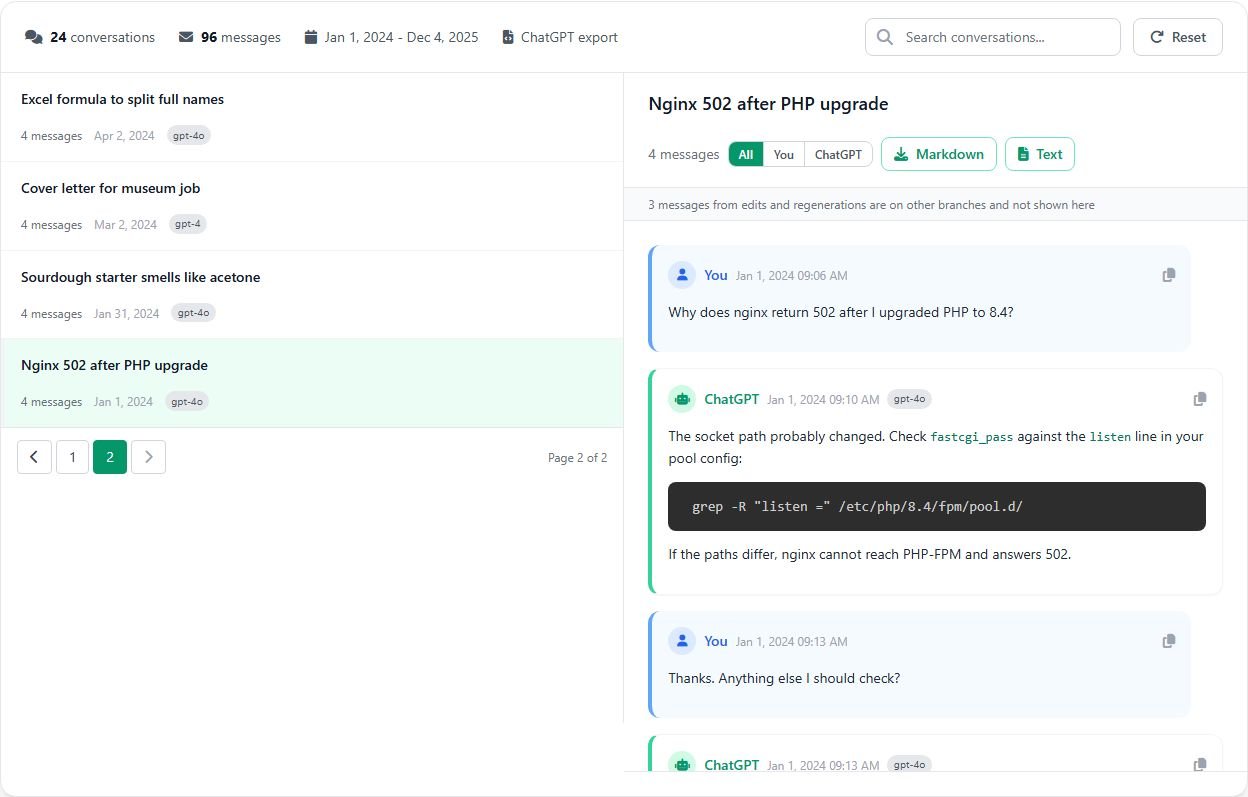
Step 5: Search the ChatGPT export for the chat you lost
This is why most people bother with any of this. Chat titles are auto-generated and often useless, so don't try to remember the title. Search for a word that could only have appeared in that chat: a function name, a street, an error code, a person's surname.
- Type the word in the search box. It matches titles and message text, ignoring case, and trims the list to chats that contain it.
- Click a result. Matches in ordinary messages are highlighted in yellow.
- Use the You and ChatGPT buttons if you only want one side of the thread.
- Save it with the Markdown or Text button. That exports the single thread you have open, not the whole history, and the file always holds both sides, even with a filter on.
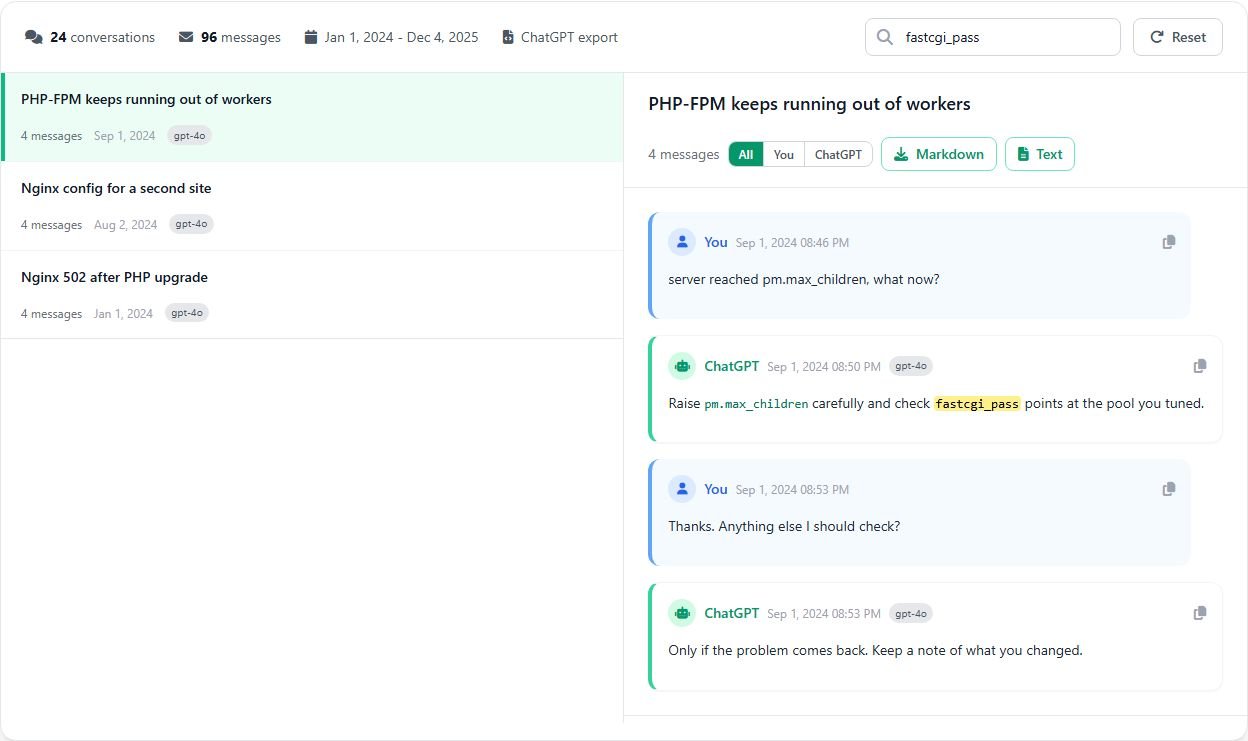
Two limits can make a chat seem missing when it isn't. With numbered files, search only covers the file you opened, so repeat it in each one. And the viewer searches the visible branch only. If the thing you remember came from a reply you later regenerated, it won't turn up there. For that, go to the raw files. First ask which file holds the phrase, which took under a second on a 200 MB test file:
grep -il 'your phrase' conversations*.jsonWindows users can run that in Git Bash or WSL. Leave out any quote marks, since the file stores them escaped. Then pull out the surrounding text:
grep -io '.\{0,80\}your phrase.\{0,80\}' conversations-000.jsonThat prints up to 80 characters either side of each match, abandoned branches included, because to grep it's all just text. Be patient with this one. It's far slower, and on a big export it can sit silent for several minutes.
What the export won't give back
Chats you deleted before exporting aren't in the file, and no viewer can restore them. Images appear in the viewer as an [image] marker because the JSON only holds a pointer to them, so look through the image files in the folder if you need the picture itself.
Treat the zip like a password file. It's your questions, your drafts and probably a few things you'd rather no one read, and OpenAI's page warns about keeping it secure too. Once you've pulled out what you need, I'd delete the copy sitting in your Downloads folder.