
Emails Going to Spam or Rejected by Gmail? SPF, DKIM, DMARC Check
A printable SPF, DKIM and DMARC check for when your own domain's emails land in spam or get rejected by Gmail and Outlook, with the limits and rules that trip people up.
The invoice went out on Monday. On Thursday the customer finds it in their spam folder, or worse, you get a bounce from Gmail saying the message isn't authenticated. When your own domain's emails land in spam or get rejected by Gmail and Outlook, the cause is usually sitting in three DNS records you set up once, years ago, or never: SPF, DKIM and DMARC.
This is the SPF, DKIM and DMARC check I run whenever a domain's mail starts going to junk. It fits on one page. Print it, open your DNS panel next to it, and tick things off.
Before the check: list everything that sends as you
Most fixes don't stick because this step gets skipped. Write down every service that puts your domain in the From line:
- Your mailbox provider (Google Workspace, Microsoft 365, Zoho and so on)
- Newsletter and marketing tools
- The shop, CRM, helpdesk and invoicing apps
- The website's contact form, and the server it runs on
Then pull your current records. Any DNS lookup will do. I use the SPF, DKIM and DMARC checker on this site because it reads SPF, DMARC and MX together and follows nested includes to count lookups. Keep in mind it only reads public DNS. It doesn't send a test email, so it can't tell you whether one particular message passed. For that, open a message you sent in Gmail and choose Show original, which prints the SPF, DKIM and DMARC result for that single email.
SPF check: one record, 10 lookups or fewer
- Exactly one TXT record starting with v=spf1. Adding a second one for a new newsletter service is the classic mistake. Two SPF records is a permanent error, so receivers treat SPF as broken for every message. Merge them into one record with all the includes and a single ending.
- Every service from your list is in it. Usually that's an include:, sometimes an ip4: range for your own server.
- No more than 10 DNS lookups in total. RFC 7208, the SPF standard, caps the include, a, mx, ptr and exists mechanisms plus redirect at 10 per check, and going over returns a permanent error. ip4, ip6 and all cost nothing. The catch is that includes contain more includes, so count the nested total, not the words in your record.
- No ptr. The same RFC says it shouldn't be published. It's slow, and you never need it.
- Ends in ~all or -all, never +all. +all lets any server on earth send as you. ?all, or no all at all, tells receivers nothing. I use ~all on domains with DMARC, because DMARC does the enforcing, and -all on domains that never send mail.
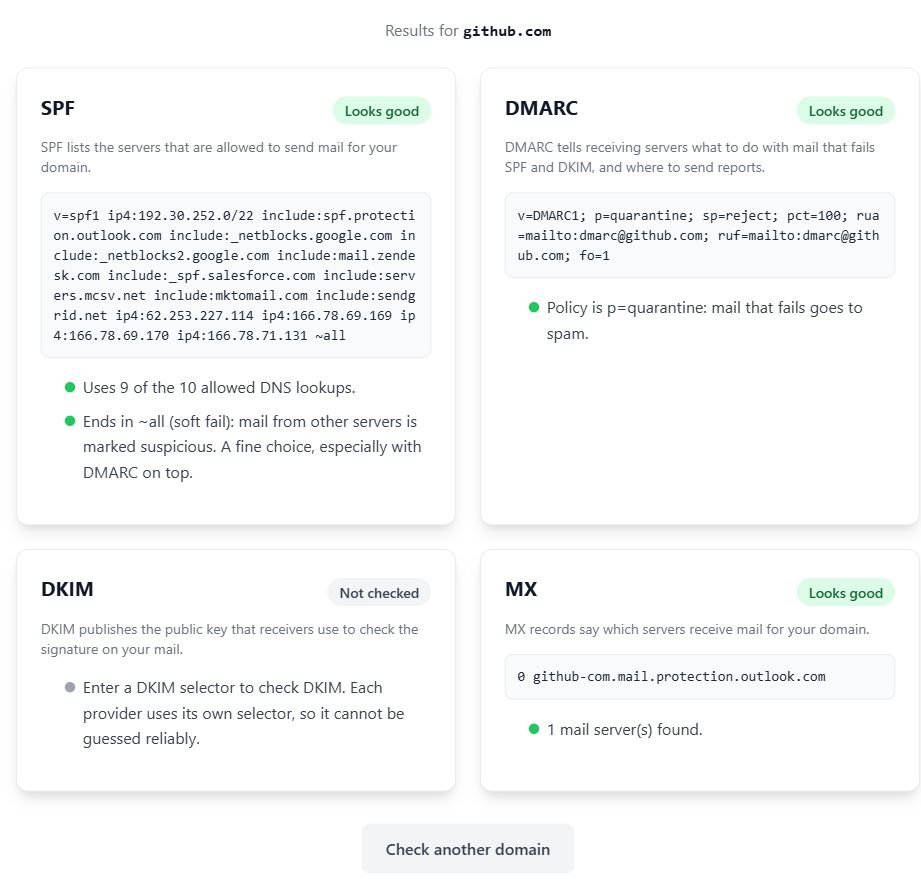
GitHub's record is a useful reality check. Eight includes and five ip4 entries come to 9 of the 10 allowed lookups. That's a company with a full-time mail team sitting one include away from breaking SPF. A small business with Workspace, a CRM, a helpdesk and two newsletter tools can get there without noticing.
DKIM check for each sending service
- Turn on DKIM signing inside every service on your list. Each has its own setting, and most leave it off until you publish their key.
- Publish the key at selector._domainkey.yourdomain. The selector is in the DKIM-Signature header of a sent email, after s=. Google Workspace uses google by default; Microsoft 365 uses selector1 and selector2. Nobody can reliably guess a selector, which is why our checker asks for one and skips DKIM when the box is empty.
- 2048-bit keys where the provider lets you choose. Gmail still accepts 1024 bits but recommends 2048.
- Sign with your domain, not the provider's. Many tools sign with their own shared domain until you finish their domain authentication steps. That passes DKIM and does nothing for DMARC.
DMARC check: start at p=none, then tighten
- One TXT record at _dmarc.yourdomain, starting v=DMARC1. If there are two, receivers apply no DMARC at all.
- Start with p=none and a rua address. Something like
v=DMARC1; p=none; rua=mailto:[email protected]. Without rua, nobody sends you the aggregate reports, and those reports are the only way to see every service mailing as your domain, including the ones you forgot. - Check alignment. The domain in the From line has to match the domain that passed SPF or DKIM. SPF checks the envelope sender (the Return-Path), which for most bulk tools is their bounce domain, so SPF passes for them and not for you. Aligned DKIM is normally the easier route. Alignment is relaxed by default, so news.yourdomain.com counts as a match for yourdomain.com.
- Tighten once the reports are clean. After two to four weeks with every legitimate service passing, go to p=quarantine, then p=reject. Staying on p=none forever means spoofed mail still gets delivered.
- Decide what subdomains get. A subdomain with no DMARC record of its own falls back to the main domain's record, and without an sp= tag it gets the same p= policy. GitHub runs p=quarantine on its main domain and sp=reject for subdomains. The checker tells you when a subdomain is inheriting.
Still going to spam at Gmail or Outlook? The sender rules
If all of the above is ticked, look at the rules the big inboxes added. Since February 2024, Google's email sender guidelines ask every sender for SPF or DKIM, valid forward and reverse DNS, and TLS. Anyone sending more than 5,000 messages a day to Gmail addresses also needs DMARC (p=none is enough), a From domain aligned with SPF or DKIM, and one-click unsubscribe on marketing mail. Outlook.com started routing non-compliant mail from senders over 5,000 a day to junk in May 2025, and Microsoft has said rejection with error 550 5.7.515 comes later.
- PTR: the sending IP has a reverse DNS name that resolves back to the same IP. Hosted providers handle this. Your own VPS or office server usually doesn't.
- TLS: mail leaves your server encrypted.
- MX: records exist, so replies and bounces have somewhere to land.
- Unsubscribe: a List-Unsubscribe header with one-click support, plus a visible link in the body.
- Spam rate: under 0.10% in Postmaster Tools, and never 0.30% or higher.
If every box is ticked and mail still lands in junk, DNS isn't your problem anymore. Look at the list, the content, and any sudden jump in sending volume.