M4R Ringtone Not Showing on iPhone? The 40-Second File, Finder Sync and the GarageBand Route
An M4R ringtone that never appears under Sounds & Haptics is usually a renamed MP3 or a file that landed in Music instead of tones. How to make a real M4R, get it onto the phone, and what Apple itself documents.
You made the ringtone, you dragged it onto the iPhone, you pressed Sync. Then you open Settings, tap Sounds & Haptics, tap Ringtone, and the list is exactly the same as before. Apple's own tones, nothing else.
When an M4R ringtone is not showing, it's almost always one of two things. The file isn't really an M4R, or it went into the Music library instead of tones. There's a third problem that nobody tells you up front: Apple's current support page on tones and ringtones doesn't describe copying a ringtone from a computer at all. So you're following steps Apple doesn't write down. Here's the order I'd go in.
Step 1: make a real M4R, not a renamed MP3
An M4R is AAC audio inside an MPEG-4 container with a different file extension. Renaming song.mp3 to song.m4r changes the name and nothing else. The data inside is still MP3, and that's a common reason a tone copies over and then never shows up. One MacRumors poster on Big Sur dragged plain MP3 files into Finder, synced, and found nothing under Sounds. After switching to an .m4r and dragging it into the iPhone's Music section, it worked.
So the audio has to be re-encoded. If you'd rather not set up an encoder, the MP3 to M4R converter on this site does it on the server with FFmpeg. I went through the code before writing this, because a ringtone tool should be upfront about what it does to your file:
- The audio is encoded as AAC with the bitrate set to 128 kbps and written in the iPod/MPEG-4 container, which is what an .m4r is.
- Only the first 40 seconds are kept. The cut is hard-coded, and it always starts at 0:00.
- Embedded cover art is dropped. A ringtone doesn't need it, and odd-sized artwork can make the conversion fail.
- The upload limit shown on the page is 50 MB, far more than any song needs.
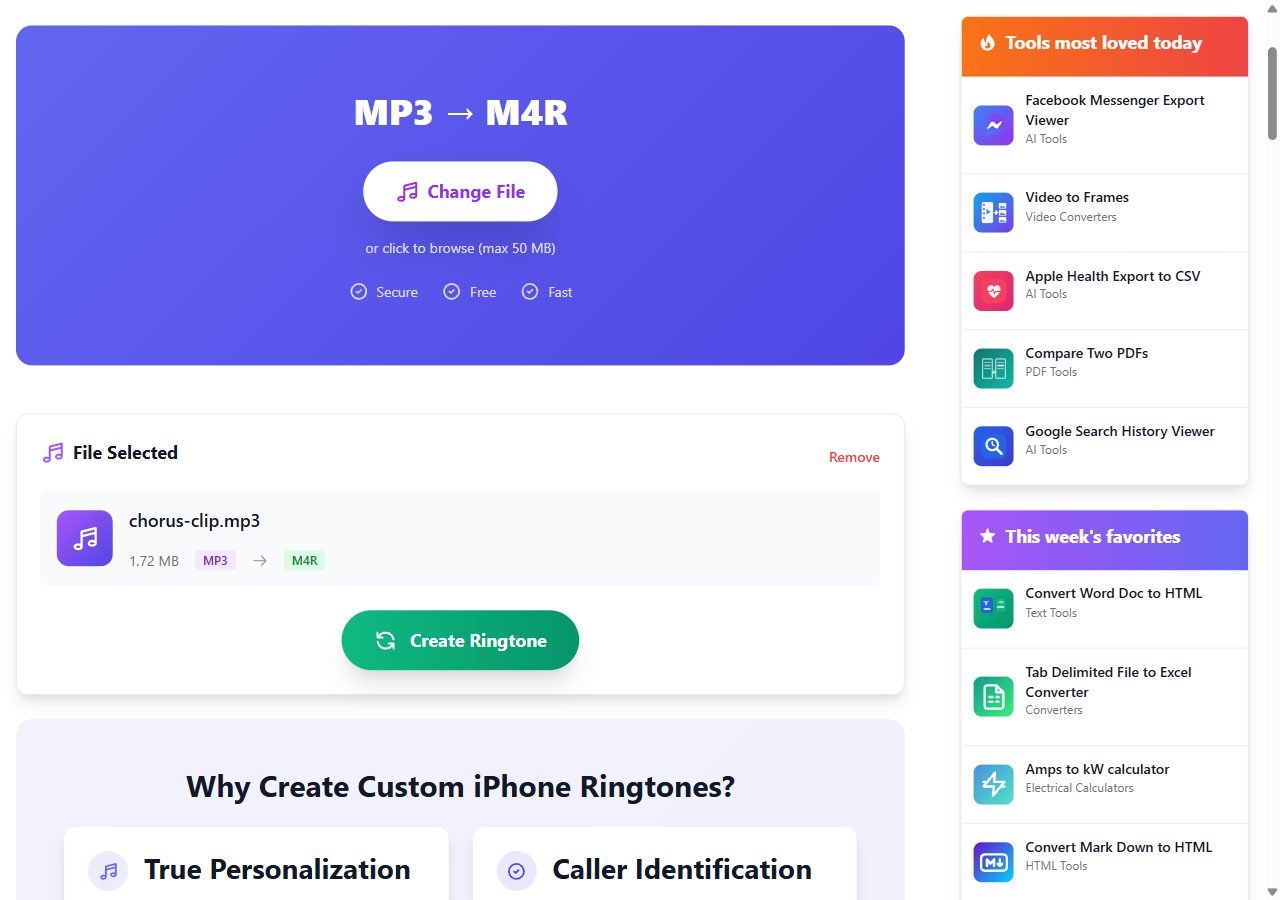
I tested it with a 75-second MP3. The file that came back was 40.02 seconds long, AAC-LC, and the container reported itself as M4A, which is correct: M4R and M4A are the same format with a different extension.
Step 2: pick the right 40 seconds, or better, 30
That start-at-zero cut matters more than people expect. If the part of the song you want starts at 1:12, converting the full track gives you the intro and nothing else. Trim the MP3 first in whatever audio editor you have, so the bit you want sits at the very start, then convert.
And think about going shorter than 40. Apple's own instructions for making a custom ringtone with GarageBand on the iPhone say ringtones can be up to 30 seconds long, and GarageBand offers to shorten anything longer when you export it. A 40-second file is what our converter gives you; trim your clip to 30 first if you'd rather stay inside the limit Apple documents. I'd aim for 30 anyway. Nobody lets a phone ring for longer than that.
Step 3: M4R ringtone not showing after a Finder sync on a Mac
On a Mac running Catalina or later there's no iTunes. The iPhone shows up in the Finder sidebar when you connect it with a cable. The usual method is to drag the .m4r from a Finder window onto the iPhone, then click Sync.
I'll be straight about how reliable that is. It isn't in Apple's current documentation, so what you have to go on is what other owners report. In that same MacRumors thread, the fix that worked was dragging the .m4r into the iPhone's Music section in Finder and syncing; after that the tone was on the phone. In another MacRumors thread, a user who did the same with a properly converted 30-second AAC file found it ended up in the iPhone's Music app and not in ringtones at all.
So after a sync, check two places before you start over:
- Settings, then Sounds & Haptics, then Ringtone. Scroll the whole list, top to bottom.
- The Music app. If the tone is sitting there as a song, the file was taken as music, and the extension is the first thing to check (see the last section).
If it's in neither, unplug, plug back in, and drag it again. Don't keep re-syncing the same file and hoping.
On Windows, Apple's guide stops at music
Windows users moved from iTunes to Apple's Apple Devices app. Its user guide covers syncing music, films, TV shows and photos, plus transferring files between devices. Tones and ringtones aren't in its table of contents. That doesn't mean you can't get a ringtone across from a PC, but there's no Apple page to follow, and you're back to trial and error with the Music section, the same as on a Mac.
Honestly, if you're on Windows and it isn't working after two attempts, skip the computer. The next route needs only the phone.
M4R ringtone not showing and no computer: the GarageBand route
This is the method Apple does document, and it's the one I'd send most people to. It doesn't even need an M4R. GarageBand on the iPhone takes an ordinary audio file and exports it as a ringtone, and Apple's page walks through each tap:
- Get the audio file onto the phone. Saving it to the Files app (iCloud Drive or On My iPhone) is the easiest way.
- Touch and hold the GarageBand icon and choose Create New Audio Recording. Tap the Tracks button, select the track, then open the Loops Browser.
- Tap Files, then "Browse items from the Files app," and pick your file. Touch and hold it and drag it all the way to the left of the Tracks view.
- Drag the left or right edge of the region to select up to 30 seconds, then slide it to the very left so there's no silence before it.
- Go to My Songs, select the song, tap Share, then Ringtone. Name it and tap Export.
- When it's done, tap "Use sound as" and choose Standard Ringtone, Standard Text Tone, or a contact.
One catch from the same page: if you pick a song from your Apple Music library, it has to be downloaded to the phone, and if it's dimmed it's either not downloaded or protected. Protected tracks can't be used as ringtones. That applies whichever way you make the tone, because a protected file can't be converted either.
The upside is that the finished tone goes straight into the right place on the phone. No sync, no wondering whether it landed in Music.
Still not showing? Three checks
- The extension is really .m4r. Windows hides known extensions by default, so a file that looks like "tone.m4r" can be "tone.m4r.mp3" underneath. Turn on file name extensions in File Explorer's View menu and look again. On a Mac, open Get Info.
- The file was re-encoded. If you renamed an MP3 at any point, go back to Step 1.
- You're looking in the right list. Ringtone and Text Tone are separate lists under Sounds & Haptics. Apple also notes that purchased tones appear at the top of the list, so check above the built-in names, not just at the bottom.
If all three check out and the computer route still won't do it, stop fighting the sync. Put the clip in Files and run it through GarageBand on the phone. It takes a few minutes, and it's the only route here that Apple explains step by step.