Search Text in Multiple PDF Files: Why Windows and Mac Search Miss Half of Them
Windows Explorer and Spotlight find PDF files, not the page a word sits on, and they skip scans without a word. Five ways to search text in multiple PDF files compared, with what each one shows you.
You type a supplier's name into the Windows search box, wait for the green bar to crawl across, and get "No items match your search." You know the name is in at least four contracts in that folder. You signed two of them.
Built-in search on Windows and macOS was designed to find files, not to search text in multiple PDF files and tell you where the hit is. Sometimes it finds the file. It never tells you which page, and it says nothing about the scanned contracts it quietly skipped. Below are the five ways people actually do this, what each one shows you, and where each one falls down.
Five ways to search text in multiple PDF files, side by side
| Method | Tells you the page | Shows the matching text | Cost | The catch |
|---|---|---|---|---|
| Windows File Explorer | No | No | Free | Only searches inside indexed folders, and only if PDF contents are indexed |
| Finder or Spotlight on a Mac | No | No | Free | Gives you a list of files, then you open each one and search again |
| Acrobat Reader, Advanced Search | Click a hit to jump to it | Yes, one line per hit | Free | Needs the desktop app installed |
| pdfgrep on the command line | Yes, with -n | Yes | Free | You have to be comfortable in a terminal |
| Search Multiple PDFs on this site | Yes | Yes, about 60 characters either side | Free | Files are uploaded, 20 per search, 100 MB combined |
One thing the table can't fix for any of them: a scanned PDF is a photo of a page. There are no letters in it to find. I'll come back to that, because it is the reason most "search missed my file" complaints exist.
Why Windows search misses PDFs it should find
Two settings decide it, and both are off the beaten path. The first is where the index looks. According to Microsoft's page on search indexing in Windows, the default Classic mode covers your Documents, Pictures and Music folders plus the desktop. A shared drive mapped as Z:, a folder on a second disk, or a client archive in C:\Projects is outside that list. Outside the index, Explorer only matches file names unless you tick "Always search file names and contents" under Folder Options, Search, and then it's slow. On a network share you'll often wait a long time for an empty result.
The second is what gets indexed for a .pdf. Open Indexing Options, click Advanced, then the File Types tab, and find pdf in the list. If it's set to index properties only, Windows reads the file name and dates and never looks at the text. Switch it to properties and file contents, then let the index rebuild. On a big folder that takes hours, not minutes.
Once both are right, typing content:indemnify into the Explorer search box restricts the search to text inside files. You still get a list of file names. Which page, which clause? You find that out by opening each one.
How to search text in multiple PDF files on a Mac
Spotlight indexes PDF text out of the box, which puts it ahead of Windows on day one. In a Finder window, type your word, pick This Mac or the current folder, and add kind:pdf to drop everything that isn't a PDF. Apple's guide to narrowing Finder search results lists that keyword, and it also shows the trick most people never find: hold Option and click the More button to build AND, OR and NOT conditions.
The weak spot is the same as Windows. The result is a list of files. Preview will then show page-by-page hits, but only inside the one document you opened, so forty contracts means forty rounds of open, Command-F, scroll, close.
Acrobat Reader and pdfgrep: the two that show you the page
Free Acrobat Reader has a feature buried under Edit, then Advanced Search. Pick "All PDF Documents in" and point it at a folder, and it lists every hit grouped by file, with the line around each one. It also has whole words only and case-sensitive options. If you already have Reader installed and the files can't leave your machine, this is the one to use. I'd pick it over Explorer every time.
If you live in a terminal, pdfgrep does the same job with less clicking. pdfgrep -r -i -n "indemnif" . walks the current folder, ignores case, and prints the file, page number and matching line. It takes regular expressions, so "net 30|net thirty" finds both spellings in one pass. It's packaged for Linux and Homebrew, and runs under WSL on Windows.
Searching in the browser, and what you get back
For the odd day when you have a stack of PDFs from an email thread and no Reader install, the multi-PDF search tool takes up to 20 files and one search term. I ran it on five sample contracts with the word "indemnify".
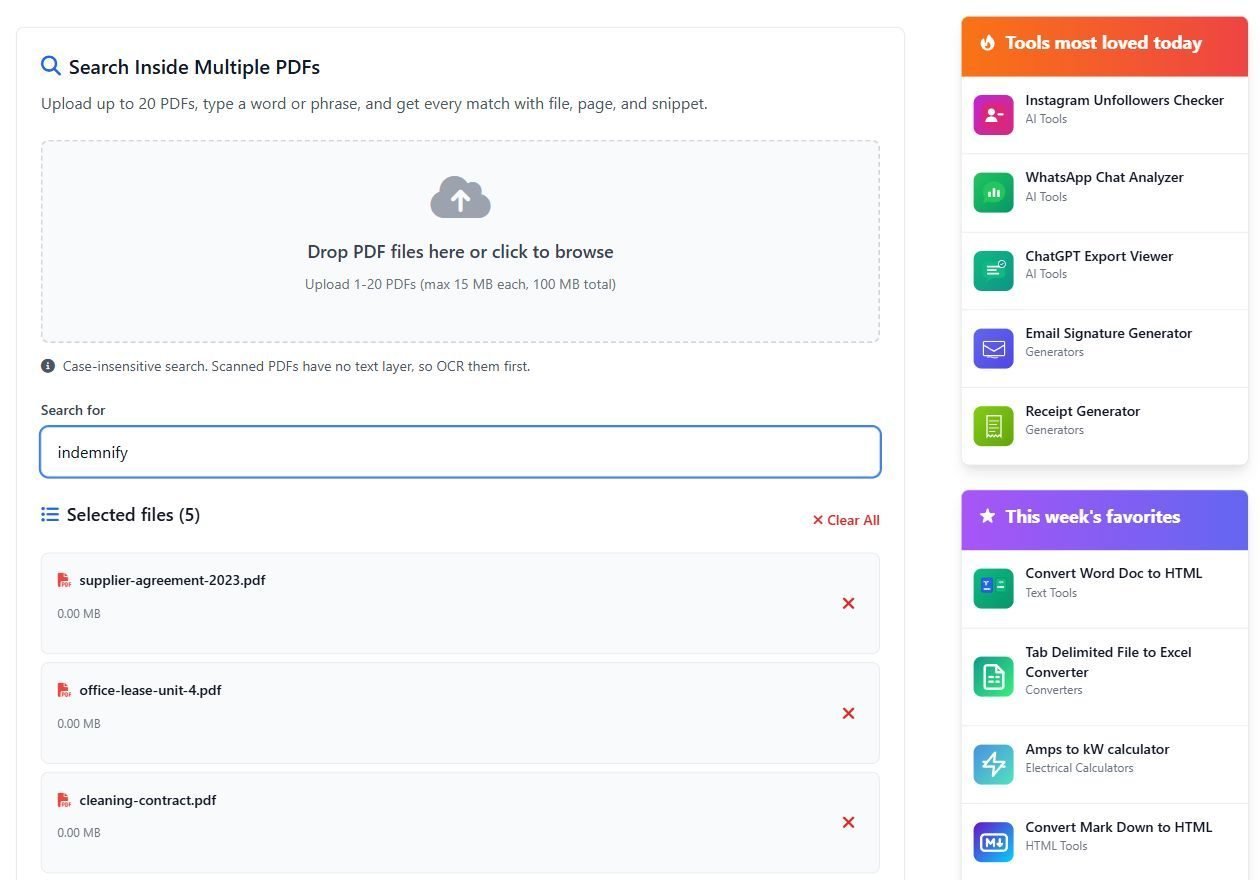
It doesn't show matches on the page. It hands you an Excel file with two sheets. The Matches sheet has one row per hit: file name, page number, and a snippet of roughly 60 characters on each side of the word. The Summary sheet lists every file with its match count, including the ones that scored zero, which is the part I find most useful. A zero next to a contract you expected to mention the clause is a reason to open that contract.
A few things from how the search itself works, because they change what you should type:
- It's a plain, case-insensitive text match. No whole-word option and no wildcards. That cuts both ways. In my test, "indemnify" skipped straight past a clause heading that reads "Indemnity". Searching the stem "indemnif" catches indemnify, indemnity and indemnification in one go.
- Phrases that wrap onto the next line can be missed. The text is read a page at a time with its line breaks kept, so "late payment fee" broken across two lines doesn't match as a phrase. When a phrase search comes back empty, try the rarest single word in it.
- The term has to be 2 to 100 characters, and results stop at 5,000 matches, with a note in the Summary sheet if that happens.
- Password-protected files are skipped and named in the Summary sheet, not silently dropped.
The uploaded PDFs are deleted once the search finishes; only the results spreadsheet is kept for download. Even so, if a contract is under NDA and your firm says files don't go to third-party sites, use Reader or pdfgrep. That's not a close call.
The scanned PDF problem, whichever method you pick
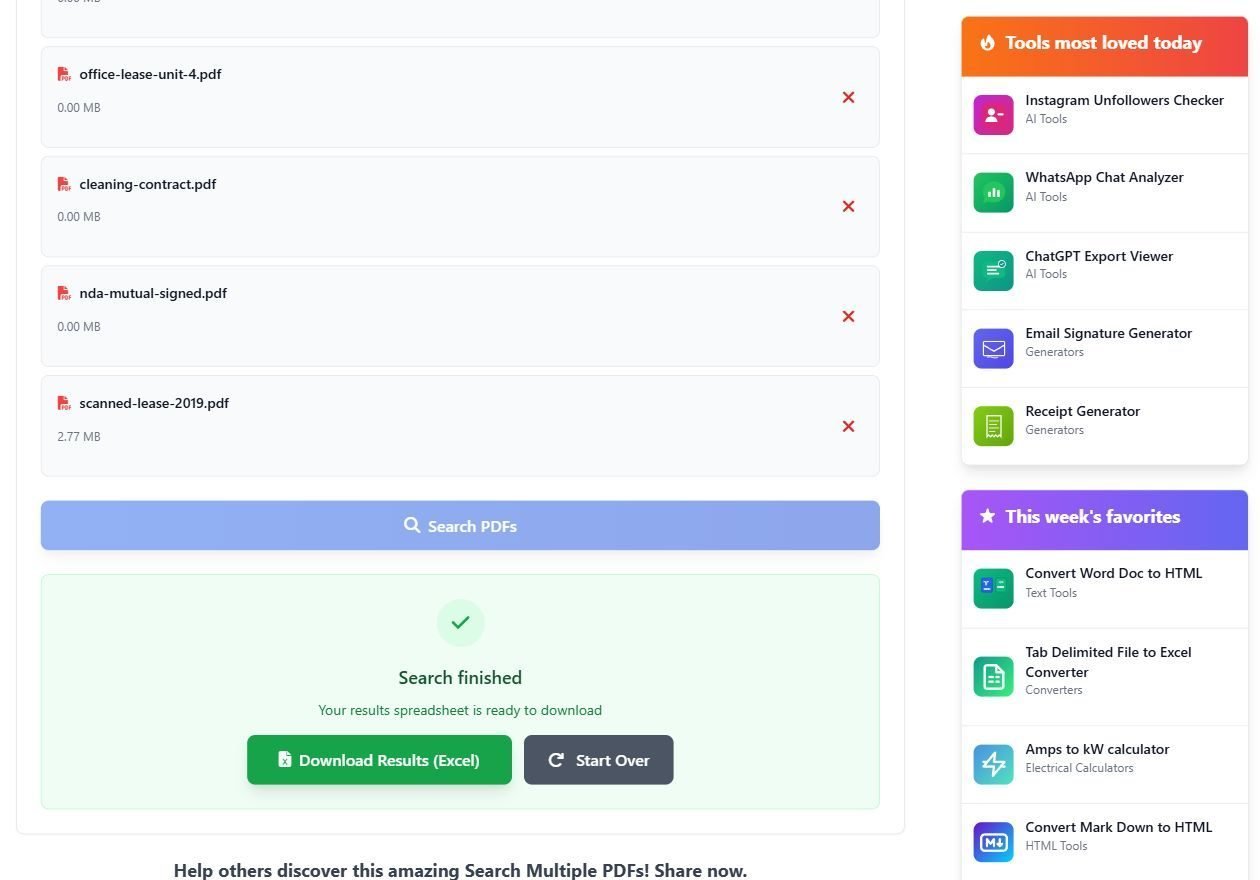
In my five-file test, one file was a scan of a lease that very clearly says "indemnify" on page one. Every method in the table above returns nothing for it, because there is no text in it, just pixels. The spreadsheet at least flags it: the Summary sheet lists it with a zero, then adds a second row for it reading "No searchable text (scanned PDF? OCR it first)". Explorer and Spotlight give no such hint. The file simply isn't in the results, and you assume it doesn't contain the word.
The fix is to give the scan a text layer with OCR before you search. Acrobat Pro does this, ocrmypdf does it from a command line, and the OCR PDF tool here does it too, leaving pages that already have text alone. OCR on a clean office scan is good. On a faxed or skewed page it misreads letters, so a search can still miss a word that OCR turned into "indemn1fy".
If you search the same archive every week, fix the index once (Windows) or rely on Spotlight (Mac), OCR the scans as they arrive, and use Reader's Advanced Search for the page-level answer. The browser route is for the one-off pile.