Markdown to PDF Breaks Your Tables and Code Blocks: What Survives and How to Fix It
The preview looks right and the PDF doesn't. That's two Markdown parsers disagreeing. Here's what happens to tables, fenced code, nested lists, task lists, headings and images when Markdown goes to PDF, and the small edits that fix each one.
Most people assume the live preview is what the PDF will look like. It usually isn't. You paste your notes, the preview shows checkboxes, a tidy table and a code block with a grey background, and then the download comes back with a line of pipes and dashes where the table was, literal [x] characters, tildes around the text that was meant to be crossed out, and every section sitting alone at the top of its own page.
Nothing is broken, exactly. Two different Markdown parsers read your file, and they don't agree on the rules. Once you know where they disagree, most Markdown to PDF problems take a minute each to fix.
Why the Markdown to PDF output doesn't match the preview
Markdown isn't one language. The original syntax from 2004 left plenty unsaid, so every implementation filled the gaps its own way. GitHub's dialect, GitHub Flavored Markdown, added tables, task lists, strikethrough and bare-URL autolinks, and the GFM specification labels each of those as an extension on top of CommonMark. Obsidian, Typora and GitHub itself speak GFM, and VS Code's preview gets most of the way there, so that's the version most of us have in our fingers.
Plenty of PDF pipelines don't. Ours hands the file to Calibre's ebook-convert, which runs Markdown through Python-Markdown. Python-Markdown is older and stricter, and it only knows the extras you switch on. The list switched on for this converter is short: tables, footnotes, fenced code and a table of contents. Strikethrough, task lists and autolinks aren't on it.
The preview in your browser is drawn by a different library called marked, which follows GFM by default. So the preview shows roughly what GitHub would show, while the PDF shows what Python-Markdown makes of the same text. The mismatch even runs the other way: footnotes and a [TOC] marker look wrong in the preview and come out fine in the PDF.
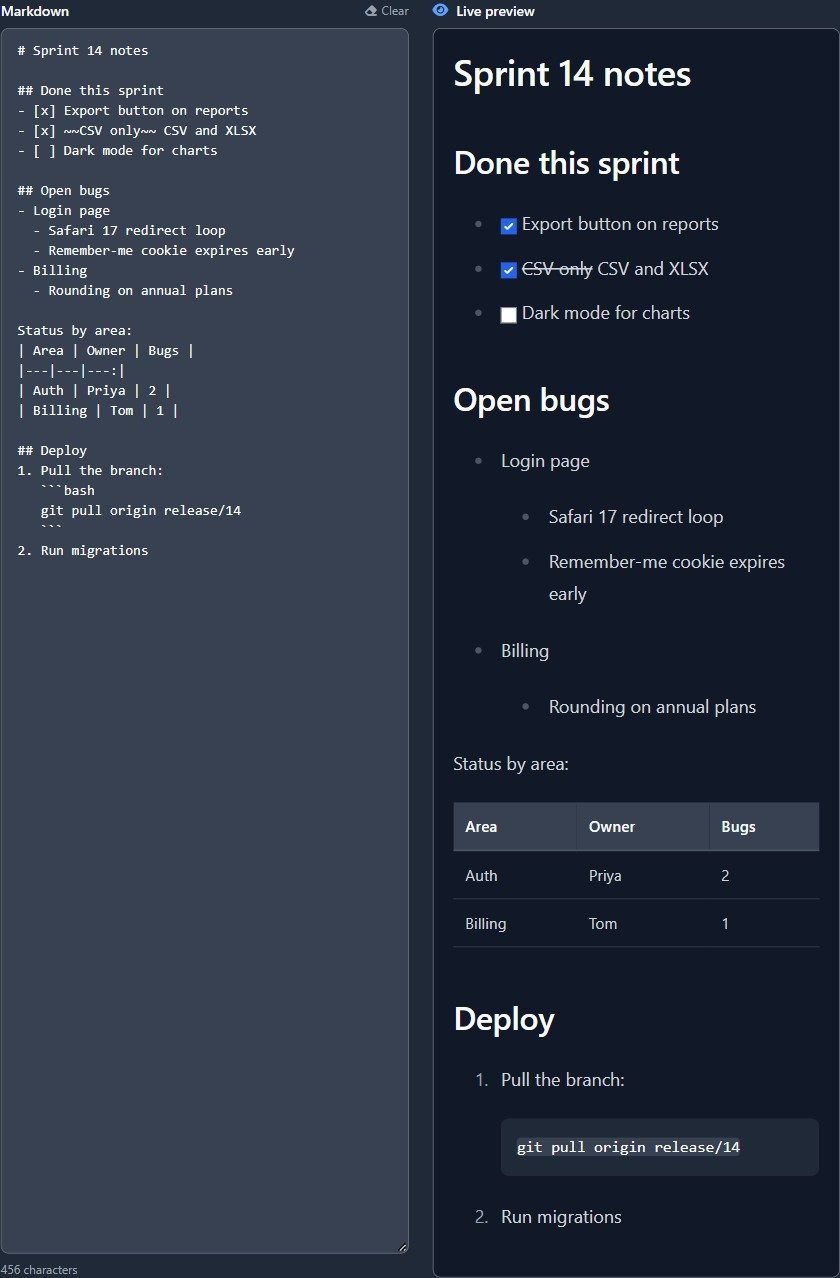
To see it all in one go, I wrote a short sprint-notes file with the habits I actually use: a task list, one struck-out phrase, sub-bullets indented by two spaces, a table sitting directly under a line of text, and a fenced code block inside a numbered step. I pasted it into the Markdown to PDF converter and downloaded the result. Three A4 pages came back, and nearly every GFM habit had failed in its own way.
![Three PDF pages from the same notes: task items printed as [x] with tildes kept, sub-bullets flattened, the table run together as one line of pipes, and the code block merged into a list item.](https://thefreeconverter.com/img/post-images/8499cf146f57bc304227a6481df4733f91af4df7718e56d95c4a11755d8282dd.jpg)
Here's each failure, why it happens, and the edit that fixes it.
Markdown to PDF table problems
The table turns into a row of pipes
This is the complaint I see most, and it almost always has the same cause: no blank line above the table. GFM lets a table start right under a paragraph. Python-Markdown reads those lines as more of the paragraph, so my file printed "Status by area: | Area | Owner | Bugs | |---|---|---:|" as one long run of text.
Put an empty line between the text and the header row. That's the whole fix. Alignment colons in the separator row (:--- and ---:) work fine once the table is recognised, so right-aligned number columns stay right-aligned.
The table has no borders
Even when it parses, the table looks bare. No grid lines, no header shading, just text in columns. For a three-row status table that's fine. For a wide table of figures, your eye slides off the row.
Python-Markdown passes raw HTML straight through, so the fallback is to write that one table as HTML with border="1" on the table tag. I tried a two-by-two table this way and Calibre drew a proper grid around every cell. Keep the rest of the document in Markdown; you only need HTML for the tables where lines matter.
Width is a separate fight. The page is A4 portrait and the converter has no landscape option, so a ten-column table gets squeezed until words wrap one per line. Split it in two, or flip it so the rows become columns.
Code blocks that collapse into the text
A fenced code block at the top level of the document converts fine. It comes out in a monospace font, and long lines wrap instead of running off the edge of the page. There's no syntax colouring, though. The highlighting extension isn't enabled, so a block tagged python looks exactly like an untagged one.
Trouble starts when the fence sits inside a list, which is where most install instructions put it. The Python-Markdown fenced code documentation is blunt: fenced blocks are only supported at the document root, and they can't be nested inside lists or blockquotes. In my file, step 1 collapsed into "Pull the branch: bash git pull origin release/14", with the language tag printed as a word.
The fix is the old Markdown way of writing code. Leave a blank line after the list item, then indent the code by eight spaces: four to stay inside the list item, four more to mark it as code. Python-Markdown handles that inside lists without complaint, and GitHub renders it too. You lose the language tag, but you weren't getting colours anyway.
Nested lists flatten into one level
Most editors indent a sub-bullet by two spaces, and GFM is happy with that. Python-Markdown wants four spaces, or one tab, for every level of nesting. Give it two and it decides the sub-bullet is a sibling. My "Safari 17 redirect loop" ended up at the same level as "Login page", which turns a bug list into a confusing flat pile.
Re-indent sub-items with four spaces. If your editor keeps turning them back into two on save, look for its list indent or tab size setting rather than fixing the file by hand every time.
Task lists, strikethrough and bare links
These three are GFM extensions with nothing equivalent switched on in the converter, so they print exactly as you typed them. Each has a plain substitute that works in both places:
- Task lists print as [x] and [ ]. Swap in the ballot box characters ☑ and ☐, or the entities ☑ and ☐ if you'd rather keep the file plain ASCII. Both came out as real boxes in the PDF.
- Strikethrough written with double tildes keeps the tildes. Use the HTML tag <del> around the words instead, and you get a proper line through them.
- Bare URLs stay as plain, unclickable text. Wrap them in angle brackets, like <https://example.com>. That's original Markdown syntax, and it comes out as a working link.
None of this is pretty, and I'd rather the converter just understood GFM. But these substitutes survive every parser I've thrown them at, which matters more when the same file also lives in a Git repo.
Every section starts on a new page
This one catches people off guard, because the preview has no pages at all. Calibre puts a page break before h1 and h2 elements unless it's told otherwise; Calibre's conversion manual spells out the default rule as an XPath expression matching both. In Markdown terms that means # and ## headings. In my test, the first ## right under the title shared page one, and every ## after it opened a fresh page. A half-page of notes became three pages that were mostly white.
The converter doesn't expose that setting, so work around it. Use ### for sections that should flow on, since third-level headings don't trigger a break. If you do want a break somewhere specific, say before an appendix, drop in a raw HTML line: an empty div with style="page-break-before: always". It did exactly that when I tried it.
Images that only show their alt text
A line like  points at a file on your computer. When you paste text or upload a .md file, only the Markdown goes to the server. The images folder stays behind, so the PDF shows a broken-image marker with the alt text next to it. Images linked by full web address didn't come through in my tests either.
What did work was putting the picture inside the Markdown as a base64 data URI, the long data:image/png;base64,... string. Base64 stores every 3 bytes as 4 characters, so the encoded text is about a third bigger than the image file, but the image travels with the file. Fine for a logo or one diagram. Silly for a manual with forty screenshots.
For an image-heavy document, use something that can see your folder. Pandoc on your own machine reads relative paths properly. If the images are already online, you can turn the Markdown into HTML and print that page to PDF from the browser, which fetches the pictures itself.
Preview versus PDF, side by side
Everything above in one place. "Preview" is the live panel in the browser, "PDF" is the downloaded file.
| What you wrote | Preview | Fix | |
|---|---|---|---|
| Table directly under a line of text | Table | One line of pipes | Blank line above the table |
| Any Markdown table | Header shading, row lines | No grid lines | HTML table with border="1" where lines matter |
| Fenced code at the top level | Code block | Monospace, wrapped, no colours | Nothing needed |
| Fenced code inside a list | Code block | Merged into the list text | Indent eight spaces, no fences |
| Sub-bullets indented two spaces | Nested | Flattened | Four spaces per level |
| - [x] task | Checkbox | Literal [x] | ☑ and ☐ characters |
| ~~text~~ | Struck through | Tildes kept | <del> tag |
| Bare URL | Link | Plain text | Angle brackets |
| # or ## heading | Heading | Heading on a new page | ### for sections that should flow |
| Footnote [^1] | Garbled link | Numbered note at the end | Nothing needed |
| [TOC] | Literal [TOC] | Linked list of headings | Nothing needed |
| Image with a local path | Broken | Alt text only | Base64, or convert on your own machine |
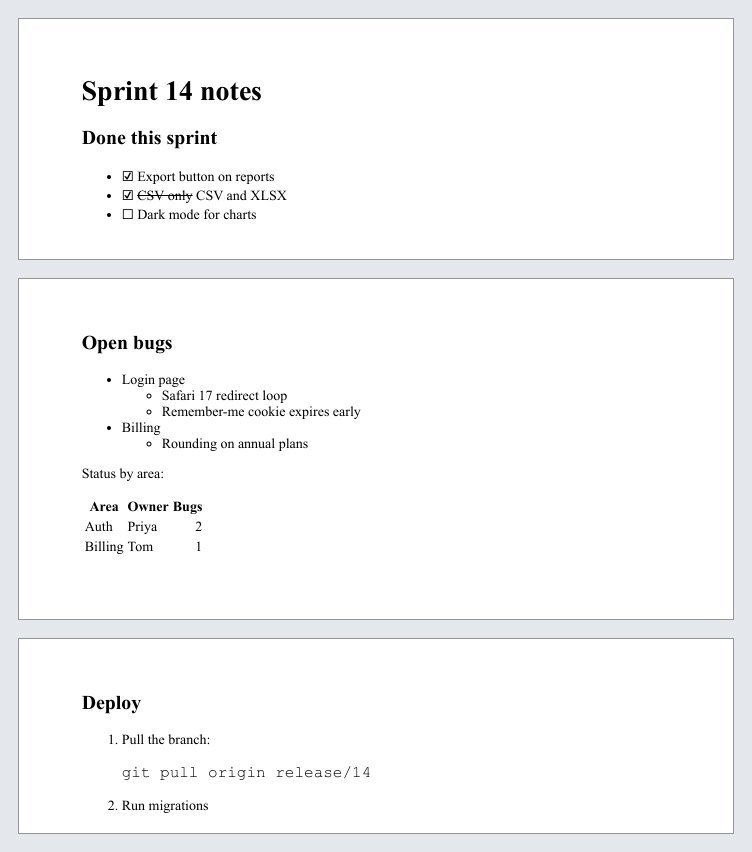
Then I made those edits to the same sprint notes and ran them through the same converter again. Still three pages, because I kept the ## headings on purpose. Everything else landed where it should.
When a Markdown to PDF converter is the wrong tool
A few limits don't have a workaround inside this converter. Paper size is fixed at A4, so anyone who needs US Letter is out of luck. Body text is set at a default of 14 pixels. There's no custom stylesheet, no cover page, no running header with your company name, and no colour in code. For READMEs, meeting notes, coursework and quick handouts, that's plenty. For a branded report or a book, run Pandoc with a LaTeX engine or a proper typesetting setup on your own machine, where you control every one of those settings.
My own habit now is simple: a blank line before every table, four-space indents, no fences inside lists, and ### for anything that isn't a chapter. Files written that way look right on GitHub, in Python-Markdown and in nearly every converter in between, so I stop thinking about which engine is reading them.