Extract Images From PDF Not Working? Vector Art, Scans and Fixes
An image extractor finds nothing because most charts and logos in a PDF are drawn as vector shapes, not stored as pictures. Five ways to get them out, compared.
The chart you can see on page 4 is probably not a picture. That's the whole reason an image extractor comes back empty. Most bar charts, logos, maps and diagrams in a PDF made from Excel, PowerPoint or a design app are stored as drawing instructions: move here, draw a line, fill this rectangle blue. An extractor goes looking for embedded image files, finds none, and gives up.
So when an extract images from PDF tool is not working, the useful question is what kind of picture you're after. Below are five ways to get it out, what each one grabs, and where each falls over. I ran our extractor and the page renderer against the same small test files, so those two rows come from my own results.
Five ways to get pictures out of a PDF, compared
| Method | Cost | What it pulls out | What it misses or mangles | Good for |
|---|---|---|---|---|
| Acrobat Pro, Export PDF to Image with "Export all images" | Paid subscription | Embedded raster images | Vector charts and logos | People who already pay for Acrobat |
| pdfimages (Poppler, command line) | Free | Every embedded image, with masks saved as separate files | Vector charts and logos | Bulk jobs and anyone comfortable in a terminal |
| Our extractor (upload, get a ZIP) | Free | Embedded images page by page, as original, JPG or PNG | Vector art, tiny inline images, transparency masks; repeats are saved once per page | A handful of PDFs full of photos |
| Render the page (PDF to JPG at 72, 150 or 300 DPI) | Free | Everything visible, text and vector art included | You crop by hand; result is pixels, not shapes | Charts and diagrams you need as an image |
| Open the page in Inkscape or Illustrator | Inkscape free, Illustrator paid | The vector shapes themselves, editable | Font swaps, piles of grouped objects, clipping masks | Logos and charts you want to resize or recolour |
The first three all hunt for the same thing, image objects stored inside the file, so they fail on the same PDFs. The last two work from what's drawn on the page. That's why they still work when the extractors swear there's nothing there.
Extract images from PDF not working on charts? They were drawn, not pasted
A PDF page is a list of instructions. Text gets placed letter by letter at coordinates. Photos are stored as separate image objects that the page points to, usually as JPEG data. Charts exported from Excel and logos from Illustrator tend to arrive as vector paths, which are just more instructions. There's no file inside to hand back to you.
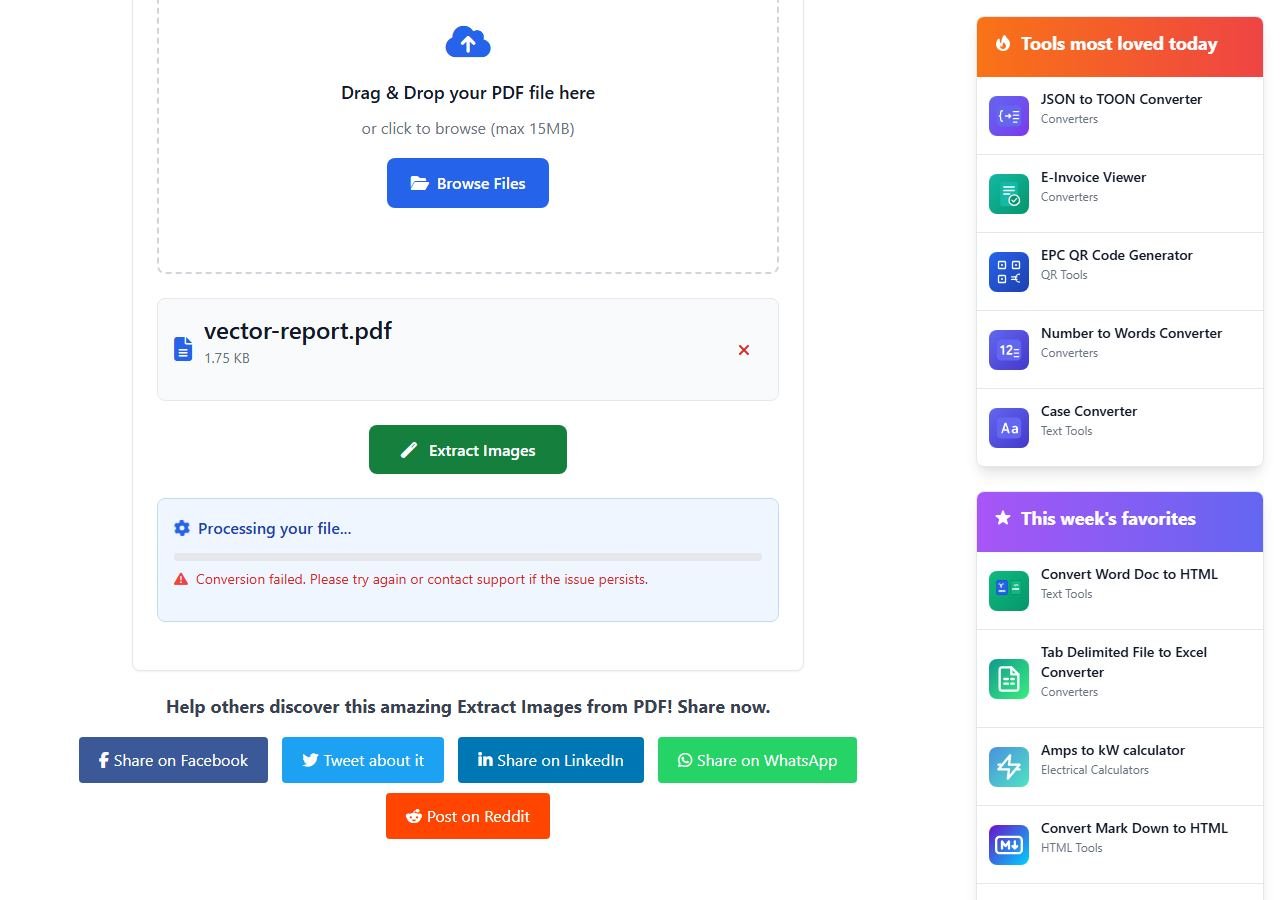
I built a one-page test report with a four-bar chart and a circle, all drawn as shapes, and ran it through our PDF image extractor. The job found zero images. And here's the annoying part: the page doesn't say so. It shows a generic "Conversion failed" line, while the real reason (no images, only text or vector graphics) only lands in our logs. If you see that message on a PDF that opens fine on your computer, vector art is by far the likeliest cause.
You can check before uploading anything. Zoom the PDF to 400% or more. Vector art stays sharp at any zoom, with clean edges on every bar and letter, while a photo goes soft or blocky. If the thing you want stays razor sharp, skip extractors entirely and go to rendering or a vector editor.
Extract images from PDF not working on a scan?
Scans fail the other way round. A scanner or phone app saves each page as one big image, so an extractor does find something: one picture per page, the whole sheet with its margins, the staple shadow and all the text. The photo you wanted is in there. It's just part of the page.
That isn't a bug, and with a scan the extracted page is actually the best copy you'll get. It's the original pixels at whatever resolution the scanner used, with no re-encoding. Pull it out, then crop the photo in any image editor. Rendering the page again at a higher DPI won't invent detail the scanner never captured.
Logos with a black box, and the same logo 40 times
Two smaller surprises catch people who did get images back.
First, transparency. PDF stores a transparent image as two pieces: the colour image and a separate mask saying which pixels show. The pdfimages manual spells this out in its notes on the -list option, where an image and its mask appear as separate entries. Our extractor saves only the colour part. I tested a red square on a transparent background and the PNG that came back had solid black where the transparency used to be, PNG output selected and all. pdfimages saves the mask as its own file, so you can rebuild the cut-out in an editor. Rendering the page gets you the logo on white, which is often all you need.
Second, repeats. A letterhead logo on every page of a 40-page contract is normally stored once and referenced 40 times. Our tool walks the document page by page and saves what each page uses, so you get page1_img1, page2_img1 and so on, all the same picture. PyMuPDF's image recipes (the library our extractor is built on) warn about this exact thing. Sort the ZIP by file size and bin the duplicates. With pdfimages, -list prints each image's object ID, so repeats are easy to spot.
One more gap, rarer: a few generators store tiny images, like icons or a scanned signature, inline in the page instructions instead of as separate objects. Our extractor skips those. Rendering catches them.
Render the page instead: the fix for charts and vector logos
If the picture is vector, turn the page itself into an image. Every viewer draws the page anyway; rendering just saves the result. The PDF to JPG converter does this at 72, 150 or 300 DPI, and takes a page range so you don't render a 60-page report to get one chart. The same test report that failed above went through first time.
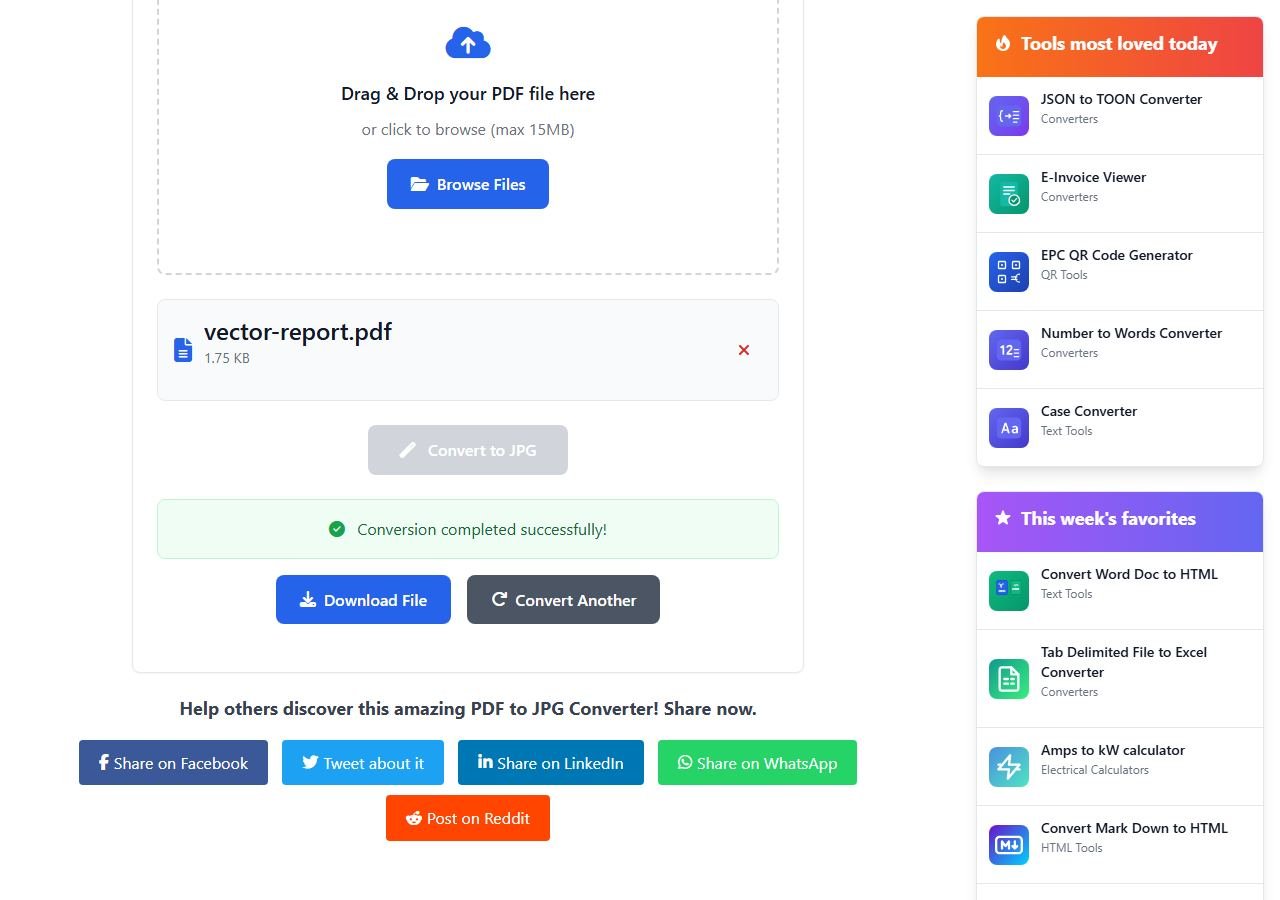
Go with 300 DPI if the chart is headed for print or a slide. 150 is plenty for email and the web. Then crop. You're getting a raster copy, so it won't scale up cleanly later, and any labels in the chart are pixels now too.
Don't want to upload the file? The Snipping Tool on Windows (Win+Shift+S) and Shift+Command+4 on a Mac grab whatever is on screen. Zoom in first. A screen grab is only as sharp as your monitor.
Getting the vector itself out with Inkscape or Illustrator
Sometimes pixels won't do. You need the logo at billboard size, or the bars in your company colours. Inkscape (free) and Adobe Illustrator (paid) both open a PDF page as editable shapes. Delete everything except the chart or logo, then save as SVG or export a PNG at any size you like.
Expect cleanup. One chart can come in as hundreds of nested groups, text may switch to a stand-in font if the original isn't installed, and clipping masks hide bits you have to release before anything will move. For a logo that's ten minutes. For a dense engineering drawing, budget an afternoon.
Which one I'd use
Photos in a brochure or report: any extractor, because you get the original file at full quality. A chart, diagram or logo that stays sharp when you zoom: render at 300 DPI and crop, or open it in Inkscape if it has to stay editable. A scan: extract, then crop.
And if the PDF came from a colleague, just ask for the source. The Excel sheet or the logo's SVG beats anything you can dig out of a PDF.