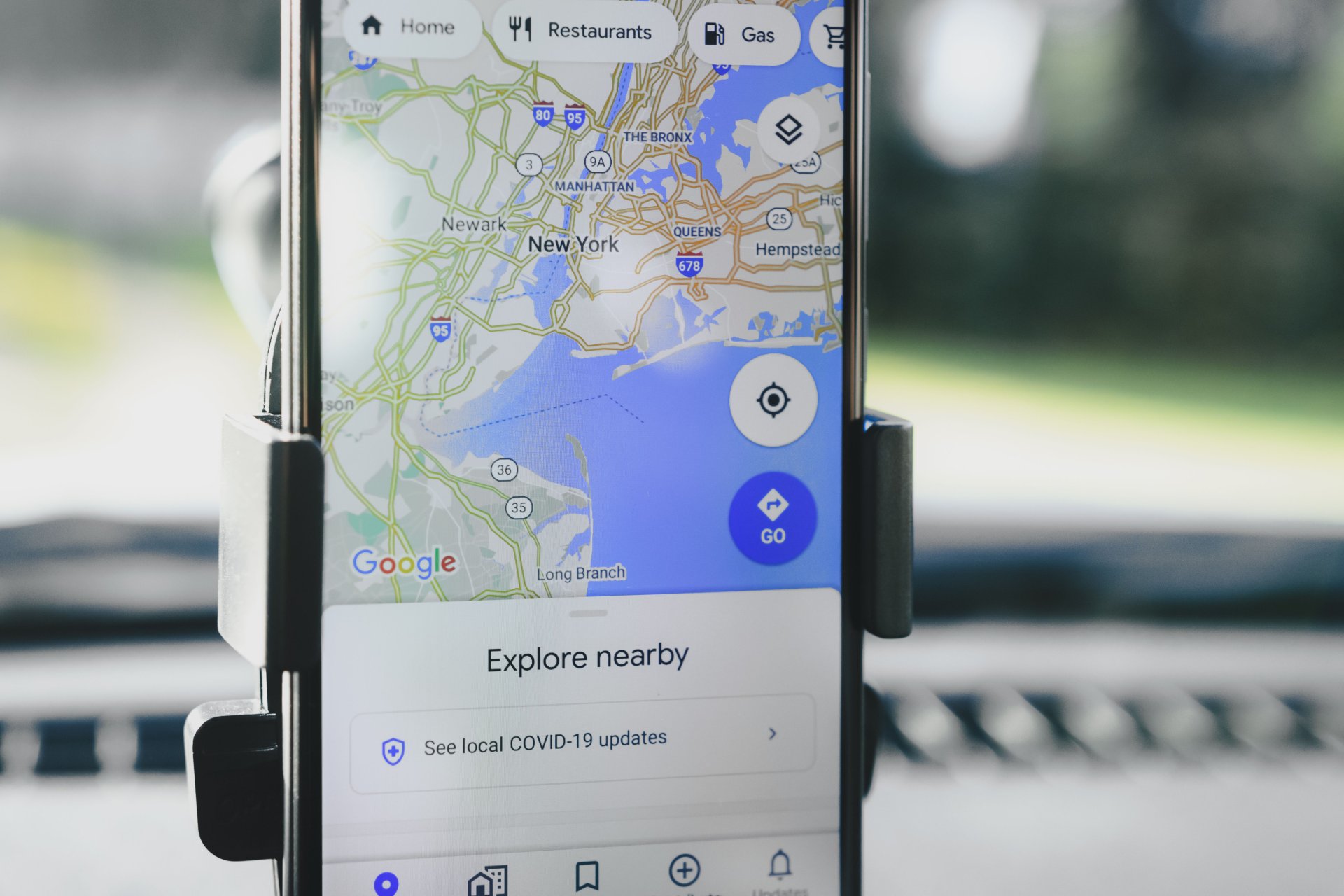
Google Maps Timeline Export Won't Open? Reading Timeline.json After the Move to Your Phone
Google moved Timeline onto your phone, and the export it gives you is a JSON file that nothing on your computer knows what to do with. Here is which of the four Timeline formats you actually have, how to open it, what the error messages mean, and how to check the file is complete before you wipe the phone.
You did the responsible thing. You found the export option buried in your phone's settings, saved your Google Maps Timeline, copied the file to your computer and double-clicked it.
Windows asked which app you'd like to use. Or Notepad opened a wall of curly brackets and stopped responding. Or your browser showed a few megabytes of text with the word semanticSegments near the top and nothing that looks like a map.
The file is almost certainly fine. The problem is that since Google moved Timeline onto phones, nothing on a desktop is built to read the export. Google Maps on a computer won't touch it, and Google's own help page says plainly that Timeline isn't available for Maps on your computer at all.
This guide covers what's actually inside a Google Maps Timeline export, which of the four formats you're holding, the ways to open it that work, and how to tell a damaged file from a healthy one before you reset the phone it came from.
Why your Google Maps Timeline export won't open anywhere
A .json file is structured text. It has no default program on Windows or macOS, so double-clicking it either triggers the app picker or hands it to a text editor. Text editors can open it, but a few years of location history can run to tens of megabytes, and basic editors get slow or freeze on files that size.
Even when it opens, you're reading raw data: timestamps, coordinates written as strings, probability scores, nested lists of points. It was never meant to be read by a person. It's a backup format that happens to be human-readable if you squint.
The old way of looking at this data was timeline.google.com in a browser. That's gone. So the export feels like a dead end, even though everything you need is in it.
What changed in 2024, and why older tools choke on the file
In December 2023 Google announced on its official blog that Timeline data would move from its servers to your device. Two details from that announcement matter here. Backups to the cloud are encrypted so that Google can't read them, and when you first turn Location History on, auto-delete is now set to three months by default. It used to be 18 months.
That second detail catches people. If you set Timeline up fresh on a new phone and never changed the setting, anything older than three months is being deleted on a rolling basis. Check it before you do anything else.
The deadline emails and the 90-day rule
Google rolled the switch out account by account. Users got an email giving them roughly six months to choose what to do; for many people the date was June 9, 2025, as Android Police and Android Authority reported at the time. Anyone who didn't act was told Google would try to move up to 90 days of Timeline data to the first signed-in device they used after the deadline. Anything older was deleted.
Then in March 2025 Google confirmed that a technical issue had wiped Timeline data for some users. According to 9to5Google, people who had encrypted backups switched on could restore from them. People without backups couldn't get anything back.
So if your export seems short, that's often the reason. The history didn't disappear during export. It was gone before you pressed the button.
Which Timeline export do you actually have?
There are four shapes this data comes in, and a viewer that only understands one of them will reject the others with an error that looks like your file is broken. Open the file in any text editor and look at the first few lines:
| Where it came from | Typical file name | What the start looks like | How coordinates are written |
|---|---|---|---|
| Android phone export | Timeline.json | An object with a semanticSegments list | Strings like 45.4642°, 9.1900° |
| iPhone export | Timeline.json or location-history.json | A bare list, no wrapper, starting with [ | geo:45.4642,9.1900 |
| Old Takeout, Semantic Location History | 2023_MARCH.json, one per month | An object with timelineObjects, each a placeVisit or activitySegment | Whole numbers such as latitudeE7: 454225900 (divide by 10,000,000) |
| Old Takeout, raw points | Records.json | An object with a locations list | latitudeE7 and longitudeE7 again |
Plenty of scripts and viewers written before 2024 expect the third row and nothing else. Hand them a phone export and they fail. That's not a corrupt file. It's a reader that's out of date.
If you still have an old Takeout archive from before the switch, keep it. Those monthly files are often the only copy of your pre-2024 history, and the phone export won't include years that never made it onto the phone.
How to get the Timeline export off your phone
On Android, Timeline lives in the system settings rather than in Maps: Settings, then Location, then Location services, then Timeline, then Export Timeline data. Phone makers rename and reorder these menus, so if the path doesn't match yours, search Settings for Timeline.
On iPhone, it's inside the Google Maps app. Tap your profile picture, open Settings, and look for the Timeline export under the personal content or location and privacy section; the label has changed between app versions.
Either way you get a single JSON file. Move it to a computer by cable or a cloud drive you trust, and wait for the transfer to finish completely. That last part turns out to matter.
Ways to open a Google Maps Timeline export on a computer
A text editor, for a quick look
VS Code, Notepad++ or BBEdit will open a large JSON file without much fuss, and most can fold the nested sections so you can see the structure. Good for confirming which format you have. Useless for answering 'does this go back to 2019?'
Excel, if you're patient
Excel can read JSON through Power Query: Data, Get Data, From File, From JSON. You'll land in the query editor and have to expand nested records column by column, and the phone export nests things several levels deep. It works for the old monthly Takeout files. For Records.json, keep in mind a worksheet stops at 1,048,576 rows, which a heavy decade of raw points can blow past.
A browser-based viewer that doesn't upload anything
This is the option most people actually want, with one condition: the file shouldn't leave your computer. A Timeline export shows where you live, where you work and how long you spent at a clinic. Uploading it to a site you found five minutes ago is a bad trade.
I'd look for a viewer that reads the file with JavaScript in the page itself. Our Timeline.json viewer works that way: the browser reads the file locally and parses it, and there's no server step. It accepts all four formats in the table above, and you can select several files at once, so an old Takeout folder and a new phone export merge into one report. Records.json only yields coverage there, not visits, because raw points don't record where you stopped.
There is a per-file size cap shown on the upload box, and a very large Records.json can go over it.
Unexpected end of JSON input, and other signs the file really is damaged
Sometimes the file genuinely is the problem. The usual culprit is a transfer that stopped early: a cloud sync that hadn't finished, or a copy started before the export was done writing.
The quick test is the last character. Scroll to the very end of the file. A complete Android export ends with a closing curly brace. An iPhone export ends with a closing square bracket. If it stops mid-word or mid-number, the file is cut short and no reader can fix it; export again.
Parsers phrase this differently. Browsers tend to say Unexpected end of JSON input. Python says Expecting value or Unterminated string. They all mean the same thing: the structure never closed.
Why place names are missing from the new Timeline export
This one surprises almost everyone. The old Takeout monthly files stored place names and addresses with each visit. The phone export mostly doesn't. A visit usually carries a place ID, coordinates and a semantic type, which is a label like HOME or WORK when Google assigned one.
So when a viewer shows 51.50135, -0.14189 where you expected a café name, that's accurate. That's the Android export. iPhone exports write coordinates as geo: strings, which some viewers don't read yet, so a visit can show up as an unknown place. The name isn't in the file. Turning coordinates back into names means sending them to a mapping service, which reintroduces the privacy problem you were trying to avoid. For most purposes, like proving you were at an address on a given date, the coordinates are the stronger evidence anyway.
Days that land on the wrong date
Timestamps in the phone export carry their own UTC offset, something like 2024-03-01T23:40:00.000+01:00. Any tool that groups activity by calendar day has to pick a time zone to do it, and most pick the one your computer is set to.
Ours does exactly that. If you spent a week in Tokyo and review the file from London, a late dinner can appear on the following day. Nothing is lost; it's a display quirk. Worth knowing before you conclude a day went missing.
Checking your Google Maps Timeline export is complete before you wipe the phone
If you're trading in or resetting a phone, the export is your only copy unless encrypted backup is on. Before the phone goes, check three things.
- The first date. Does it go back as far as you expect? If it starts three months ago, auto-delete got there first.
- The gaps. A coverage calendar or a day-by-day list shows missing stretches immediately. A dead phone, location switched off for a week, or a system update that switched Timeline off all leave the same red block.
- The last character of the file, as above.
In the viewer, the calendar only draws the most recent 36 months. The coverage CSV lists every day in the range, so for a longer history that's the file to check. The visit table on screen shows the first 500 visits; the visits CSV has all of them.
One more detail if you compare totals between tools. The phone export records trips twice in a sense: as activity segments with a distance, and as timelinePath breadcrumbs tracing the same route. Our distance total sums the activity segments only. A tool that adds both will report a bigger number, and it'll be wrong.
Where to keep the file afterwards
Treat it like a passport scan. Keep one copy on an encrypted drive or in a password manager's file storage and one offline. Turn on encrypted Timeline backup in Maps if you haven't, and set a calendar reminder to export again every few months. Exports don't update themselves, and the one on your laptop stops at the day you made it.
If you only do one thing today, check the auto-delete setting.