Telegram Export result.json Won't Open? How to Read and Search It
Your Telegram export is a folder with one giant result.json, or dozens of messages.html pages, and none of it searches across chats. Here's how to open it and find a message.
You exported your chats from Telegram Desktop and got a folder. Maybe it holds one result.json that makes Notepad hang. Maybe it holds a stack of messages.html, messages2.html, messages3.html pages, a set for every chat, and you're clicking through them hoping to spot the address someone sent you last spring. Ctrl+F only searches the page that's open. Nothing searches the whole export.
This is how I get from a fresh export to the one message I actually wanted. The first step matters most, because the format you pick at the start decides how painful the rest is.
Step 1: Export from Telegram Desktop and choose JSON
The phone apps and the web version won't do this job. Telegram's page on its data export format says you need Telegram Desktop installed, and the full export sits under Settings, Advanced, Export Telegram data. The same page says the result comes as JSON or as human-readable HTML.
- Pick the scope. For one conversation, open the chat, click the three-dot menu and choose Export chat history. For your whole account, go to Settings, Advanced, Export Telegram data and tick the chat types you want, such as personal chats and private groups.
- Change the format to Machine-readable JSON. If you leave it on HTML you get the pile of pages again.
- Untick media you don't need, or lower the size limit. Text barely takes any space. Videos are what make an export crawl.
- Start it and leave the window open until it reports it's finished.
On a computer you've only just signed in on, you may hit a wall: Telegram Desktop can hold the export for up to 24 hours unless you approve it from a device that's already logged in. Annoying, but it stops someone with a stolen login from quietly walking off with years of messages. Approve it on your phone and the export starts.
Step 2: Find the Telegram export result.json and see what's in it
Open the folder Telegram made. result.json sits at the top, with subfolders next to it for photos and files if you exported any. The JSON doesn't contain the pictures themselves. Telegram's documentation says every media item is referenced from result.json by a relative path, and that a path may be swapped for a warning depending on the media size limit and type filters you set.
What the file looks like depends on what you exported. A full export holds a list of all your chats, plus extras like contacts and sessions. A single-chat export is just that one chat. Each message reads roughly like this:
{
  "id": 1022,
  "type": "message",
  "date": "2025-03-03T11:28:00",
  "date_unixtime": "1741001280",
  "from": "Jonas Weber",
  "from_id": "user123456",
  "text": "Pizza it is then. I will order from Luigi",
  "text_entities": [{"type": "plain", "text": "Pizza it is then. I will order from Luigi"}]
}
A few fields trip people up. type is service instead of message for events like someone joining or a group being renamed, and those carry an action field. Replies have reply_to_message_id, forwards have forwarded_from. The nasty one is text. It's a plain string until a message has bold text, a link or a mention, and then it turns into a list of pieces. Any script that assumes a string will choke on the first formatted message. Read text_entities instead, which is always a list.
Step 3: Open the Telegram export result.json in a viewer
You can write that script. Or, if you'd rather just read the thing, the Telegram export viewer on this site opens result.json inside your browser tab and doesn't upload it anywhere. That matters for a file holding every private chat you've had.
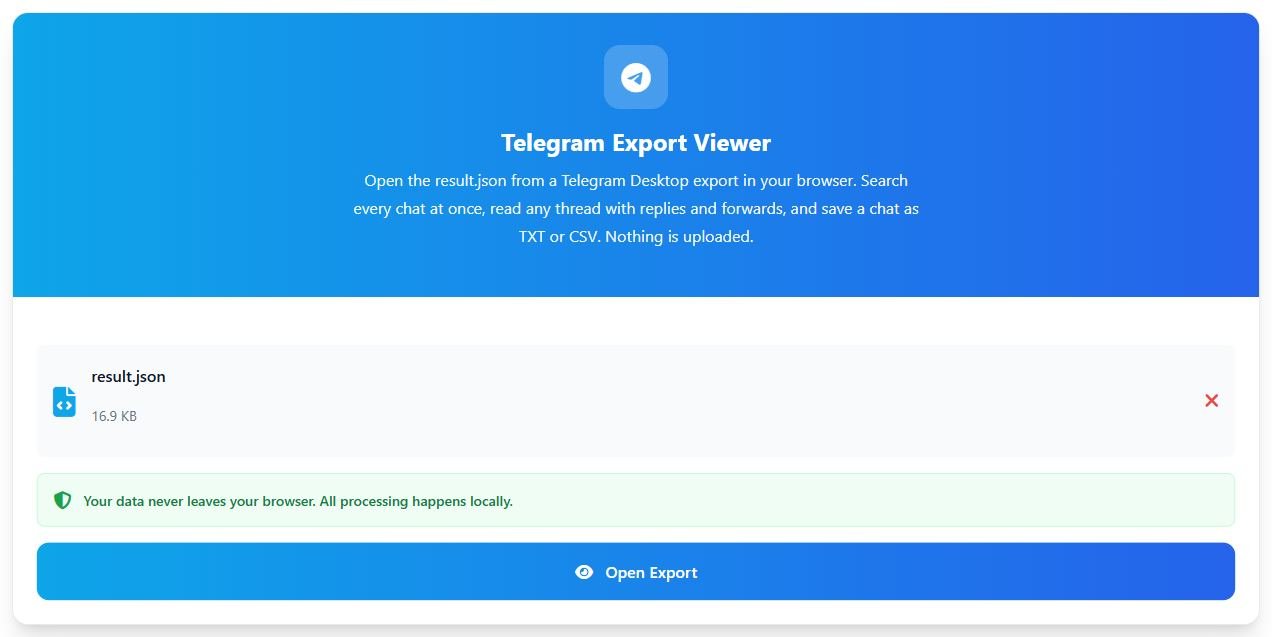
Drop in result.json on its own, or a zip of the whole export folder. The page shows the file name and size, a note that the data stays in your browser, and an Open Export button.
Know the limits before you wait on a big file. JSON over 500 MB is refused, because a single browser tab can't parse that much in one go. Zips over 1 GB need unzipping first. And if you feed it a messages.html page, it tells you to export again as JSON, since there's no clean way to turn those pages back into data. For an account too big for one file, export your heaviest chats one at a time from the chat menu.
Once it opens, the top bar shows how many chats and messages it found, the date range and whether this is a full account export or a single chat. A single-chat export opens straight into the conversation.
Step 4: Search every chat at once
This is the part HTML can't give you. Type a word in the Search every chat box. Pick something only that conversation would contain: a street name, an order number, a surname.
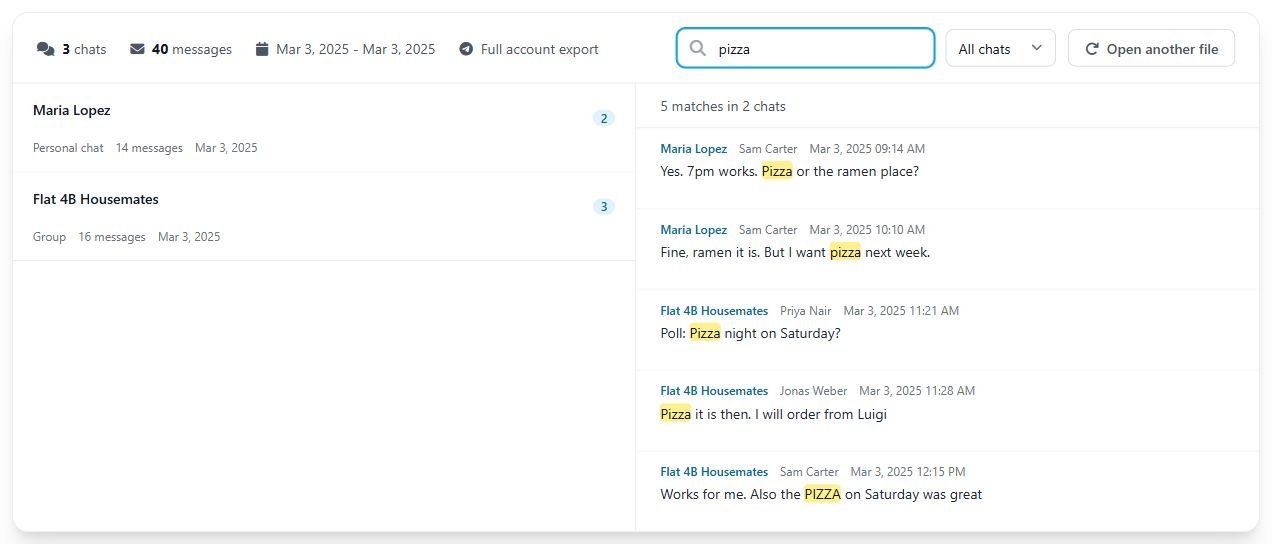
- The right side lists every hit with the chat name, the sender and the time, and the word highlighted in yellow.
- Above the hits, a line says how many matches turned up in how many chats.
- The chat list on the left shrinks to only the chats with hits, each with a small count.
In my test export, "pizza" found 5 matches in 2 chats, including "PIZZA" in capitals and a poll question.
It's a plain text match, ignoring case. It looks through message text, sender names, forwarded-from names, file names and poll answers. It won't forgive typos, and it won't find "flat" when the message said "apartment". Only the first 300 hits are listed. If a word is everywhere, type a longer phrase (it's matched exactly as typed, so word order counts) or use the dropdown to narrow it to People, Groups, Channels or Bots.
Step 5: Open the thread and save what you need
Click a hit. The chat opens at the page holding that message, with the message outlined in orange. Long chats come 100 messages per page.
Service messages show up as grey lines between the bubbles, so you can see when a group was created, who got added and when it was renamed. A reply shows a short quote of the message it answered, or a note saying that message isn't in the export.
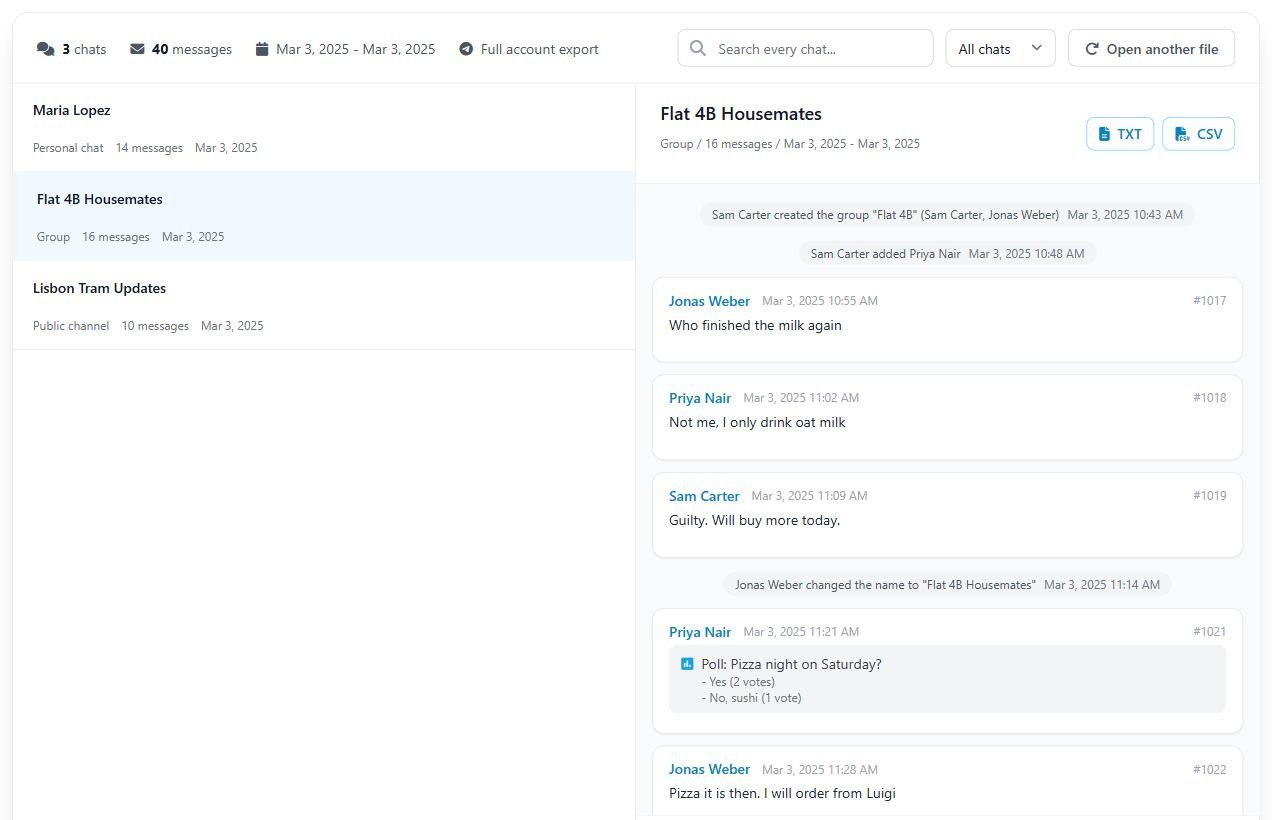
The TXT and CSV buttons save the whole chat you have open, matches or not. The CSV puts an apostrophe in front of any cell starting with = + - or @, so Excel shows it as text instead of trying to run it as a formula. Odd detail, but people do send messages that start with a minus sign.
What the export leaves out
Secret chats aren't there, and no viewer can bring them back. Telegram's FAQ says they're tied to the device they started on and aren't part of the Telegram cloud, so the desktop export never sees them.
Photos and videos don't appear in the viewer either. You get a line like "Photo:" with the file name, so you know which file in the folder to open. When a file was skipped because of your export settings, the line says the file wasn't included. Messages deleted before you exported are gone too.
If what you need is in a secret chat, the phone it lives on is the only copy, so screenshot it there before you log out of anything.