MP4 to GIF File Too Big? A Checklist to Shrink the GIF
A 9.8 MB MP4 clip became a 67.7 MB GIF. Why GIFs balloon, and a checklist of length, width, frame rate and palette settings, with measured sizes for each.
I took a busy 5-second clip at 720p and ran the command half the internet recommends, ffmpeg -i clip.mp4 clip.gif. The MP4 segment was 9.8 MB. The GIF came out at 67.7 MB. Nothing was added, the sound was thrown away, and the file still got almost seven times bigger.
So if your MP4 to GIF file is too big for Discord, Slack, an email or a forum post, you are not doing anything unusual. That ratio is built into the format. No setting reverses it, but the right settings cut the result by twenty times or more, which is normally enough. Below is the checklist I run before every conversion, with the sizes I measured at each step.
About the numbers: the test clip is 1280 x 720 at 30 fps, H.264 at CRF 23, with a lot of fine detail, constant motion and some added grain, roughly what a phone shoots indoors. Your files will give different numbers. The ratios between settings hold up well.
Why the GIF file size is so much bigger than the MP4
An MP4 from a phone is almost always H.264 or H.265, and both save most of their space by not repeating themselves. They store a full picture every so often and, for the frames in between, mostly record what moved. A clip of someone talking stores the wall behind them once.
GIF can't do that. The Library of Congress format description for GIF 89a puts it in one line: LZW compression and palette-based colour, 256 shades or fewer. LZW is lossless and reads the image as long runs of pixels, so it loves flat colour and hates anything photographic. Every frame is close to a picture in its own right. An encoder can save only the rectangle that changed since the last frame, but grain changes a little bit everywhere, and then that rectangle is the whole frame.
The 256-colour limit makes it worse. A real video has thousands of colours, so the encoder dithers, scattering dots of nearby colours to fake the in-between shades. Dither is a pattern of tiny dots, and tiny dots are exactly what LZW compresses badly. That's why a GIF of a screen recording stays small and a GIF of phone footage balloons.
The checklist: shrink the GIF file size before you convert
Go through it in order. The first three items do most of the work, and they multiply together.
- Cut it to the moment that matters. Every extra frame costs roughly the same. At 480 px and 10 fps my 5-second clip was 3.0 MB, and the first 3 seconds alone were 1.75 MB. Most reaction GIFs need 2 to 4 seconds. Find the start point first, then decide the length.
- Bring the width down to 480 px or less. Pixels grow with the square of the width. Same clip, same 10 fps: 320 px gave 1.5 MB, 480 px gave 3.0 MB, 800 px gave 7.7 MB. Chat apps show GIFs in a small box anyway. And never scale a small video up, it adds pixels without adding any detail.
- Start at 10 fps, not 15 or 20. At 480 px, 10 fps was 3.0 MB, 15 fps was 4.6 MB and 20 fps was 6.1 MB. Size climbs almost in step with the frame count. 10 fps looks a bit choppy on fast action and fine on nearly everything else.
- Know that 15 fps isn't really 15 fps. The GIF89a specification stores each frame's delay in hundredths of a second. 10 fps (10 hundredths) and 20 fps (5) fit exactly. 15 fps needs 6.67, which can't be written, so when I read the delay bytes of my 15 fps test file they ran 7, 6, 7, 7, 6, 7. The motion is very slightly uneven. If 10 fps is too choppy, try 20 at a smaller width before settling on 15.
- Use a palette made from your own clip. The plain one-line conversion uses a generic palette with error-diffusion dither, and that is how I got 67.7 MB. Building the palette from the clip's actual colours (FFmpeg's
palettegenandpaletteusefilters do this) gives cleaner colour. Ordered Bayer dither then keeps the file down, because its fixed grid repeats from frame to frame where diffusion dither shimmers. - Deal with grain before the GIF, not after. Low-light footage is full of sensor noise, and every speck that flickers makes the encoder rewrite that part of the frame. Better light, a tripod, or a denoise pass in your video editor will often shrink the GIF more than any GIF setting can.
- Crop what nobody looks at. Black bars, a static border, a webcam overlay you didn't want. Each costs pixels in every single frame. Crop in your editor first.
- Check the real size against the real limit. Look at the number before you upload. If it's 20% over, trim a second. If it's double, drop width and frame rate one step each.
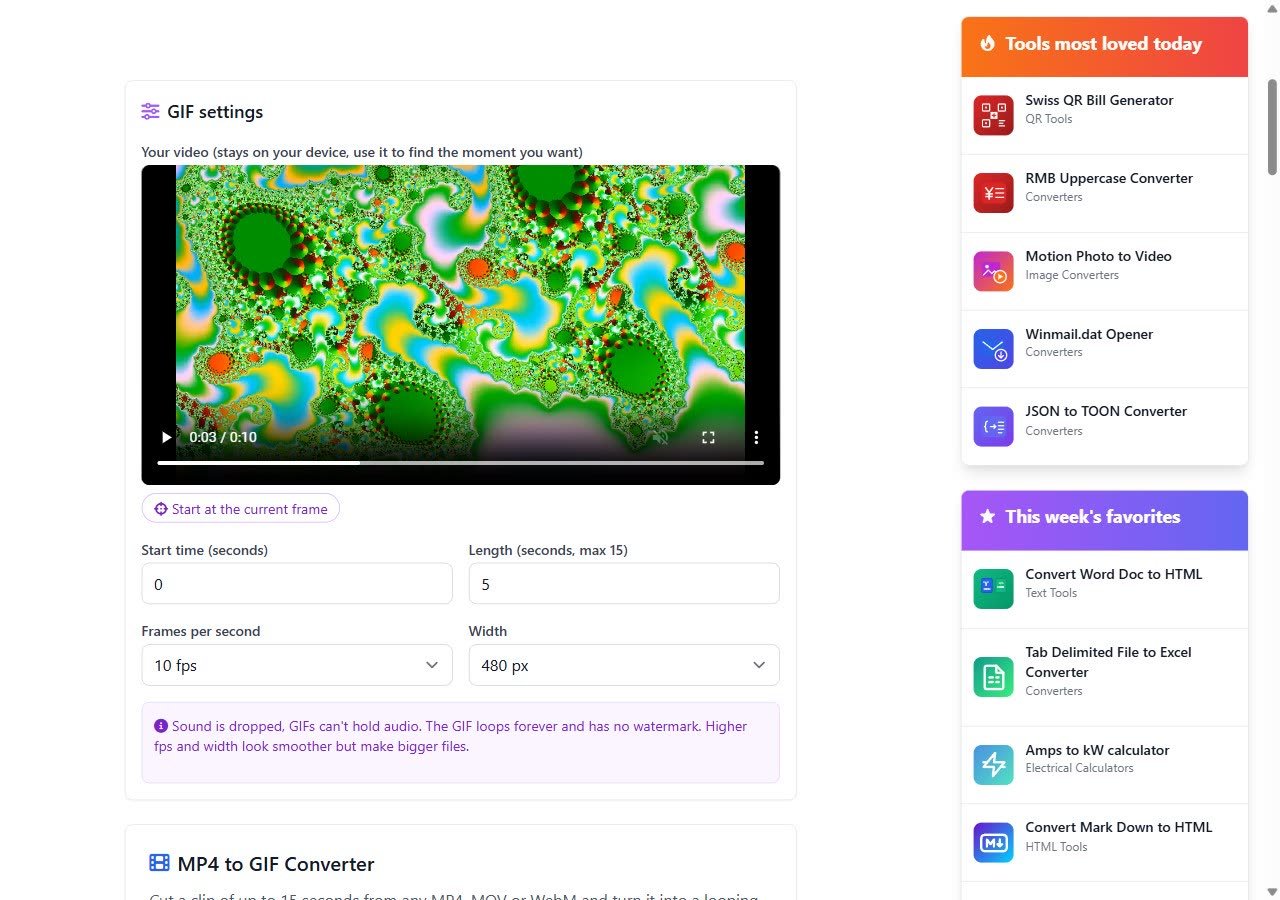
Items 1 to 4 are the knobs on the MP4 to GIF converter on this site, and it handles item 5 itself. You scrub to the start in a preview player that runs on your own device, then pick a length up to 15 seconds, a frame rate from 5 to 20 fps and a width from 240 to 800 px. It makes one palette from your clip, dithers with a Bayer pattern and never stretches a video past its own width. Grain and cropping are still on you.
If the GIF file size is still too big after converting
Go back to the MP4 and convert again with smaller settings. Running a finished GIF through a second compressor stacks new artefacts on top of the old dither, and it rarely looks as good as a fresh conversion.
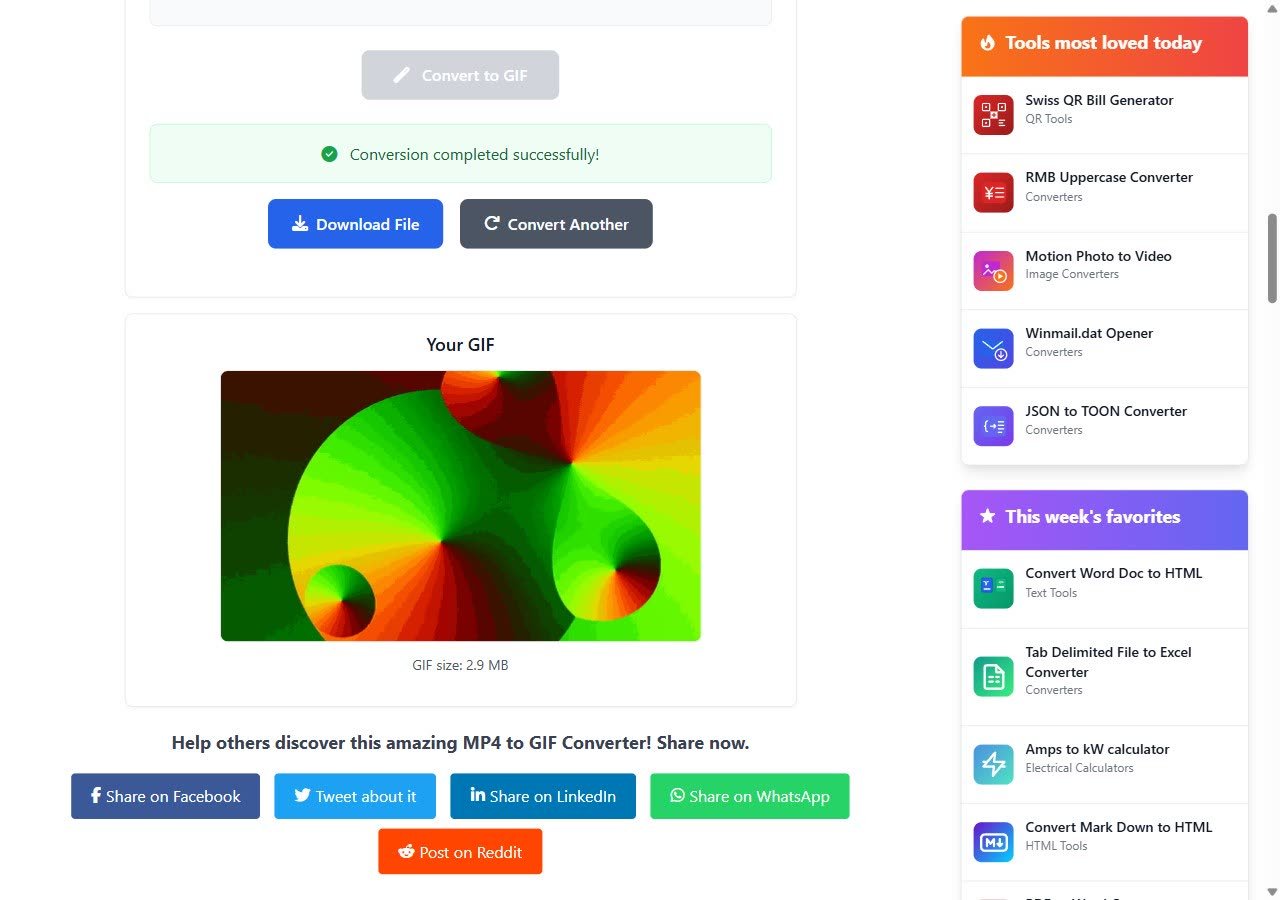
When you do go again, step everything down a little instead of one setting a lot. 400 px at 8 fps gave me 1.75 MB for the full 5 seconds, and it looked better than 320 px at 10 fps (1.5 MB). The extra width mattered more than the extra frames.
The worst combination I tried, 800 px at 20 fps, came to 15.4 MB for five seconds. That's the setting people choose when they want the GIF to look like the video, and it's how my 9.8 MB clip turned into a 15 MB GIF that most chat apps would refuse.
When to post the MP4 instead
Sometimes GIF is simply the wrong format. The same 5 seconds, scaled to 480 px at 10 fps but saved as an H.264 MP4, was 880 KB. The GIF at those settings was 3.0 MB, about three and a half times larger, with worse colour.
Discord, Slack and Telegram all play MP4 clips inline, so there the video is the better file. Keep GIF for the places video can't go: email bodies, README files, documentation, older forum software, and anywhere that needs to loop silently without a play button.
My rule of thumb: if the clip runs past about 6 seconds or the motion fills the whole frame, send the video.