WhatsApp Chat Export Shows "Media Omitted" and Odd Dates? Reading the .txt Step by Step
A WhatsApp chat export is one plain text file with a timestamp, a name and a message on each line. Here is how to export it, what Media omitted and the other odd lines mean, and how to stop the dates being read the wrong way round.
A WhatsApp chat export carries no settings with it. No time zone, no note saying whether 03/04/2026 is the 3rd of April or the 4th of March, no list of who was in the group. It's a text file where each line starts with a timestamp, then a name, then whatever was typed. Everything odd you see in it, from <Media omitted> to dates that jump backwards, comes from that.
I'll go through it in the order you'd actually hit things: getting the file off the phone, reading one line, decoding the strange lines, fixing the dates, and then pulling numbers out of it without retyping anything.
Step 1: Export the WhatsApp chat (with or without media)
The menus differ by phone, and so does what you get at the end.
- Android: open the chat, tap the three dots, then More, then Export chat. Pick Without media or Include media, then send it somewhere you can reach from a computer, like email or Drive. You'll usually end up with a file called something like
WhatsApp Chat with Flat 4B.txt. - iPhone: open the chat, tap the contact or group name at the top, scroll down to Export chat. You get three choices if there's media in the chat: With all media, With selected media, or Without media. Save it to Files so you can find it later.
The iPhone version always arrives as a ZIP, and the text inside is named _chat.txt. That's documented in WhatsApp's own help page on exporting chat history, which also mentions two things people find out the hard way: view once messages are never exported, and the export can't be imported back into WhatsApp. It's a text file, not a backup. If you want the chat on a new phone, you need the backup route instead.
Should you include media? For reading or counting messages, no. Without media is smaller and quicker to send. The messages are the same; only the lines where photos were sent change. Include it only if you actually need the photos, say for a dispute where the receipt someone sent matters.
Step 2: Read one line of the WhatsApp chat export
Open the .txt in Notepad, TextEdit, or any plain editor. Word works too but tends to reflow things. An Android line looks like this:
14/03/2026, 21:04 - Tom: Pizza tonight?The iPhone version of the same message puts the timestamp in square brackets, adds seconds, and drops the dash:
[14/03/2026, 21:04:12] Tom: Pizza tonight?Three parts, then. Timestamp, sender, text, with a colon and a space after the name. The name is whatever your phone has saved for that contact, so the same person can show up as "Mum" in your export and as a phone number in your sister's.
A message that had line breaks in it continues on the next line with no timestamp at all. That's the bit that wrecks things when you paste an export into Excel: each continuation lands in its own row with nothing in the date column, and sorting scrambles it. Any parser worth using glues those lines back onto the message above.
Step 3: What "Media omitted" and the other strange lines mean
Once you know the basic shape, the odd lines are easy to sort out.
<Media omitted>is Android's placeholder for a photo, video, voice note, sticker or document when you exported without media. The message existed. Its file just isn't in the export.image omitted,video omitted,audio omitted,sticker omittedare the iPhone versions. They're preceded by an invisible left-to-right mark (Unicode U+200E), which is why searching for the text sometimes fails even though you can see it.<attached: 00000012-PHOTO-2026-03-14-21-40-02.jpg>shows up on iPhone when you did include media. The filename matches a file sitting next to_chat.txtin the ZIP.This message was deletedandYou deleted this messagemean exactly that. The original text is gone, from the export and from the phone.<This message was edited>tacked onto the end of a line means it was changed after sending. Only the final version is in the file.- Lines with no name at all, like "Messages and calls are end-to-end encrypted" or "Priya added Tom", are system notices. They have a timestamp but nobody "said" them.
One thing to know before you lean on an export for anything serious: these placeholders are translated. A Spanish phone writes its own wording for omitted media and deleted messages, a German one writes another. If you search the file for the English phrase and find nothing, check what language the phone was set to.
Step 4: Fix odd dates in a WhatsApp chat export
The export writes dates in whatever format the phone uses. A UK phone writes day first, a US phone writes month first, and some phones write year first. Nothing in the file says which. So 03/04/2026 is ambiguous, and a spreadsheet or script that guesses wrong will put April's messages in March and leave you with a chat that seems to run backwards.
You can usually work it out by eye. Scroll until you find a date where one of the first two numbers is above 12. 14/03/2026 can only be day first, since there's no 14th month. If every date in a short chat stays at 12 or below, look at the order: read the wrong way, the dates jump backwards every few lines.
Times have their own quirk. Phones on a 12-hour clock write 9:04 PM, and some Chinese and Japanese phones put 下午 or 午後 in front of the time instead of PM after it. A parser that ignores those turns every evening message into a morning one.
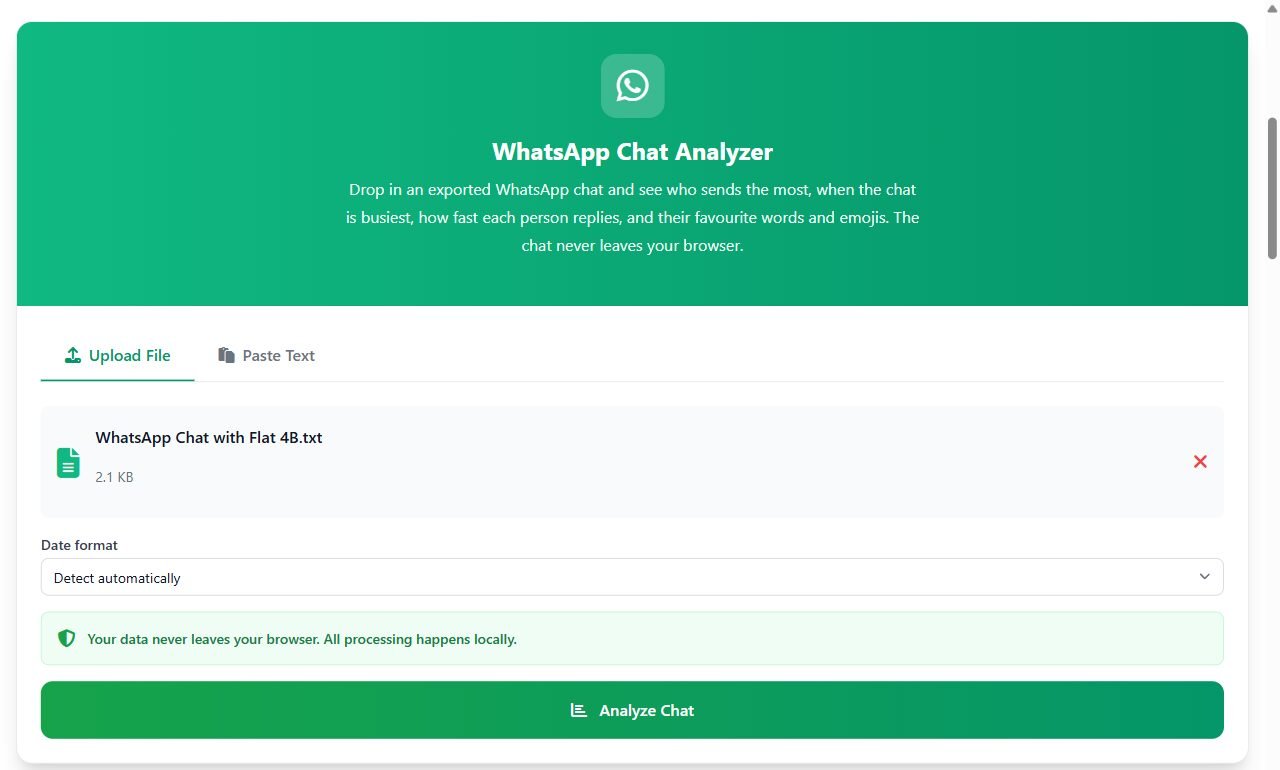
This is the part where I stopped doing it by hand. The WhatsApp chat analyzer on this site takes the .txt, or the iPhone ZIP as it is, and checks the dates in that order: a number above 12 settles it, otherwise it counts how often the dates go backwards under each reading and picks the one that goes backwards less. If you know better, there's a Date format menu to force day/month/year, month/day/year or year/month/day. It all runs in your browser, so the chat isn't uploaded anywhere, which matters when it's a family group or a work thread.
Step 5: Check what the parser actually read
After you run it, look at the grey box above the numbers before you trust any of them.
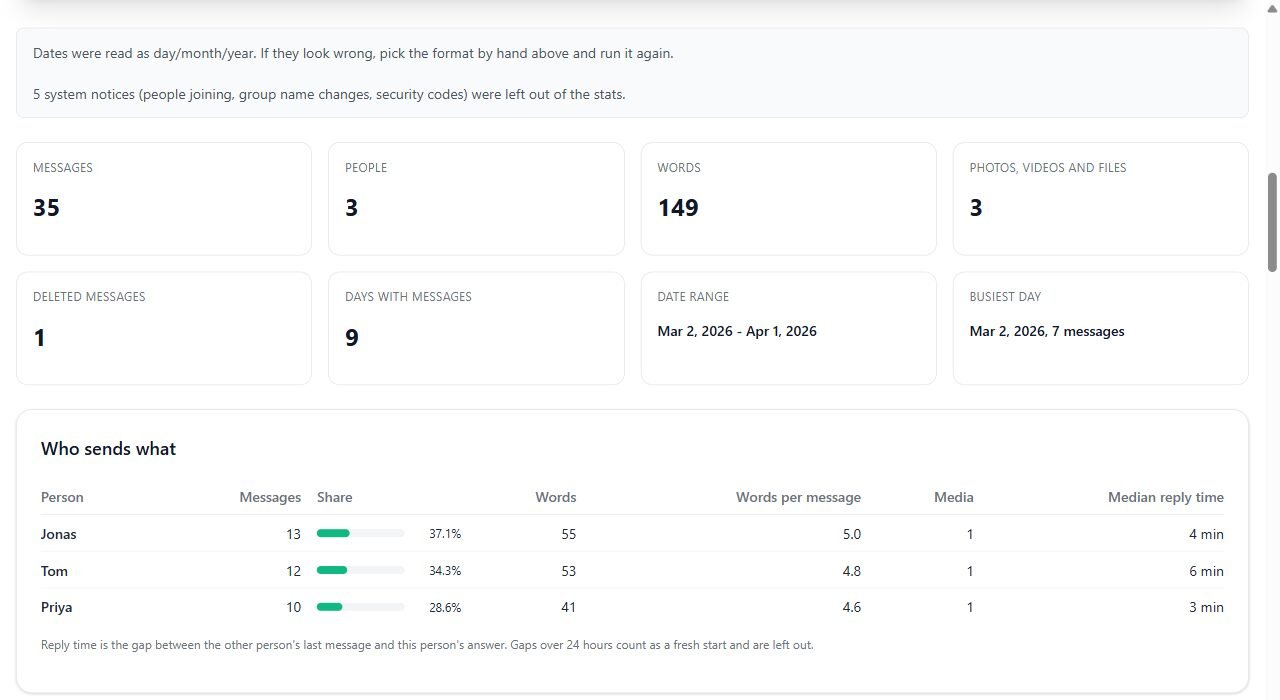
On my test file, a small flat-share group from March, it said the dates were read as day/month/year and that 5 system notices were left out of the stats. That's the encryption notice, the group being created, two people being added and one description change. The rest lined up with what I knew was in the file: 35 messages from 3 people, 3 photos counted under media, 1 deleted message. If the date range at the top looks wrong, for example a chat you started last spring showing up as running from January to December, change the Date format menu and run it again.
The median reply time column is worth a word, because people read too much into it. It measures the gap between someone else's last message and your answer, and it ignores any gap over 24 hours, so a week of silence doesn't drag the number up. It tells you who tends to reply fast in active conversations. It doesn't tell you who ignores whom.
If a parser says it found no messages at all, the usual cause is text that never went through Export chat. Messages copied by hand out of WhatsApp Web or the desktop app don't use the export's line layout, so nothing matches. Go back to Step 1 and export it from the phone.