JPG to PNG Transparent Background Still White? Why and How to Fix
Converting a JPG to PNG never removes the white box, because a JPG has no transparency to carry over. Five ways to actually cut the background out, compared, plus how to spot a fake checkerboard PNG.
I converted a 32 KB bakery logo from JPG to PNG this morning. The PNG came out at 143.4 KB, more than four times bigger, and the white box around the logo was exactly where it had been. Open the file in an editor and it even has an alpha channel. Every single pixel in that channel says "fully opaque".
That's the whole problem in two sentences. PNG can hold transparency, but a format change can't invent it. Something has to decide which white pixels are background and which white pixels are part of the picture, and a converter has no way of knowing. So the real question isn't which converter to use. It's which tool you'll use to cut the background out, and here's how the usual options stack up.
| Method | Cost | What happens to the white | Best for | Where it falls down |
|---|---|---|---|---|
| Any plain JPG to PNG converter | Free | Nothing. It stays solid white | Sites that demand a .png file, lossless copies for editing | Never makes anything transparent |
| Remove Background in Word or PowerPoint | Part of Microsoft 365 and desktop Office 2010 or later | Auto-detected, you correct it with keep and remove marks | Product shots, people, anything with a clear subject | Thin text and fine lines get clipped |
| Preview on a Mac | Free with macOS | One click removes it | Quick cutouts of photos | Mac only, little control over the edge |
| GIMP | Free, Windows, Mac and Linux | You pick the color or area to delete | Flat logos on plain white | Steeper learning curve, easy to eat into light parts of the logo |
| Photoshop or an online remover | Subscription or paid credits | AI subject detection with a mask you can edit | Hair, fur, busy backgrounds | Cost, and online tools mean uploading your image |
Why JPG to PNG doesn't give a transparent background
A JPG stores three numbers per pixel: red, green and blue. There's no fourth number for "how see-through is this". When the logo designer exported to JPG, whatever transparency the original artwork had was flattened onto white right then, and that information is gone.
PNG does have a fourth number. A converter has to fill it with something, and the only honest value is "fully opaque", because the JPG never said otherwise. That's what happened with my test file.
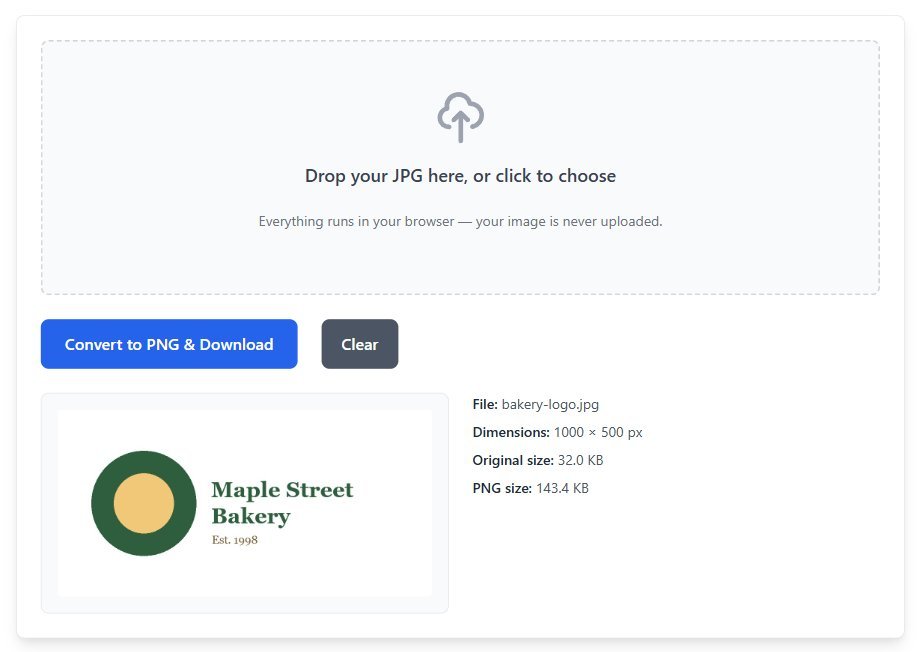
I used the JPG to PNG converter on this site, which runs in the browser: it draws the JPG onto a canvas at its original size and saves the canvas as PNG, pixel for pixel. Nothing is lost in that step, and nothing is cut out either. For a file that just needs to be a .png to get past an upload form, that's fine. For a transparent logo, it's the wrong tool, and so is every other straight converter.
The size jump catches people out too. JPG throws detail away to stay small; PNG keeps every pixel exactly, including the faint noise JPG compression left behind. Four times bigger is normal for a photo-like image.
The checkerboard that isn't transparent
Here's the other way this goes wrong. You search for a logo with "transparent background", download one that shows the grey and white checkerboard, and it turns out the checkerboard is part of the picture. Somebody saved a screenshot of a transparent image, squares and all, as a JPG.
Converting that to PNG gives you a PNG with a painted checkerboard. In the preview below you can see the squares sitting there as ordinary pixels. A real transparent PNG only shows a checkerboard inside an editor, as a display aid. The squares are never stored in the file.
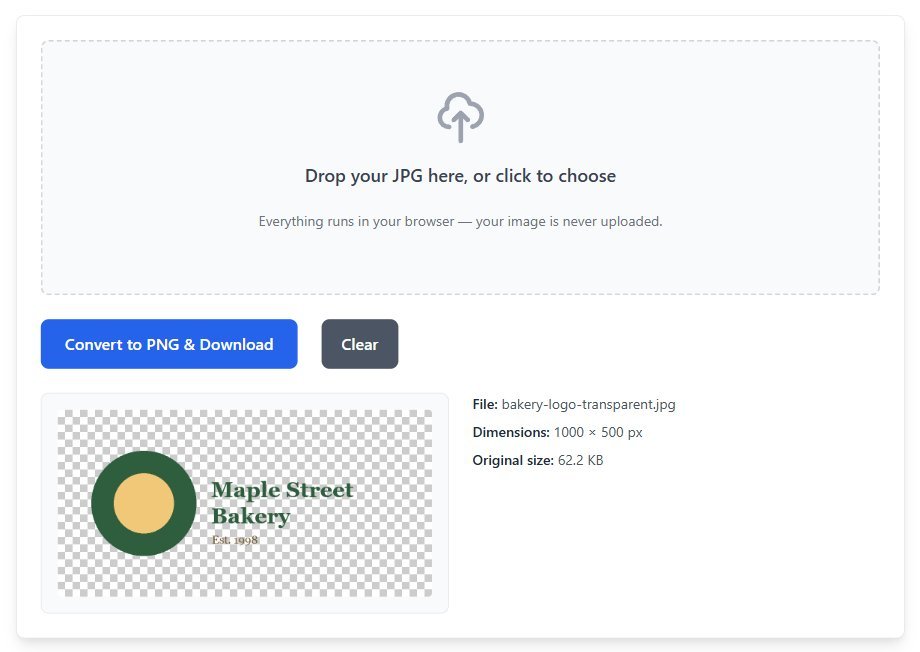
The quick tell before you download is the extension. A file ending in .jpg or .jpeg can't be transparent, so any checkerboard inside one is painted on. If you're stuck with a fake one, treat the squares as background and cut them out with one of the tools below. They're harder to select than plain white because they're two colors, so a subject-detection tool tends to beat a color picker here.
Getting a JPG to PNG transparent background with tools you already have
Word or PowerPoint
Most people have this and don't know it. Insert the JPG into a document or slide, select it, and choose Remove Background on the Picture Format tab. Microsoft's guide to removing a picture background walks through the rest: the part it plans to remove turns magenta, you fix mistakes with Mark Areas to Keep and Mark Areas to Remove, then right-click the picture and use Save as Picture. Pick PNG in that save dialog, not JPG, or you'll be back where you started.
It works well on photos with a clear subject. On a logo with small lettering it often swallows the gaps inside letters like "a" and "e", and fixing those with the pencil is slow.
Preview on a Mac
Open the image in Preview and click the remove background button. Apple's Preview guide notes that it may ask to convert the document to a PNG first, and that File > Duplicate keeps your original untouched. Take the duplicate. It's one click and you get very little say in where the edge goes, so check the result zoomed in.
GIMP for flat logos
For a logo that's a few solid colors on white, I'd use GIMP over anything automatic. Add an alpha channel first (Layer, Transparency, Add Alpha Channel). Skip that and pressing Delete just fills the selection with the background color, which is the most common "GIMP didn't work" complaint I've seen. Then use Select by Color on the white, raise the threshold a little, and delete.
Why raise the threshold? JPG compression leaves a halo. In my 1000 by 500 test logo, 27,560 pixels in the "white" area weren't pure white, they were slightly off-white specks hugging the edges of the circle and text. A selection that only grabs pure white leaves a grubby outline around everything. GIMP's Color to Alpha looks tempting for this, but it also makes light colors inside the logo partly see-through, so the beige center of my logo would go faint. Use it on black-and-white artwork only.
When paying for Photoshop or an online remover makes sense
Hair, fur, glass, smoke, a product on a busy shelf. That's where AI subject detection earns its money, and Photoshop's Remove Background quick action gives you a mask you can paint on afterwards rather than a fixed result. If you already pay for Creative Cloud, use it. If you don't, I wouldn't subscribe for one logo.
Online background removers are fast, but think about what you're uploading. A product photo is fine. A staff ID badge or a scanned signature is something I'd keep on my own machine, which is where the Office and Preview options win.
And if what you actually have is a vector logo (an .svg, .ai or .eps file), stop and ask the designer for a PNG export with transparency. That beats any cutout. Microsoft's page even notes that Remove Background is greyed out for vector formats like SVG, because there's no pixel background to remove in the first place.
Checking a JPG to PNG transparent background before you send it
A lot of viewers draw transparent areas on a white page. So a PNG that looks white in your photo viewer proves nothing either way. Drop it onto a dark slide or a colored document instead. If the white box shows up there, it's still in the file.
While you're at it, zoom to 200% and look at the edges. A thin pale fringe means the JPG halo survived; go back and widen the selection by a pixel or two. If you need the opposite trip later, from a transparent PNG to a JPG, the background has to be filled with some color, and the PNG vs JPG breakdown covers which format to keep as your master copy.
My blunt advice: ask whoever made the logo for the original file first. A five-minute email beats twenty minutes of cleaning up a halo.