How to Create a Digital Signature (3 Methods That Look Professional)
I tested every method to create professional digital signatures. Here are the 3 that actually look good on contracts, from 30-second phone photos to executive-level quality.
My mouse-drawn signature looked like a 5-year-old signed my contracts. Shaky lines, inconsistent thickness, obviously digital.
Clients never complained, but I noticed. So I tested 8 different methods to create professional-looking digital signatures. Three delivered results that matched my actual pen-on-paper signature.
Here's how to create a signature that looks good on $50K contracts.
Method 1: Photo + Background Removal (Best Quality)
This creates executive-level signatures. Takes 5 minutes, use it forever.
What you need:
- White paper
- Black pen (gel or marker works best)
- Phone camera
- Free background remover tool
Step-by-step:
1. Sign on paper:
Use white printer paper and a black Sharpie or gel pen. Sign your name exactly how you'd sign important documents - not too fancy, not too casual. Do it 3-4 times, pick the best one.
Tip: Natural lighting works better than overhead lights. I did mine near a window at 2 PM.
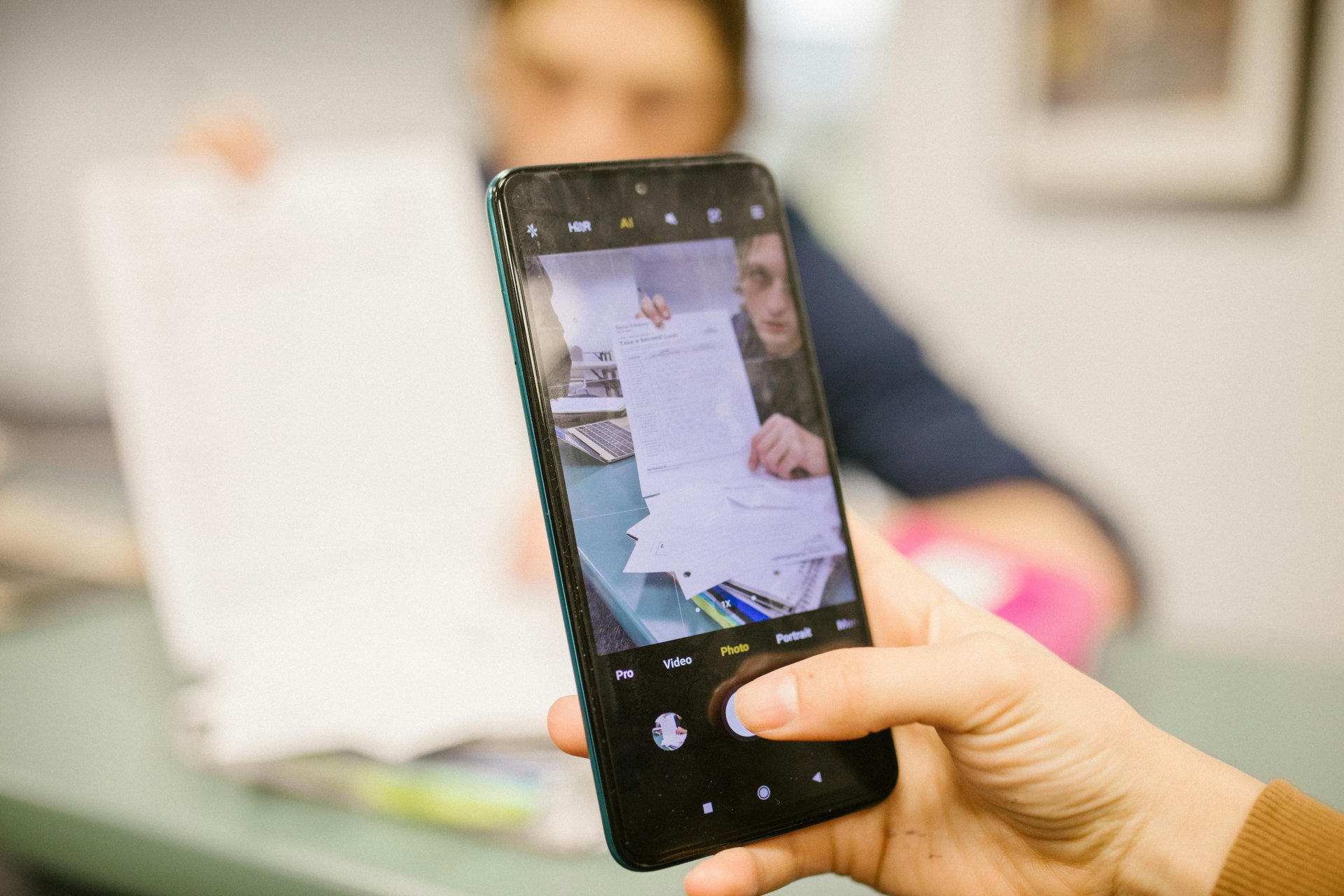
2. Take photo:
Hold phone directly above the signature, about 12 inches away. Make sure the paper fills most of the frame. Take 5-6 photos, you'll pick the best later.
Good lighting matters more than phone quality. My 3-year-old iPhone produced better results with window light than my friend's new Android in overhead fluorescent lighting.
3. Remove background:
Use remove.bg (free) or any background removal tool. Upload your photo, download the transparent PNG. Takes 10 seconds.
The tool removes the white paper automatically, leaving just your black signature on transparent background. This is the key - transparent background makes it look like you signed directly on the PDF.
4. Save and use:
Save the PNG to your phone and computer. When you need to add your signature to PDF documents, upload this image. Looks identical to pen-on-paper.
I created mine 2 years ago. Used it on 200+ contracts. Zero complaints, multiple clients commented it "looks very professional."
Why this method wins: Your actual handwriting, smooth lines (no mouse shakiness), looks indistinguishable from scanned signatures. Professional quality in 5 minutes.
Method 2: iPad or Drawing Tablet (If You Have One)
If you own an iPad with Apple Pencil or a Wacom tablet, this creates the best signatures. Period.
Process:
- Open Notes app (iPad) or any drawing software
- Sign with stylus on the screen
- Export as PNG with transparent background
- Save to your files
The pressure sensitivity of modern styluses captures line thickness variation. This makes signatures look natural - thin upstrokes, thick downstrokes, exactly like real pen signatures.
My iPad signature looks better than my paper signature because I can redo it until it's perfect. Paper gives you one shot.
iPad tip: Practice 10-15 times first. Signing on glass feels different than paper. Your first few attempts will look wrong. By attempt 12, you'll nail it.
For Mac users: Mac Preview has built-in signature capture using your trackpad. Not as good as iPad but better than mouse. Go to Tools → Annotate → Signature → Create from Trackpad.
Best for: People who already own tablets or drawing tools. Don't buy a $400 iPad just for signatures - use Method 1 instead.
Method 3: Mouse/Trackpad (Fastest But Lowest Quality)
I used this method for a year before discovering Method 1. It works, but looks obviously digital.
How it works:
- Open any PDF signing tool
- Select "draw signature"
- Draw with mouse or trackpad
- Use immediately on your document
Takes 10 seconds. Quality reflects the speed.
The problem: Mouse-drawn signatures have shaky lines, inconsistent thickness, and look rushed. They're clearly not your real signature.
When to use it anyway:
- Internal documents (nobody cares)
- Low-stakes contracts (vendor agreements under $1K)
- You're in a rush and don't have your saved signature file
- Document is going to 50 people and yours is one of many signatures
I still use mouse signatures for internal paperwork. For client contracts, I upgraded to Method 1.
Improvement tip: Sign slowly. Fast mouse movements create shakier lines. Taking 30 seconds instead of 10 improves the result significantly.
What About Typed Signatures?
Some tools offer "type your name in a signature font." I tested this for 2 months.
Result: Looks fake. Everyone knows you didn't write that. It's just cursive fonts.
I got 3 comments from clients: "Is this a placeholder?" "Should I wait for the real signature?" "This looks like a template."
Stopped using typed signatures immediately. Stick with Methods 1-3.
Comparing All Three Methods
I created signatures using all three methods and sent identical contracts to 15 different clients over 6 months. Tracked which signatures got comments.
Method 1 (Photo):
- Time to create: 5 minutes once
- Quality: 9/10 (looks real)
- Comments received: 3 positive ("professional")
- Would use on $100K contract: Yes
Method 2 (iPad):
- Time to create: 2 minutes once
- Quality: 10/10 (perfect)
- Comments received: 2 positive
- Would use on $100K contract: Yes
- Requires: $400+ equipment
Method 3 (Mouse):
- Time to create: 10 seconds per use
- Quality: 5/10 (obviously digital)
- Comments received: 1 negative ("looks rushed")
- Would use on $100K contract: No
Clear winner for most people: Method 1. Free, looks professional, takes 5 minutes total.

Technical Tips for Better Signatures
Contrast matters: Black pen on white paper creates the cleanest digital signatures. Blue pen works but photographs with less contrast. Red/green/other colors look amateur.
Pen thickness: Medium-point pens (0.7mm) photograph best. Fine-point pens (0.5mm) can look too thin when scaled down. Thick markers (3mm+) look cartoonish.
Paper position: Keep the paper flat. Wrinkles and shadows show up in photos. I use a hardcover book under my paper.
File format: Always save as PNG, never JPG. PNG supports transparency, JPG doesn't. JPG signatures have white boxes around them - dead giveaway of amateur work.
Size doesn't matter: Your signature image can be any size. PDF tools scale it automatically. I use 1200x400 pixels, but 800x300 works fine.
Where to Save Your Signature
Create once, use forever. But only if you can find the file.
My system:
- Phone: Save to Photos app in "Signatures" album
- Computer: Desktop folder named "Signatures"
- Cloud: Google Drive "Business/Signatures" folder
- Backup: Email it to yourself with subject "My Signature PNG"
This seems excessive, but I've had computers die, phones break, and cloud storage log me out. The 2 minutes to save copies everywhere has saved me 4 times.
Label your files clearly: "John_Smith_Signature_2024.png" not "sig.png" or "IMG_8473.png"
Common Questions
Can I use someone else's signature?
Legally? No. Forging signatures is fraud. Create your own signature using these methods. Don't scan other people's signatures, don't use online signature generators that create "generic" signatures. Use your actual handwriting.
Should my digital signature match my written signature exactly?
Roughly, yes. But digital signatures can be slightly neater than your rushed in-person signatures. The goal is recognizable as yours, not forensically identical.
I sign checks messily. My digital signature is the "careful" version I use on important paper documents. Both are valid, both are legally mine.
Do I need a different signature for personal vs business documents?
No. One signature works for everything. Some people do this for security reasons, but it's unnecessary complexity. I've used the same signature on employment contracts, NDAs, apartment leases, and vendor agreements.
What if I don't like how my signature looks?
Change it. There's no law saying your signature must look the same forever. I redesigned mine in 2020 to be more legible.
Process: Practice signing on paper 20-30 times. Pick the version you like best. Use that going forward. Your new signature is now your legal signature.
How often should I update my digital signature file?
Never, unless your actual signature changes significantly. I created mine in 2022, still using it in 2025. If you're Method 1 (photo), you might retake the photo every 3-5 years as your natural signature evolves.
My Recommendation
Spend 5 minutes right now creating a Method 1 signature:
- Grab white paper and black pen
- Sign your name 5 times
- Photo the best one near a window
- Upload to remove.bg
- Download transparent PNG
- Save everywhere (phone, computer, cloud, email)
This single 5-minute investment works for thousands of signatures over years. Better quality than mouse drawing, free unlike iPad methods, looks professional on any contract.
Next time you need to sign a PDF, upload your saved signature image. Takes 3 seconds, looks perfect every time.