WAV File Rejected? How to Convert MP3 to 16-bit WAV That Apps Accept
Two WAV files can share an extension and almost nothing else. This walkthrough shows how to read what's inside a WAV, why 24-bit and 32-bit float files get refused, how to convert MP3 to 16-bit WAV, and what to do when the sample rate is the real problem.
A .wav file is a box, and the extension tells you nothing about what's in it. One WAV holds 16-bit whole-number samples, 44,100 of them per second. Another holds 32-bit floating point samples at 96,000 per second across six channels. An old hardware sampler, a phone system or a picky upload form will take the first and refuse the second, and the error almost never says why. You get "unsupported format" or "invalid file" and that's it.
The fix is nearly always the same: hand the app a plain 16-bit PCM WAV at the sample rate it expects. Below is how I check a file, how to convert MP3 to 16-bit WAV, and what to do when bit depth isn't the problem at all.
Step 1: Find out what's inside the WAV
Don't convert blind. On Windows, right-click the file, choose Properties, open the Details tab and read the Bit rate line. For uncompressed audio that number is just sample rate times bit depth times channels, so you can work backwards:
- 1,411 kbps is 44.1 kHz, 16-bit, stereo. CD audio. Nearly everything accepts it.
- 1,536 kbps is 48 kHz, 16-bit, stereo, the usual rate for video.
- 2,304 kbps is 48 kHz, 24-bit, stereo. Field recorders and DAW exports hand you this a lot.
- 3,072 kbps is either 48 kHz 32-bit float or 96 kHz 16-bit. Same number, different file, so you need a second opinion.
- 705 kbps is 44.1 kHz, 16-bit, mono.
For the second opinion, ffprobe yourfile.wav prints a stream line that includes pcm_s16le, 48000 Hz, stereo and s16, with a few extra fields in between. pcm_s16le means signed 16-bit, pcm_s24le is 24-bit and pcm_f32le is 32-bit float. If you already see s16 and the app still complains, skip ahead to the sample rate section, because converting the bit depth won't change a thing.
Why 24-bit and 32-bit float WAV files get refused
It comes down to the header. The original WAV header has a format tag, and plain PCM is tag 1. Microsoft's documentation for the WAVEFORMATEXTENSIBLE structure says the extended header exists for audio with more than two channels or a higher sample resolution than the basic header allows. Plenty of older readers only learned the basic one.
I checked this with FFmpeg rather than take it on faith. The same 48 kHz stereo MP3 written as 24-bit and as 32-bit float came out with format tag 65534 in both files, the extensible marker. Written as 16-bit, the tag was 1. So a reader that only knows tag 1 sees a number it has never met and bails out, even though the audio itself is fine. Float has a second strike against it: plenty of samplers and embedded players simply can't do floating point maths on samples.
That's why 16-bit stereo is the safe choice. It's the one combination nearly every WAV reader understands.
Step 2: Load the MP3 into the converter
If your source is an MP3, there's no higher bit depth to protect anyway. An MP3 only holds what the encoder kept, and 16 bits is plenty to carry all of it. I use the MP3 to WAV converter on this site for single files because there's nothing to configure. Pick the file and it shows the name, size and the MP3 to WAV direction before anything uploads. The limit is 50 MB, which covers about 35 minutes of a 192 kbps MP3.
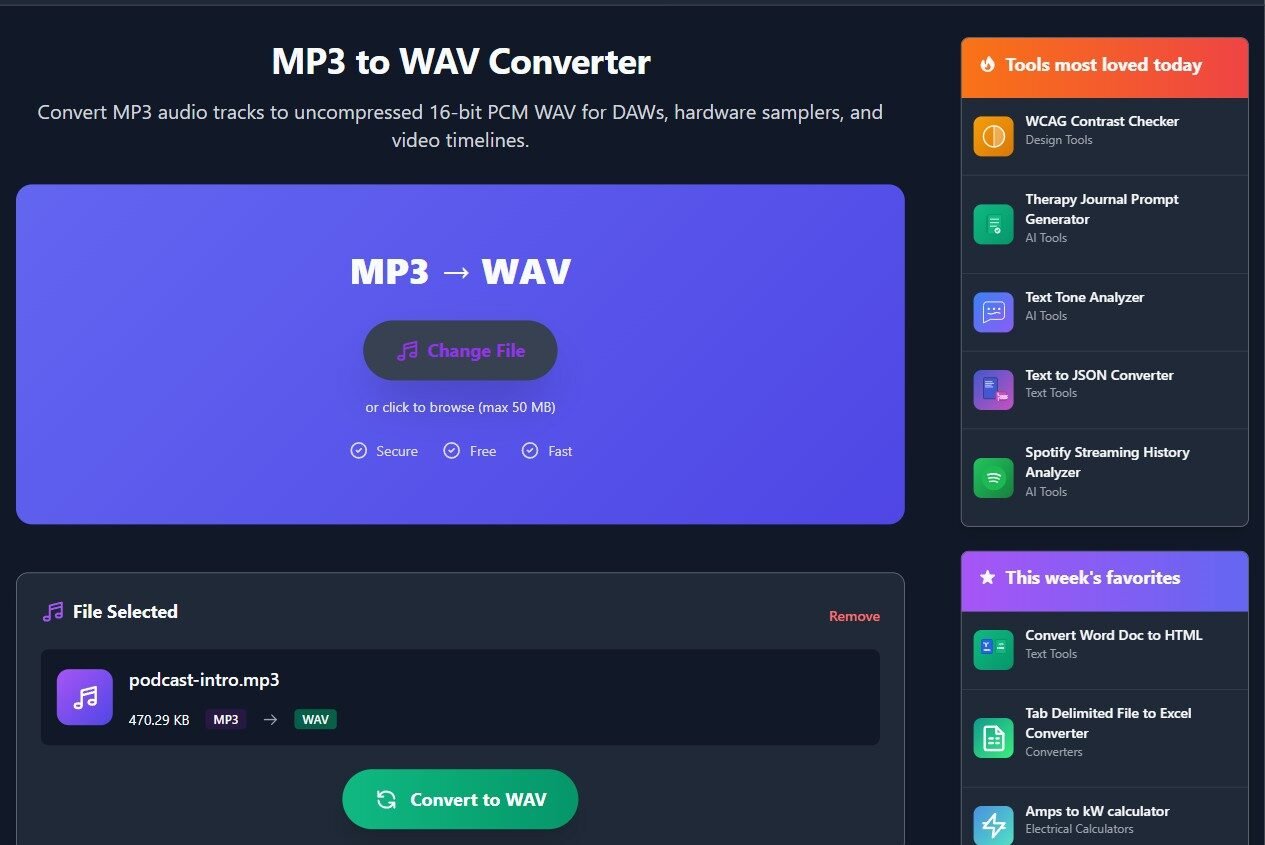
My test file was a 20-second stereo clip at 48 kHz and 192 kbps, 470 KB on disk. Hit Convert to WAV and the file goes into a processing queue. On a short clip that's a few seconds.
Step 3: Convert MP3 to 16-bit WAV and check the result
When it finishes you get a single Download File button. Under the hood the converter runs FFmpeg with the pcm_s16le codec, so every WAV it produces is signed 16-bit little-endian PCM with format tag 1. There's no setting that turns it into 24-bit or float by accident.
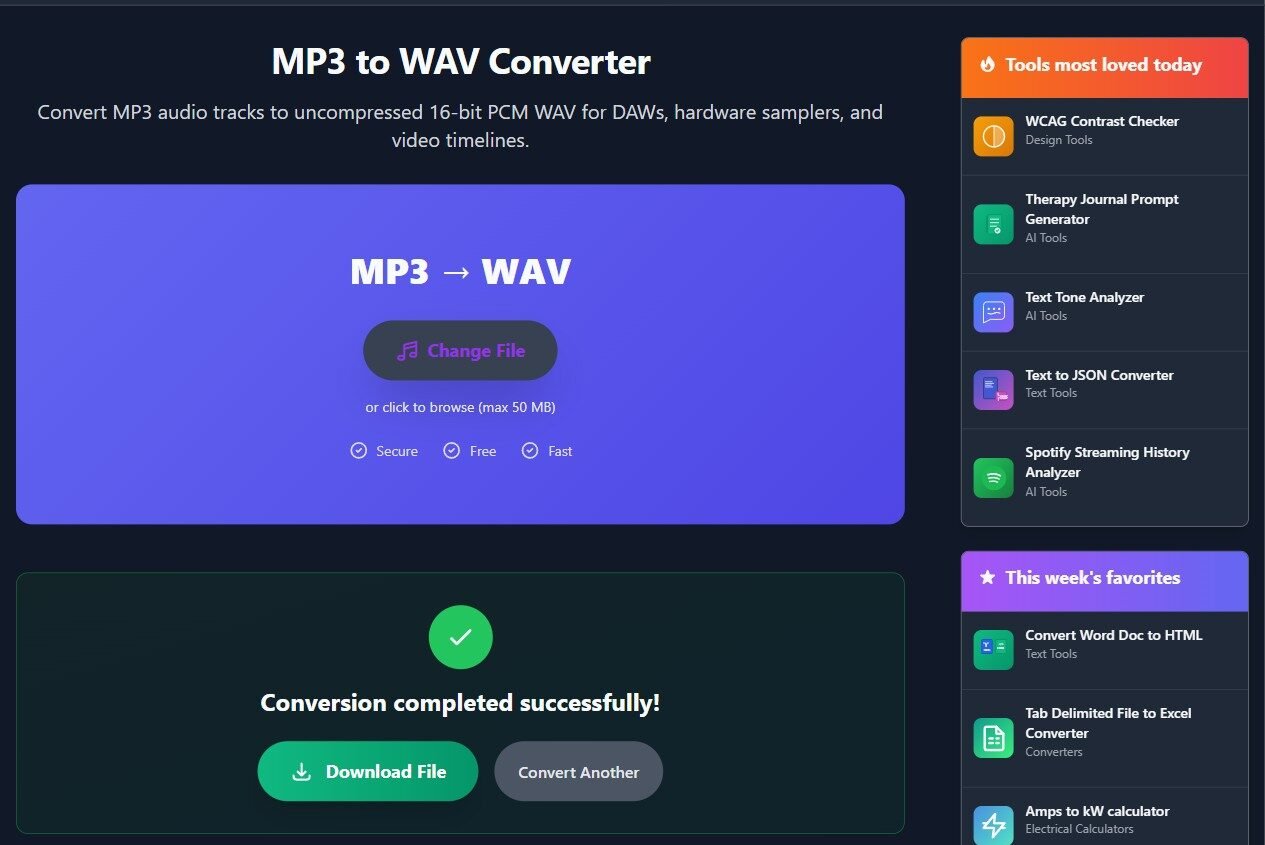
What it doesn't do matters just as much. It keeps the sample rate and channel count of your MP3. My 48 kHz stereo clip came back as 48 kHz stereo, 3.84 MB, roughly eight times the MP3. A 44.1 kHz MP3 comes back at 44.1 kHz. Mono stays mono. If the app on the other end needs a different rate, you'll have to change that separately, which is the next step.
Run ffprobe on the download, or check the Bit rate line again. You want s16 and the rate the app asked for.
Step 4: When the 16-bit WAV is still rejected, fix the sample rate
Bit depth gets the blame, but a mismatched sample rate is just as common. Some samplers only load 44.1 kHz. Video editors are happiest at 48 kHz. Telephony systems usually want 8 kHz mono, and a 44.1 kHz stereo prompt either fails to load or sounds wrong. The app's own documentation normally lists the exact rate, so look there first instead of guessing.
With FFmpeg installed, one line does rate, channels and bit depth together:
ffmpeg -i input.mp3 -ar 44100 -ac 2 -c:a pcm_s16le output.wav
Swap 44100 for 48000 or 8000, and -ac 2 for -ac 1 if you need mono. In Audacity you'd set the project sample rate first, then export as WAV and pick Signed 16-bit PCM as the encoding.
One warning. Don't resample twice. If the app wants 44.1 kHz and your source is 48 kHz, go straight from the original to 44.1 in a single pass. Bouncing between rates a few times won't ruin a voice prompt, but it adds a little filtering each time, and on music you may hear it in the top end.
Does a 16-bit WAV from an MP3 sound any better?
No, and it won't sound worse either. The MP3 encoder already threw away what it threw away. Converting to WAV just writes the decoded result out in a format that doesn't need decoding again, which is why it's so much bigger. A rough rule for 44.1 kHz 16-bit stereo is a little over 10 MB per minute, and closer to 11.5 MB at 48 kHz.
So convert when an app demands WAV, not to rescue an old MP3. If you have the original 24-bit recording somewhere, convert that one to 16-bit instead. You'll start from more detail, and the result will be cleaner than anything decoded from an MP3.