
PNG to JPG Turned the Transparent Background Black? Why, and How to Get White
A transparent PNG saved as JPG comes out with a black (or stranger) background. Our logs, six test conversions and the PNG spec explain why, and how to get white instead.
Our PNG to JPG converter has run 995 times since it went live on June 24, 2026, and it has logged exactly zero failures. That figure is useless for this problem. A logo that comes out of a converter with a black box around it isn't a failed conversion. The converter did its job, wrote a valid JPG and reported success. The only thing that noticed anything wrong was you.
So this post isn't built on error counts. It's built on what our records can tell us about who does this conversion, plus a set of tests I ran on one small logo through six different converters, measuring the actual pixel colours that came out. The short answer to why your transparent background went black is that JPG can't store transparency, and the converter had to put something in those pixels. What it puts there depends on the software, and it isn't always black.
What our conversion records show, and what they can't
Here's the monthly count for PNG to JPG on this site:
- June 2026 (from the 24th): 46
- July: 159
- August: 281
- September: 329
- October (to the 29th): 180
That's 168 conversions in the last 28 days alone, which makes it one of the busiest image tools we have. For comparison, the reverse direction, JPG to PNG, did 275 jobs over the same five months.
What the records don't contain is file sizes, file names or anything about the images. That's not modesty on our part. This converter runs entirely in your browser, so the file never reaches our server and the only thing we record is that a conversion happened. It also means I can't tell you how many of those 995 PNGs had transparency. Logos, icons, screenshots with rounded corners and product cut-outs are the usual suspects, and in my experience they're exactly what people try to squeeze into an upload form that only takes JPG.
Why PNG to JPG turns a transparent background black
A PNG with transparency stores four numbers for every pixel: red, green, blue and alpha. Alpha is the opacity. Zero means fully see-through, 255 means solid. A JPG stores three numbers and has nowhere to put the fourth.
So any converter going from PNG to JPG has to decide what colour each transparent pixel becomes. There are really only two honest options: blend the image onto a background colour you choose, or throw the alpha away and keep whatever red, green and blue values happen to be sitting under it.
That second option is where the black comes from, and it surprises people because a transparent pixel looks like it has no colour at all. It does. Section 6.2 of the W3C PNG specification says plainly that the colour values in a pixel are not premultiplied by its alpha. In other words, PNG keeps the full red, green and blue for every pixel, and the alpha sits beside them as a separate number. A pixel can be 100% transparent and still be stored as pure black, or pure pink, or leftover blue from whatever was painted there before someone erased it. Most graphics software fills empty areas with zeros, and zero red, zero green, zero blue is black.
The same logo through six converters
To check this properly I made an 800 by 500 PNG: a blue rounded rectangle with "PNG" in white, sitting on a fully transparent background, with a faint semi-transparent ring around the edge (about 35% opacity) to stand in for the soft shadow or anti-aliasing most real logos have. I made two copies. In one, the transparent pixels hide black underneath. In the other, they hide hot pink. On screen, both files look identical.
Then I converted each one and read back the pixel values with ImageMagick. "Corner" is a pixel in the transparent background. "Edge ring" is a pixel in the faint outline, which should come out as a pale blue if it was blended properly.
| How it was converted | Corner (black copy) | Corner (pink copy) | Edge ring | JPG size |
|---|---|---|---|---|
ImageMagick 7.1, plain magick in.png out.jpg | Black | Pink | Solid blue (31, 91, 201) | 26.4 KB |
Python Pillow 12, convert("RGB") | Black | Pink | Solid blue (31, 91, 201) | 21.6 KB |
| Python Pillow 12, saving RGBA straight to JPG | Refuses: "cannot write mode RGBA as JPEG" | |||
| Chrome canvas, no background fill | Black | Black | Dark navy (8, 32, 70) | 17.9 KB |
ImageMagick with -background white -flatten | White | White | Pale blue (178, 198, 235) | 27.5 KB |
| Our converter (white fill, 92% quality) | White | White | Pale blue (175, 199, 237) | 19.2 KB |
Sizes are for the black copy, which started at 8.0 KB as a PNG. A few things in that table are worth slowing down for.
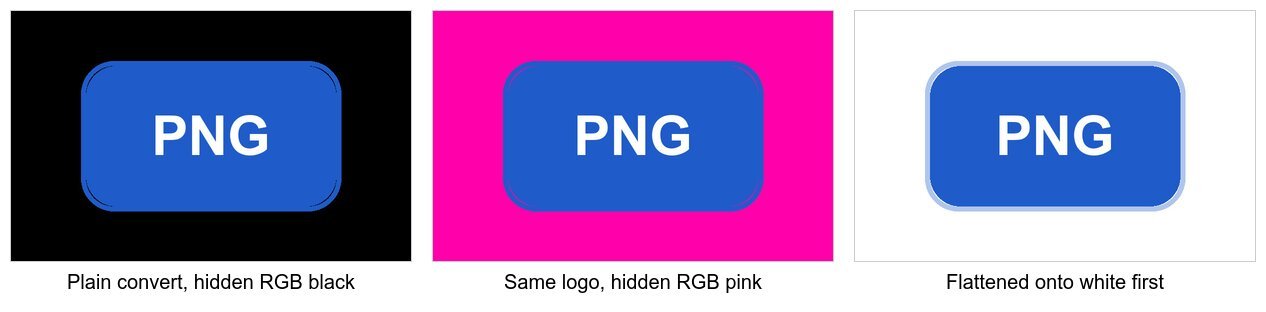
The pink test: the colour was hiding under the transparency
The plain ImageMagick and Pillow conversions didn't "turn the background black". They revealed what was already there. When the hidden colour was pink, the JPG came out pink. That's the clearest proof I know that the black background isn't a default or a bug in the converter. It's data that was always in your file and was simply invisible.
Chrome's canvas behaved differently. Both copies came out black. A browser canvas doesn't keep the hidden colour of a fully transparent pixel, so by the time the image is drawn, those pixels are black with zero opacity, and encoding to JPG keeps the black. That's why so many simple web-based converters give you black no matter what file you feed them. It's one missing line of code: fill the canvas with a colour before drawing the image.
The edge problem you won't notice until it's printed
Look at the edge ring column again. The faint 35% outline should blend into whatever background it lands on. Converters that just drop alpha turn it into solid, fully saturated blue (31, 91, 201), so a soft shadow becomes a hard line. The no-fill canvas did blend it, but into black, which gives a muddy navy halo.
On a black background you'd never see this. Put that JPG on a white web page or a printed flyer, though, and you get a dark fringe around every curve and every letter. Anti-aliased text suffers most, because the smoothing pixels around each letter are exactly these partly transparent ones. If your converted logo looks oddly jagged or "dirty" around the edges, this is almost always why, even when the main background came out white after someone painted over it by hand.
Getting a white background instead of black
The fix is to composite the image onto a solid colour first, then save. In every tool, that's the step to look for.
ImageMagick:
magick logo.png -background white -flatten -quality 92 logo.jpg-background white -alpha remove gave me byte-for-byte the same file. Swap white for any colour, including hex: -background "#f4f1ea" worked for an off-white page background and the corner pixel came out exactly (244, 241, 234).
Python Pillow:
from PIL import Image
im = Image.open("logo.png")
bg = Image.new("RGB", im.size, (255, 255, 255))
bg.paste(im, mask=im.getchannel("A"))
bg.save("logo.jpg", quality=92)
That ran on the pink copy and gave a white corner and a pale blue edge ring. One catch: getchannel("A") only works on images that have an alpha channel. A palette PNG with transparency needs im = im.convert("RGBA") first.
In a browser, without installing anything: if you just need one file done, our PNG to JPG converter fills the canvas with white before it draws your image, which is why its row in the table matches the ImageMagick flatten result almost exactly. There's a quality slider from 50 to 100 (it starts at 92), and it handles one image at a time.
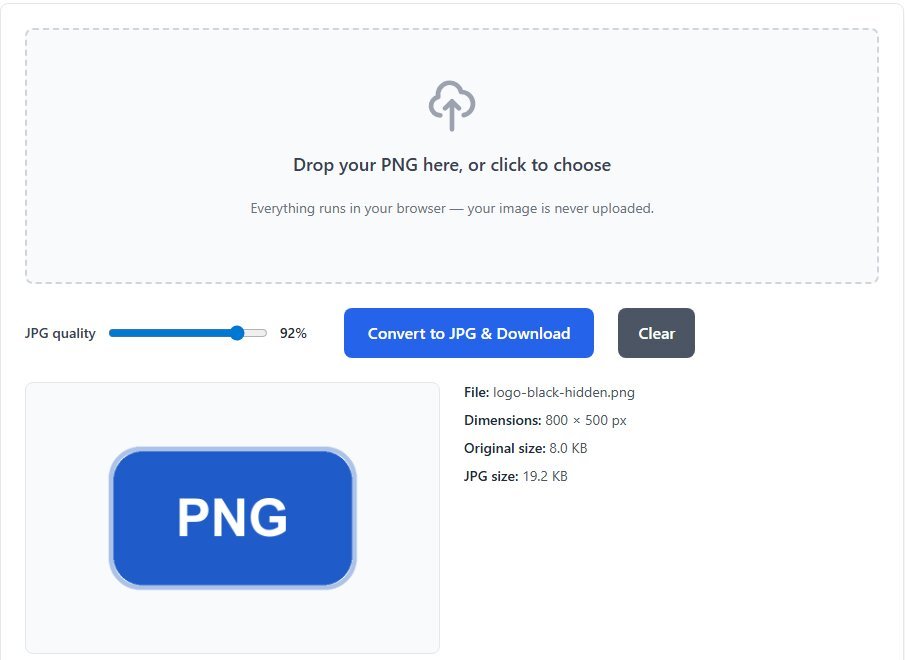
It always uses white, though. If your JPG is going onto a coloured background, white is the wrong choice too, just less obviously wrong than black. Use the ImageMagick line above with your page's exact hex colour, and the edges will blend as if the logo had been transparent all along.
When to keep the PNG and skip JPG altogether
Here's my honest view after running all of this: for logos and icons, JPG is usually the wrong format, and the black background is just the most visible symptom.
Look at the sizes. The original PNG was 8.0 KB. Every JPG in the table was between 2.2 and 3.5 times bigger. Flat colours and sharp edges are what PNG compresses best and what JPG compresses worst, and JPG also adds faint blocky noise around text. You're paying more bytes for a worse-looking image that's lost its transparency.
Convert to JPG when something forces you to: an upload form that only accepts .jpg, an old print shop workflow, an email system that strips PNGs. For a photo with a cut-out background, a product shot for example, JPG on white is perfectly reasonable and much smaller than a PNG of the same photo. For a logo that needs to sit on different backgrounds, keep the PNG, or use WebP if the destination supports it, since WebP keeps alpha too. If you're unsure which format suits an image in the first place, I went through that choice in detail in PNG or JPG? Pick by what's in the image.
And if a JPG with a black box is already sitting in someone's inbox, don't try to fix the JPG. The transparency is gone. Go back to the PNG and convert it again with a background colour set.