Got a "Final" Contract PDF Back? How to Compare Two PDF Files
Someone sent back a "final" contract or report as a PDF and you need to know what changed. Acrobat Pro, Word's Compare, Draftable, diff-pdf, reading side by side and a free online comparison, tested on the same file, with their real costs and limits.
The email says "final version attached, just tidied up the wording". The PDF is 14 pages. The one you agreed on last week is also 14 pages. Nobody turned on track changes, because nobody ever does, and you're expected to sign by Friday.
Reading both side by side is how most people handle it, and it's exactly how a fee of 12,000 turns into 14,500 without anyone noticing. I put the same test contract through the usual ways to compare two PDF files, and they aren't close to equal. Some only see words, others only see pixels. The short version first.
| Method | Cost | What it catches | Do the files leave your computer? | Weak spot |
|---|---|---|---|---|
| Adobe Acrobat Pro, Compare Files | Acrobat Pro subscription (not in Standard) | Text, images, headers and footers, formatting, annotations, backgrounds | No, it runs in the desktop app | You pay for Pro if you don't already |
| Microsoft Word, Review then Compare | Included with Word | Words, shown as revision marks in a new document | No | Word converts each PDF first, and the conversion can invent differences |
| Draftable | From US$129 per user per year | Text changes, side by side | No, the Basic Compare desktop app works offline | Hard to justify for occasional use |
| diff-pdf (open source) | Free, GPL-2.0 | Pixel differences only | No | No list of changed words, command line, not actively developed |
| Two windows, scrolling together | Free | Whatever you happen to spot | No | Your attention by page 9 |
| The free compare tool on this site | Free | Words added and removed per page, plus a pixel check | Yes, uploaded, then deleted after the job | 200-page cap, English report labels, strict page-by-page matching |
What each method sees when you compare two PDF files
The real split is text versus pixels. A text comparison pulls the words off each page and lines them up, so it can tell you "30 became 45". A pixel comparison renders both pages as pictures and marks where they look different. That catches a swapped logo or a moved signature block, but it can't read, and a single extra line pushes everything below it out of place.
Eyeballing sits at the bottom for a reason. People are good at spotting a new paragraph and terrible at spotting a changed digit in a sentence they've already read twice.
The most complete option is Acrobat Pro. Adobe's Compare PDFs feature page describes a results summary that counts items replaced, inserted and deleted, and filters for text, images and graphics, headers and footers, formatting, annotations and backgrounds. The catch is the edition. Adobe's own plan table lists comparing PDF versions under Pro and not under Acrobat Standard, so plenty of people who think they "have Acrobat" don't have this button.
Using Word to compare two PDF files
If you have Word, you already own a decent text comparer. Open each PDF in Word, save both as .docx, then go to Review, Compare, Compare Documents and pick the original and the revised file. Word builds a third document with the differences shown as revision marks. Your two files stay as they were.
The weak link is the first step. Word doesn't open a PDF so much as rebuild it, guessing where paragraphs, columns and tables start. Two PDFs exported from slightly different layouts can come out with different line breaks and hyphenation, and Compare reports every one of those as an edit. On a plain contract it works well. On a brochure, or a form full of tables, expect a lot of noise.
Still, if you're a lawyer and what you need is a redline the other side can accept or reject in Word, this is your route. Nothing else in the table hands you tracked changes in a .docx.
Draftable and paying for comparison
Draftable is common in legal teams. Draftable's pricing page lists Basic Compare at US$129 per user per year, described as offline and on your desktop, and the plan with redlining for law firms at US$261. There's a 5-day free trial with everything switched on.
If you compare documents every week, that's money well spent. If it's twice a year when the lease renews, it isn't.
diff-pdf and other command line tools
diff-pdf is the open-source pick I'd hand a developer. It compares pages visually. Run it with no options and it prints nothing at all; it exits with 0 when the files match and 1 when they differ, which is perfect for a build script that checks a generated invoice hasn't drifted. Add --output-diff=diff.pdf and it writes a PDF with the differences highlighted, or use --view to flip between the two files in a window.
Two caveats. It's pixel-only, so it tells you where something changed and never what. And its author says the code isn't actively developed anymore. For a one-off contract check it's the wrong tool. For regression tests on PDFs your own software produces, it's hard to beat.
How our free tool compares two PDF files
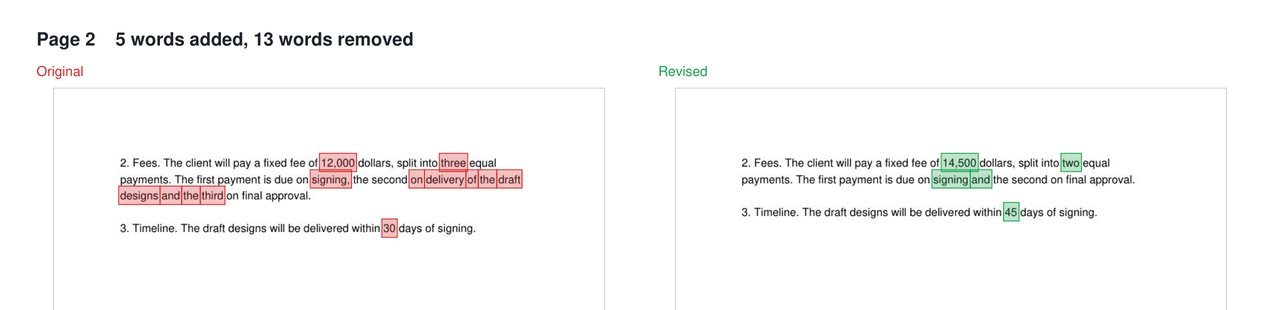
My test pair was a short contract and a revised copy where the fee went from 12,000 to 14,500, three payments became two, the delivery window went from 30 to 45 days, and a fifth page appeared at the end. With a page-by-page PDF comparison the result was 44 words added, 27 removed, 3 pages changed and 2 untouched, with page 5 flagged as only in the revised file.
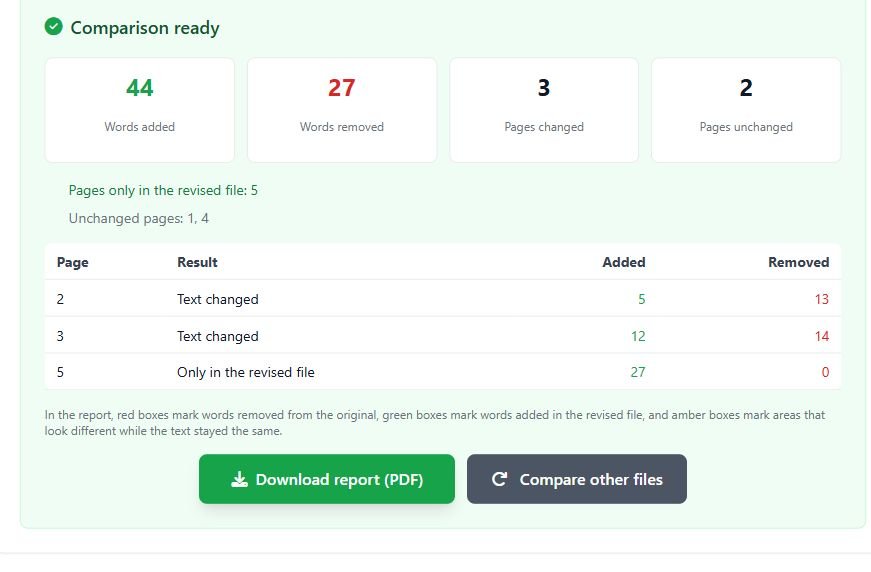
The downloadable report opens with that summary as a table. After it, each changed page gets a landscape spread: the original on the left with removed words boxed in red, the revised page on the right with added words boxed in green. Unchanged pages are listed but not drawn, so a 60-page agreement with two edits gives you a short report.
Two things it does beyond a plain word diff. When a page has exactly the same words in both files, it renders both and compares the pixels, so a swapped photo or a moved table still gets an amber box. When a page has no text layer on one side, usually a scan, it skips the word diff and compares the page images instead. You'll learn where it changed, not what. For a true word-level check of scanned copies, make them searchable with OCR first and compare those.
What it won't do is report formatting on its own terms. You won't get "this word became bold". If the words match and the page looks different, you get an amber box around the area.
When our tool is the wrong choice
- The file must not leave your computer. This one isn't browser-only. Both PDFs are uploaded to our server under random names and deleted as soon as the job ends, whether it worked or failed. The report is kept only long enough for you to download it. That's fine for a lease. For a deal under NDA, use Acrobat Pro, Word or Draftable's desktop app, which all work locally.
- You need a redline in Word. You get a PDF report, not tracked changes and not one merged redline document. Lawyers sending markup back should use Word's Compare.
- The document is long. Only the first 200 pages of each file are compared, and the report draws up to 80 changed pages side by side. Anything past that is counted in the summary table and nothing more.
- Text reflowed or a page was inserted. Matching is strictly page 1 against page 1. Insert a page near the start and every page after it shows as changed. Add two lines on page 3 and the bottom of page 3 slides onto page 4, which now has "changes" too. A few changed words at the very top or bottom of a page is almost always reflow.
- The PDF has a password. It's refused, and the message names which of the two files is locked. Remove the password and upload the unlocked copy.
- You want the report in your language. The tool page and its summary are translated, but the fixed labels inside the downloaded PDF are English. Your own text appears exactly as written.
Which one I'd actually use
A contract came back as a "final" PDF and has to be signed this week? Run a quick comparison, read every red and green box, and reply about anything you didn't agree to. A legal team doing this daily should pay for Draftable or Acrobat Pro and stop thinking about it. Developers checking their own output: diff-pdf.
Whatever you pick, put the older file in the original slot. Swap them and "added" means "removed", and that's a bad thing to get backwards on a fee clause.