Split a Scanned PDF Into Separate Documents: Why Blank Pages Work and When They Fail
You fed forty documents through the scanner in one go and got one enormous PDF back. Blank separator sheets are the cheapest way to cut it apart again, as long as you know what a splitter counts as blank and which scanner settings quietly break the trick.
A sheet of plain white office paper is almost never blank to a scanner. It comes back with a grey shadow down one edge, a few specks of dust, maybe three dark circles where the hole punch went through. And yet a blank sheet is still the most reliable way to split a scanned PDF into separate documents, because software can be taught to ignore exactly that kind of noise.
This post explains how that detection works, using the actual rules from the splitter on this site, what fools it, and the two scanner settings that wreck the whole approach before the PDF even exists.
The problem with one giant scan
Sheet-fed scanners are fast. A desktop model will pull a 50-sheet stack through in a couple of minutes, and most people take advantage of that by loading everything at once: a month of invoices, a lease, three utility bills, a signed contract. What comes out is one PDF with no idea where one document stops and the next starts.
Splitting it by hand means opening the file, scrolling, writing down page ranges (1 to 4, 5 to 17, 18 to 19) and feeding those into a page extractor forty times. It works. It also takes longer than the scan did, and one wrong range means a contract missing its signature page.
The fix happens before scanning: drop a blank sheet between each document. Then the software only needs to answer one question per page. Is this sheet empty?
How blank-page detection decides a page is empty
There's no magic here, just two checks and a number. The splitter on this site runs them in this order for every page.
Check one: is there a text layer? If the PDF has real, selectable text on that page (because your scanner software ran OCR, or the page came from a Word export), the page is treated as content and the check stops. A page with text is never a separator, even if the text is a single full stop.
Check two: how much ink is there? Pages with no text layer are rendered in greyscale at half their normal size, which works out to 36 pixels per inch. Any pixel darker than 200 on the usual 0 to 255 scale counts as dark. If fewer than 0.2% of the pixels are dark, the page is blank.
The part that makes this work on real paper is what gets measured. Only the inner 90% of the page counts. Five percent is trimmed off every edge before the pixels are totted up. On a US Letter sheet that's a little over half an inch at the top and bottom and about 0.4 inches at each side, which is exactly where scanner shadows, staple holes and punch holes live.
To get a feel for the numbers I built a test file of image-only pages and ran each one through the same measurement. A page carrying twelve short lines of typed text came out at roughly 1% dark pixels, five times over the line. A white sheet with a heavy shadow down the left edge and three punch holes came out at 0.0%, because all of that sat in the trimmed margin.
What counts as blank, and what doesn't
Some of these results surprised me, so here they are side by side. Everything below came from that same test file except the coloured-paper row, which is arithmetic on typical greyscale values.
| Separator sheet | Dark pixels in the measured area | Treated as |
|---|---|---|
| Plain white paper, edge shadow, three punch holes | 0.0% | Blank. The shadow and holes sit in the trimmed 5% margin |
| Back of a sheet with only a page number in the footer | 0.0% | Blank. The footer is in the bottom margin too |
| Faint bleed-through from the other side of thin paper | 0.0% | Blank. Light grey stays above the cutoff of 200 |
| "This page intentionally left blank" printed mid-page | 0.28% | Content. Just over the 0.2% line |
| Pale yellow or pale pink paper | Usually 0% | Blank. Pastels convert to light grey |
| Mid-blue or green paper | Close to 100% | Content. The whole sheet turns darker than 200 |
Two rows matter more than the rest. The page-number result means a document's own blank back page, if it only carries a footer number, will be read as a separator. And the "intentionally left blank" row means those pages in legal packs and manuals don't split anything, they stay inside the document, which is usually what you want.
Coloured separator sheets are a habit from the days of eyeballing a stack. Here they backfire unless the colour is very pale. White is the safe choice.
The duplex trap
This is the one that catches most people. You scan in duplex mode because some documents are printed on both sides. Fine. But every single-sided page in the stack now produces a blank back in the PDF, and each of those backs looks exactly like a separator sheet.
A four-page single-sided letter scanned in duplex becomes eight PDF pages: front, blank, front, blank. The splitter sees four separators and hands you four one-page documents.
You have three ways out:
- Scan single-sided documents in simplex mode, and run double-sided ones as a separate batch.
- If everything is double-sided with no blank backs, duplex is fine as it is.
- If the stack is mixed and you can't be bothered to sort it, skip separators and use a scanner feature built for this, covered further down.
Several blank pages in a row don't cause empty files, by the way. A run of blanks, whether that's a duplex back followed by your separator or two separators stuck together, is collapsed into a single cut. Blank pages before the first document are skipped too.
Your scanner may delete the separators first
Most document scanners ship with a setting that removes blank pages automatically. On a ScanSnap it's called Blank page removal. On others it's "skip blank pages" or "blank page detection". People turn it on once because it's handy for duplex scanning, then forget about it. It does exactly what it says: your separator sheets never make it into the PDF.
The result is one long document with nothing to split on. Turn the setting off for any batch where you've used separators.
The reverse problem exists too. Ricoh's ScanSnap help page on pages deleted even though they aren't blank warns that almost-blank pages can be thrown away by that setting, and that ticking Reduce bleed-through makes more pages get flagged as blank. So with blank removal on, you can lose separators and a nearly empty signature page in the same scan.
Split a scanned PDF into separate documents at blank pages
With the separators in and blank removal off, the rest is quick. I used a splitter that cuts at blank separator sheets for these screenshots, with a seven-page test scan: an invoice, a lease and a utility bill, divided by two blank sheets.
- Upload the scanned PDF. It has to be a single file and it can't be password-protected. A locked PDF is rejected with a message telling you to unlock it first.
- Leave the mode on the blank separator option, which is the default.
- Start the split and wait. The page is processed on the server, so you'll see a progress message rather than a frozen tab.
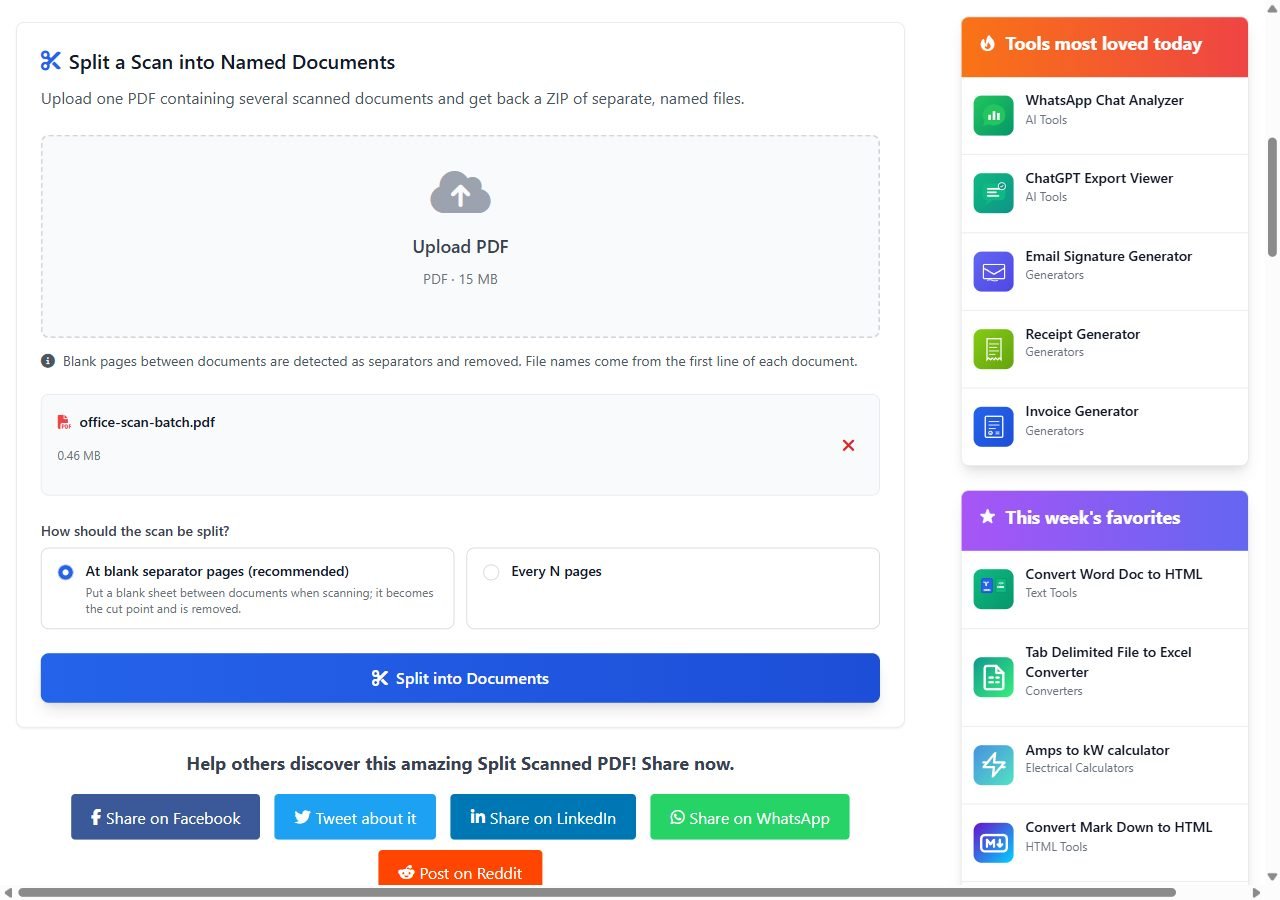
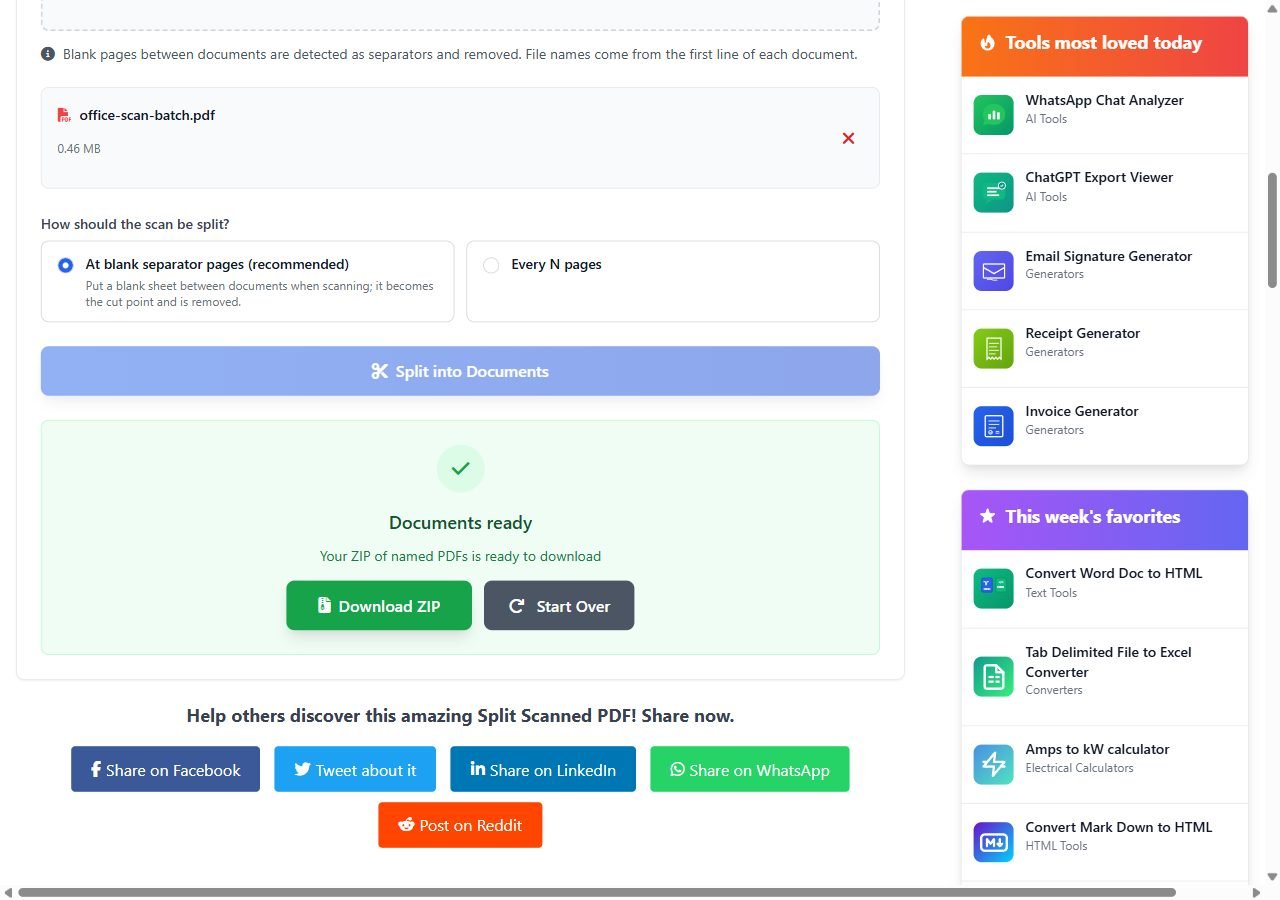
When it finishes you get one ZIP file, named after your upload with -documents and the site name added. Inside is one PDF per document, and the separator pages are gone. My test file came back as three documents, which matched the paper exactly.
If the scan turns out to be nothing but blank pages, maybe because the feeder grabbed the stack upside down on a single-sided scanner, the split fails instead of handing you an empty ZIP. The error message is a generic one, so if a split fails on a scan you know is fine, this is the first thing to rule out. That upside-down case is worth checking for before you blame anything else.
How the split files get their names
Forty files called document-01 to document-40 are only a small improvement on one big file, so the splitter tries to name each one from its first page.
It reads the first page of each document, using the text layer if there is one and running OCR on the page image if there isn't. The first line with at least three letters or digits becomes the name. Anything that isn't a plain letter, digit, space, hyphen or underscore becomes a space, spaces become hyphens, and the result is cut at 40 characters. So a lease whose first line reads "Residential Lease Agreement" turns into 02-Residential-Lease-Agreement.pdf.
A few details worth knowing:
- The two-digit number at the front keeps the files in scan order when you sort by name.
- If two documents produce the same name, the second one gets
-2added. - Accented letters get the same treatment, so "Facture numéro 12" comes out as
Facture-num-ro-12. Readable, not pretty. - If no usable line is found, perhaps a page that's mostly a photo or a logo, the file falls back to
document-03and so on.
The name comes from whatever is printed highest on the page, which is often a company letterhead rather than the document title. Ten invoices from the same supplier will all be named after the supplier, with -2, -3 and so on after them. Expect to rename a few by hand.
When to split every N pages instead
Separators are pointless when every document is the same length. Think of a stack of two-page application forms, single-page delivery notes, or four-page exam papers. For those, the every N pages mode cuts the scan into equal chunks and ignores blank detection altogether. It accepts anything from 1 to 500 pages per document.
The catch is that one missing or extra page shifts every document after it. If a form in the middle of the stack has a stapled extra sheet, everything from that point on is off by one. Flick through the first and last files before you trust the rest.
Every N pages is also the way out of the duplex trap if the whole stack is single-sided forms of the same length. Scan duplex anyway, then split every two pages: front and blank back stay together as one document.
Other ways to split a scanned PDF into separate documents
Blank sheets are the low-tech version of something scanning bureaus have done for decades. Production capture software uses patch code sheets, printed pages with a pattern of thick bars that the software recognises as an instruction rather than content.
Kodak Alaris's Capture Pro help on patch codes describes three kinds. Patch 2 separates pages into documents and keeps the sheet in the output. Patch 3 separates documents into batches and removes the sheet. Patch T is programmable and removes the sheet as well.
Patch sheets have one big advantage: they're unambiguous. A duplex blank back can never be mistaken for a patch code. If you run a scanning desk and do this every day, that software is worth the money.
Don't mix the two methods, though. A blank-page splitter doesn't read patch codes. A patch sheet is covered in black bars, so it counts as content and ends up as the first page of the next document, which then gets named after whatever text OCR finds on it.
Before you shred the paper
Count the files in the ZIP against the number of documents you fed in. If the count matches, open the first and last page of a few files. If it doesn't, the cause is almost always one of three things: a separator lost to blank page removal, a duplex blank back, or a nearly empty page that turned out to be emptier than you thought.
And if you plan to search the split documents later, check whether they have a text layer. Windows search won't find a word inside a scan without one, and neither will most PDF readers. Run them through OCR to make the scans searchable after splitting, not before. OCR can invent a character from a speck of dust on a separator sheet, and then that sheet no longer counts as blank.