Extract PDF Form Data to Excel Without Retyping Every Form
A folder of filled PDF forms and a spreadsheet to fill. If the forms are fillable, every answer is already stored as a named field, and you can pull them all into one sheet. Here's how, plus what stops it working.
Most people who need to extract PDF form data to Excel start the slow way. They open the first form, copy the name, paste it into a spreadsheet, go back for the date of birth, and repeat. By form thirty the tab key is doing most of the thinking and a typo has already crept in somewhere.
You don't need to do that. A fillable PDF stores every answer as a named value, separate from the page you see. Pull those values out and each form becomes one row. The walkthrough below uses a batch of three school trip consent forms, but the steps are the same for clinic intake sheets, job applications or supplier forms.
First, check that the PDF is actually fillable
This takes ten seconds and it decides everything else. Open one of the returned forms in Chrome, Edge or Acrobat Reader and click on an answer. If a box highlights and you can put a cursor in it, the answers live in form fields and you're in luck.
If clicking does nothing, or the whole page selects like a picture, the answers are ink on the page. That happens when someone printed the form, filled it by hand and scanned it back, or when their PDF app "flattened" it on save. Flattening turns every field into plain drawn text, so there are no fields left to read. Skip ahead to the section on forms that won't extract.
One more check while you have the form open: look at a couple of forms from different people. If some were filled on a phone and some on a desktop, they should still share the same field names, because the names come from whoever built the form, not whoever filled it.
Extract PDF form data to Excel in four steps
- Put the forms in one folder. Rename them first if the file names are meaningless. The file name ends up in the first column of every row, so "consent-maria-lopez.pdf" is more use later than "scan_0042.pdf".
- Upload the batch. I used the PDF form to Excel extractor here. It takes up to 20 PDFs at once and 100 MB combined, and it lists each file before anything runs, so you can remove the one you added twice.
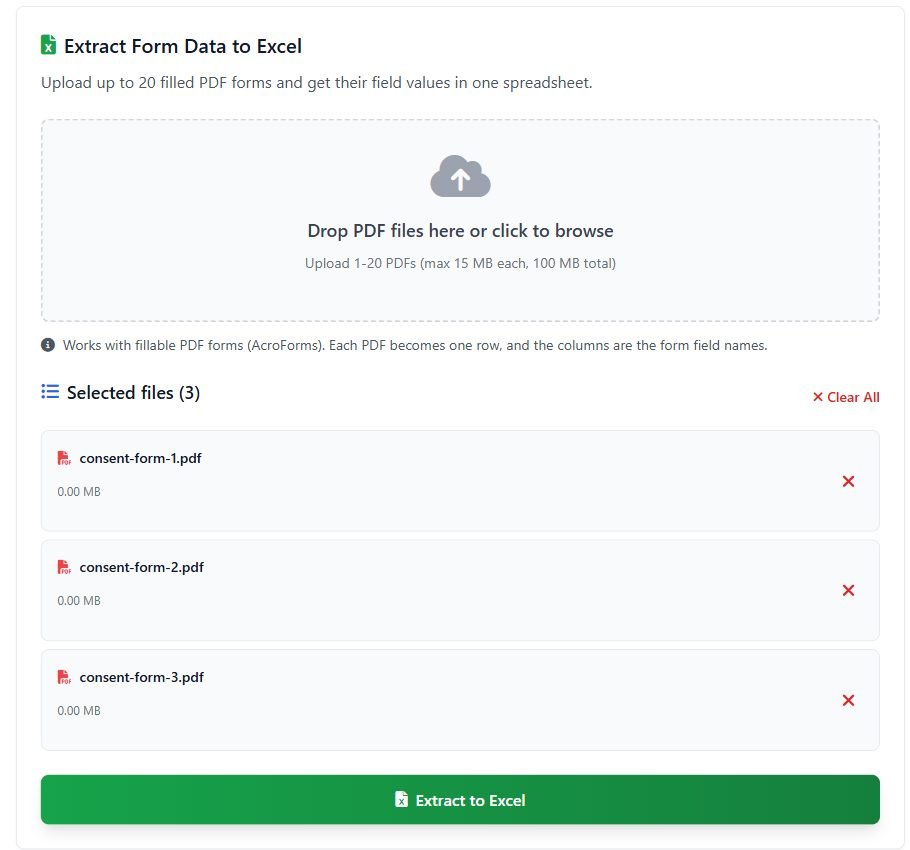
- Run the extraction. For three small forms this took about four seconds. Bigger batches take longer, mostly because each file has to be opened and read in turn.
- Download the .xlsx. It's named after the first file in the batch with -form-data added, so a batch starting with consent-form-1.pdf gives you a consent-form-1-form-data file.
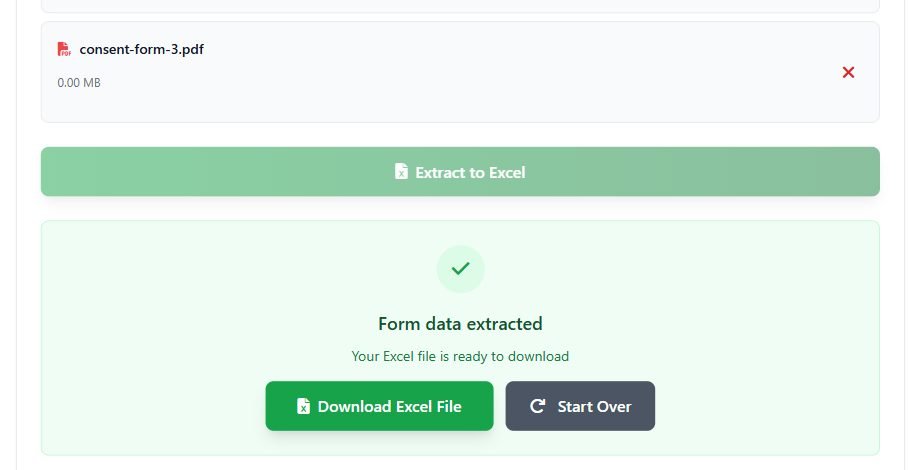
Open the file and you'll see a bold header row that stays frozen when you scroll. Column A is the source file name. After that comes one column per form field, in the order the fields first appear. My three consent forms came out as File, student_name, date_of_birth, class, photo_consent, has_allergies and transport, one clean row per student.
If you have more than 20 forms, run them in batches of 20 and paste the rows under each other. As long as the forms come from the same template, the columns line up.
What each kind of field looks like in the sheet
This is where people get surprised, so here's what the tool writes for each field type, straight from how it reads the form:
- Text boxes come out as typed, including multi-line comment boxes.
- Checkboxes become Yes or No. An unticked box is No, never an empty cell.
- Radio buttons give you the export value of the chosen option. If the form author never renamed those values you might see something like Choice1 instead of "Morning session". An unanswered radio group stays blank.
- Dropdowns give the selected option. List boxes that allow several picks give all of them, separated by commas.
Two quieter details. If a field is missing from one of the forms, for example because you mixed version 1 and version 2 of the template, that form just gets a blank cell in that column instead of breaking the batch. And any answer starting with =, + or @ gets an apostrophe added in front, which you'll see in the cell. That's deliberate: it stops Excel from ever treating the answer as a formula. A form answer should never be able to execute anything in your spreadsheet.
When you can't extract PDF form data to Excel
Four things stop it, and each has a different fix.
Flattened or scanned forms. No fields, nothing to extract. If the batch contains no fillable fields at all, the tool says so instead of handing you an empty file. For typed but flattened PDFs, a general PDF to Excel converter that reads the page text is the next best bet. For handwriting you're back to OCR, which on handwritten answers is honestly hit and miss. Budget time to check every row.
Password-protected files. A form that needs a password just to open can't be read. In a mixed batch, that file still gets its row, with a Notes column saying it was password-protected. The Notes column only appears when something went wrong, so if you see it, read it.
XFA forms. Some government and insurance forms were built with Adobe's older XFA technology. Many of them show a "Please wait..." page in most viewers other than Adobe's, which is a good hint. XFA was deprecated in PDF 2.0, and pure XFA forms often carry no standard fields for other software to read. If extraction finds nothing on a form you know was filled in, this is the likely reason.
Forms with generic field names. This one doesn't block anything, it just makes the sheet ugly. If the form builder left names like Text1, Text2 and Check Box3, those become your column headers. Rename them in row 1 once and keep that header row as a template for the next batch.
Clean up before you trust the numbers
Every value lands in Excel as text. That's the safe choice, since it keeps leading zeros in phone numbers and postcodes, but it means a column of ages won't sum and a column of dates won't sort by date.
- Select the column you want as numbers or dates.
- Go to Data, then Text to Columns, and click Finish. Excel re-reads the text and converts what it can.
- Spot-check five rows against the original PDFs, picked from the start, middle and end of the batch.
Don't convert ID numbers, phone numbers or anything with a leading zero. Leave those as text.
Also check the date column by eye. If your form had a plain text box for the date, people will have typed 03/09/2014, 9 March 2014 and 2014-03-09 in the same column. No converter guesses those correctly every time, so fix them before you sort. Next time, a date field with a fixed format on the form itself will save you this job.
If you already pay for Acrobat
Adobe has a built-in route for this. According to Adobe's help page on collecting PDF form data, you open Prepare a form, then Options, then Merge data files into spreadsheet, add the returned forms and export. If Acrobat is already on your machine and the forms are sensitive enough that you'd rather they never leave it, use that. It does the same job without an upload.
If you don't have it, a subscription just to empty one batch of forms is hard to justify. Either way, the part that saves the most time is the ten seconds at the start: confirm the form is fillable before you plan anything around it.