How to Sign a PDF on iPhone (3 Quick Methods I Actually Use)
I sign contracts from my iPhone regularly. Here are 3 methods that take under 30 seconds, from built-in Apple features to browser tools that work anywhere.
I was at a coffee shop when a $8K contract landed in my email. Client needed it signed by end of day. Laptop was home, 40 minutes away.
Signed it from my iPhone in 23 seconds using Safari. Client got the signed PDF 2 minutes later. Deal closed.
Here are the 3 methods I keep in my phone toolkit.
Method 1: Safari + Browser Signing (Fastest - 20 Seconds)
This is my go-to for urgent contracts. Works on any iPhone with Safari (or Chrome).
Steps:
- Open the PDF in Safari (from email attachment or download)
- Tap Share button → "Save to Files"
- Open Safari, go to a browser signing tool
- Upload your saved PDF
- Tap "Sign" and draw with your finger
- Place signature where needed
- Tap "Download"
- PDF saves to Downloads folder
Time: 20-30 seconds if you know the steps.
The beauty is it works anywhere - coffee shops, airports, waiting rooms. You don't need apps installed. Just Safari and an internet connection.
I've signed contracts in Uber rides, doctor's waiting rooms, and once while waiting for a delayed flight. iPhone browser signing saved me 3-4 hours of "waiting to get to my laptop" delays.
Tip: Bookmark the signing tool in Safari. Tap once to access it instantly instead of typing URLs.
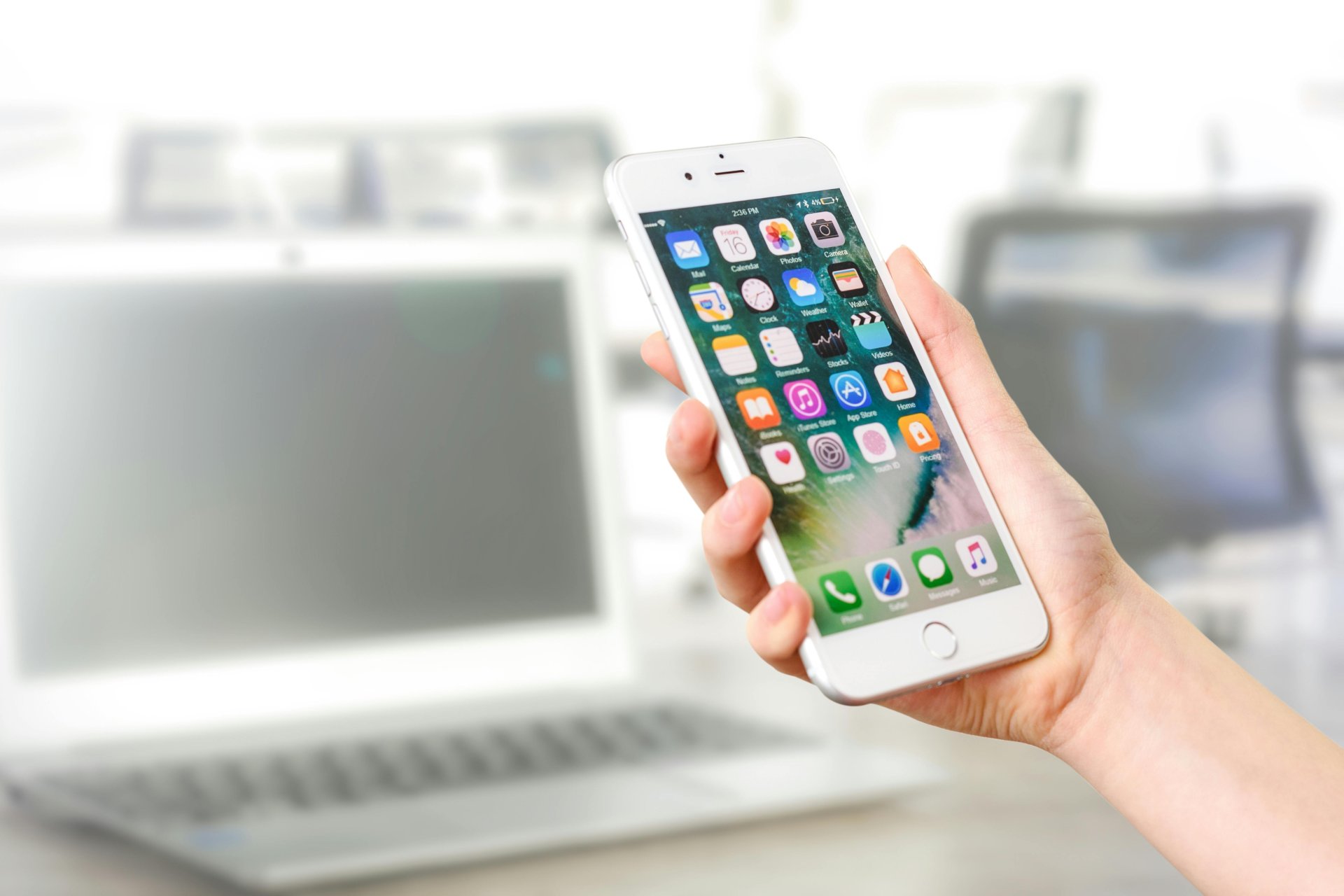
Method 2: Apple Files App + Markup (Built Into iPhone)
iOS has built-in PDF signing that nobody knows about. It's hidden in the Files app.
Steps:
- Save PDF to Files app (from email: tap and hold → "Save to Files")
- Open Files app
- Tap the PDF
- Tap the pen icon (Markup tool)
- Tap the "+" button
- Select "Signature"
- Create signature with your finger (saves for reuse)
- Drag signature to where you need it
- Tap "Done"
- Share the signed PDF via email
Time: 30-40 seconds after first-time setup.
The Markup signature saves automatically. Second PDF takes 15 seconds - just select saved signature and place it.
I created my Markup signature in 2021. Used it 50+ times since. Never had to recreate it.
Advantage over browser method: Works offline. I signed a contract on an airplane using this method (PDF was already in Files from pre-flight download).
Disadvantage: Requires saving PDF to Files first. Browser method can work directly from email attachments.
Method 3: Mail App Quick Actions (For Simple Signatures)
If you receive signing requests via Mail app, iOS 16+ added quick signing features.
Steps:
- Open PDF attachment in Mail
- Tap the PDF preview
- Tap Markup icon (pen tip)
- Tap "+" → "Signature"
- Sign with finger or use saved signature
- Tap "Done"
- Reply with signed PDF
Time: 15-20 seconds.
This is fastest when PDF arrives via email and you're replying to the sender anyway. No app switching, no file saving needed.
I use this for simple contracts where I'm just adding my signature and sending back immediately.

Tips for Professional iPhone Signatures
Use your finger, not a stylus: Finger signatures look more natural on touchscreens. Styluses create overly-perfect lines that look robotic.
Sign slowly: Fast finger movements create shaky signatures. Take 3-4 seconds to sign, not 1 second. The result looks significantly better.
Use landscape mode: Turn iPhone horizontal before signing. Gives you more space for a full signature instead of cramped vertical signing.
Zoom in before placing: Pinch-to-zoom on the signature location before adding your signature. Makes placement more precise.
Practice first: Create 3-4 test signatures before your first important contract. Delete the bad ones, keep the best. This becomes your saved signature.
Which Method for Which Situation
Urgent contract, need it signed in 30 seconds: Method 1 (browser). Open PDF, sign in Safari, done.
Multiple PDFs to sign, have 2 minutes: Method 2 (Files app). Save signature once, reuse on multiple documents.
Quick signature on emailed PDF: Method 3 (Mail app). Sign and reply without leaving Mail.
On airplane/no internet: Method 2 (Files app Markup). Works completely offline.
My usage over last year: Method 1 (60%), Method 2 (30%), Method 3 (10%).
Common iPhone Signing Questions
Do iPhone signatures look professional?
Yes, if you sign slowly and use landscape mode. I've signed $15K contracts from iPhone - clients never mentioned it looking unprofessional.
What looks unprofessional: rushing the signature so it's shaky, using portrait mode so it's tiny, or using typed signature fonts.
Can I use the same signature on laptop and iPhone?
Yes. Create your signature on iPhone using Method 2, take a screenshot, crop it, use that image file on your laptop. Or vice versa - create on laptop, save to iPhone Photos, upload when signing on phone.
What if I need to sign multiple pages?
All three methods support multi-page signing. In Markup, navigate to each page and add signature. In browser tools, place signature on each required page before downloading.
Is there a limit to document size on iPhone?
Safari/browser method works with any PDF size your browser can load. Files app Markup gets slow with 50+ page PDFs but handles 20-page contracts fine. I've signed documents up to 30 pages on iPhone without issues.
My Real-World iPhone Signing Stats
Contracts signed from iPhone in 2024: 27
Average time per signature: 31 seconds
Largest contract value: $15,000
Client complaints: 0
Failed signatures (technical issues): 0
iPhone signing went from "emergency backup" to "primary method when away from desk." It's fast enough that sometimes I use my phone even when laptop is right next to me.
Practice all three methods once. Save a test signature. Next time you need to sign something urgently, you'll know exactly which method to grab.