Scanned Pages in the Wrong Order? How to Reorder PDF Pages After Scanning
A single-sided feeder gives you all the fronts, then all the backs, often backwards. Work out which pattern you have, then type the interleaved order (1, 10, 2, 9 and so on) to put a double-sided scan back together.
If your scanner's feeder only reads one side of the paper, a double-sided document comes out as every front followed by every back, and the backs usually run backwards. The fix is to type an interleaved page order. For five sheets (ten pages) that's 1, 10, 2, 9, 3, 8, 4, 7, 5, 6. That single line fixes the version where the backs came out reversed.
Not every scan comes out that way, though. The order you type depends on how the second pass went through the feeder, so spend thirty seconds checking which mess you've actually got before typing anything.
Which wrong order do you have?
Open the PDF in any viewer that shows page thumbnails. Look at page 1, then at the first page after the halfway mark. With ten pages, that's page 6.
- Page 6 is the back of your last sheet. The backs are reversed. This is what you get when you scan the fronts, turn the whole stack over and feed it again, because the last sheet's back now goes in first.
- Page 6 is the back of sheet 1. The backs are in forward order. Easier to fix.
- Page 1 is the last page of the document. The whole file is simply upside down in sequence. Reverse it and you're done.
- You have two files, one with fronts and one with backs. Join them first (see below), then treat the result like one of the first two cases.
Count your sheets as N. If the backs are reversed, the order is 1, 2N, 2, 2N−1, 3, 2N−2 and so on, ending at N, N+1. If the backs run forward, it's 1, N+1, 2, N+2, ending at N, 2N. For seven sheets with reversed backs: 1, 14, 2, 13, 3, 12, 4, 11, 5, 10, 6, 9, 7, 8.
Typing the order to reorder PDF pages after scanning
Any editor that lets you drag thumbnails will do this, but dragging forty pages one at a time is miserable. Typing the sequence is faster. The page reorder tool takes a list of numbers separated by commas, plus ranges with a hyphen. A backwards range counts down, so 10-1 flips a ten-page file in one go, which covers the fully reversed case.
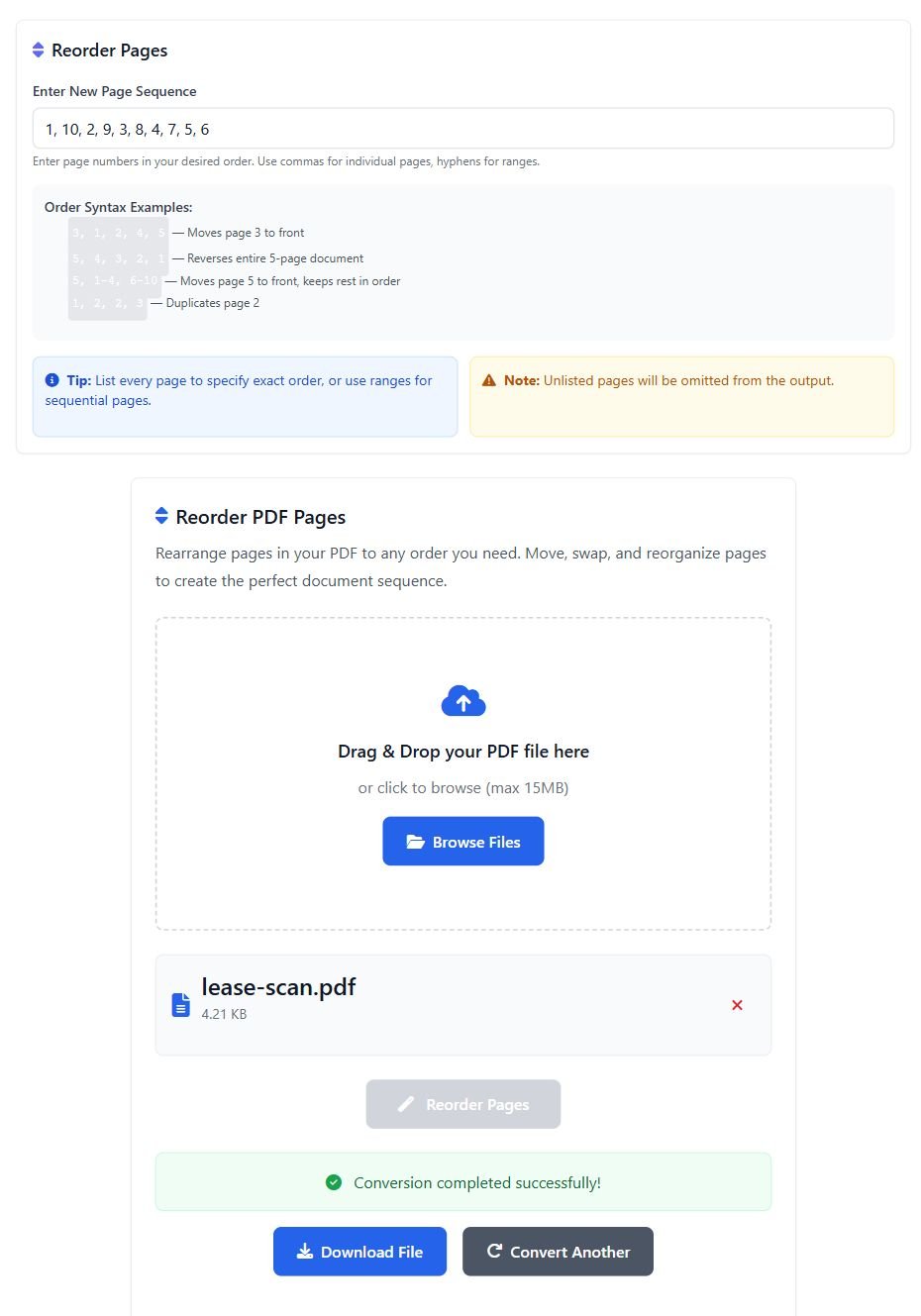
I ran a ten-page test file through it: five sheets, fronts first, backs reversed. With 1, 10, 2, 9, 3, 8, 4, 7, 5, 6 in the box, the download came back as sheet 1 front, sheet 1 back, sheet 2 front, and so on to sheet 5 back.
Three things in how it reads your list are worth knowing, because each one can quietly give you the wrong file:
- Any page you leave out is dropped. The output contains only the pages you listed.
- A number higher than the page count is skipped without an error. Type 19 when you meant 9 and you get a file one page short, not a warning.
- Repeats are allowed. List page 4 twice and it appears twice.
So after you download, check the page count. Ten sheets in, twenty pages out. If it's 19 or 21, look for a typo before you file anything.
Fronts and backs in two files: merge first, then reorder PDF pages after scanning
Some scanner apps save each pass as its own PDF. Put them into a PDF merger with the fronts file on top (the file list can be dragged into order before you merge), and you're back to one file in the "all fronts, then all backs" shape. Then use whichever interleaved order matches your backs.
For long documents, say 60 sheets, typing 120 numbers gets old. If you're comfortable with a command line, qpdf can interleave two files for you. The qpdf manual's page-selection section uses this exact double-sided scanning case as its example for the --collate option, which takes one page from each file in turn. The same page's Page Ranges section lists z-1 as all pages in reverse order. Put the two together and reversed backs are handled too:
qpdf --collate --empty --pages fronts.pdf 1-z backs.pdf z-1 -- all.pdf
Drop the z-1 if your backs already run forward.
Blank backs and the final check
Mixed batches cause a second annoyance. Run a stack that's partly single-sided through a manual double-sided routine and every one-sided sheet gets a blank back. Interleaving keeps them, because it can't know they're blank.
Since unlisted pages are dropped, you can remove them in the same step. Write out the full interleaved order, then delete the numbers of the blank pages before you run it. Do that in a text file first, not in your head. It's the easiest place to lose a real page.
Then flick through the result once, front to back, before you shred the paper. Look at the page count and at a couple of pairs in the middle, since the first and last pages are the ones you'll check anyway. If your scanner has a true duplex setting that reads both sides in one pass, use it next time and skip all of this.