The $12 Airbnb Upgrade That Guests Actually Notice (WiFi QR Codes)
After 200+ guest stays, I tracked what actually gets mentioned in reviews. WiFi setup came up 23 times - and a simple QR code eliminated every complaint. Here's exactly what I did.
I've hosted over 200 guest stays across two properties. After the first 50, I started tracking every comment guests made - in reviews, messages, and during checkout. I wanted to know what actually mattered versus what I assumed mattered.
WiFi came up 23 times. Eleven of those were complaints.
"Couldn't connect to WiFi for the first hour." "Password was confusing - is that an O or a zero?" "WiFi info wasn't in the welcome book." "Had to message the host for the password at 11pm."
After adding a QR code, WiFi mentions dropped to five - all positive. "Nice touch with the WiFi QR code." "Appreciated the easy WiFi setup." Zero complaints in 150 stays.
Here's exactly what I did and why it works.
Why WiFi Creates So Much Friction
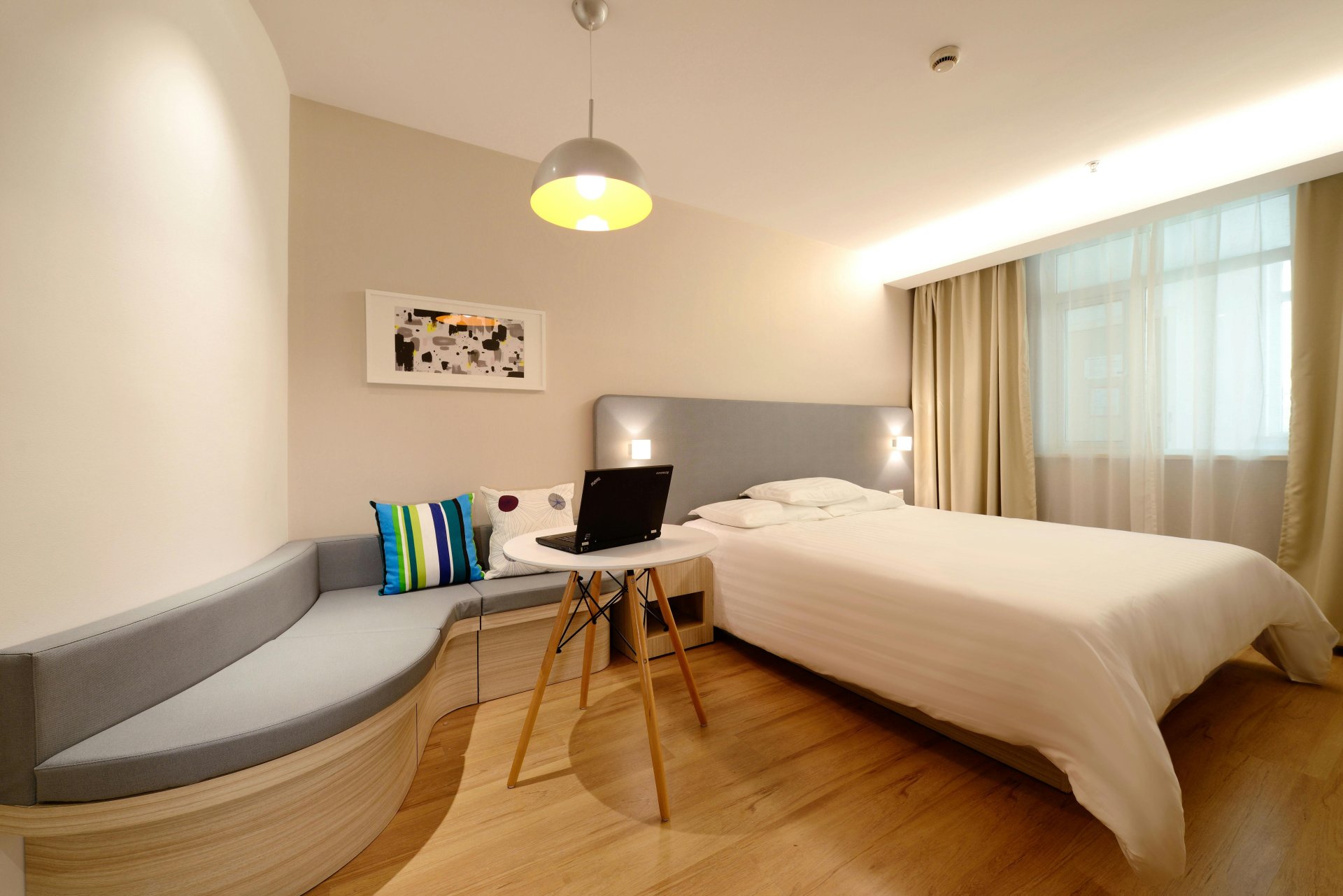
Think about your guests' arrival experience. They're tired from travel, their phone battery is low, they need to text family that they've arrived, maybe check work emails. WiFi is their first need.
Now hand them a 12-character password with mixed case and special symbols. In low light, after a long trip, trying to type on a phone keyboard. Every wrong attempt means retyping from scratch.
Common problems I observed:
| Issue | Frequency | Guest Reaction |
|---|---|---|
| Confusing characters (O/0, l/1) | Very common | Multiple failed attempts, frustration |
| Password not in obvious location | Common | Late-night messages to host |
| Wrong network selected | Occasional | "Password didn't work" |
| International guests with no data | Common for tourist areas | Completely stuck without WiFi |
A QR code solves all of these. Point phone at code, tap "Connect," done. No typing, no confusion, works in any language.
The 10-Minute Setup
Total cost: $0 for the QR code, about $12 for a nice frame. Here's the process:
Step 1: Get your guest network credentials
If you haven't set up a guest network yet, do that first. Log into your router (usually 192.168.0.1 or 192.168.1.1), find Guest Network settings, and create a network with a simple, memorable name like "[YourPropertyName]_Guest."
Step 2: Generate the QR code
Use a tool that generates WiFi QR codes to create your code. You'll need:
- Network name (exactly as it appears)
- Password
- Security type (WPA2 for most modern routers)
Step 3: Test before printing
Scan the code with your own phone. Confirm it connects. Try it on both iPhone and Android if possible. The 30 seconds of testing prevents printing codes that don't work.
Step 4: Print and display
Print at reasonable size (3"x3" minimum). Put in a simple frame or laminate. Place where guests will see it immediately upon arrival.
Placement That Actually Works
I tested three placements across properties:
Entryway (winner): Small framed code on the entry table with "Scan for WiFi" text. Guests see it while still holding their luggage. 95% of guests connected before fully unpacking.
Welcome binder: Works but requires guests to find and open the binder. If they're looking for WiFi first, they might message you before finding the binder.
Refrigerator: Too hidden. Guests don't check the kitchen immediately. Multiple "where's the WiFi?" messages until I moved it.
My current setup: Framed code at entry PLUS the same code in the welcome binder PLUS backup text password on a card by the TV. Three opportunities to connect.
The Guest Network Security Setup
This is non-negotiable for vacation rentals. Your guests should be on an isolated network, not your main network.
Why Guest Network Isolation Matters:
- Smart locks: Guests can't access your lock's admin interface
- Security cameras: Guests can't see or interfere with cameras
- Smart home devices: Your Alexa, Nest, etc. stay private
- Shared resources: No access to network storage or printers
- Other properties: If you manage multiple units on one network, guests can't see each other
Most routers have a "guest isolation" or "AP isolation" toggle. Enable it. This means guest devices can reach the internet but not other devices on the network.
What Goes in Your Welcome Materials
The QR code is the primary method. But include backup information:
WiFi Access
-----------
Scan the QR code on the entry table to connect.

Network: PropertyName_Guest
Password: SimplePassword123

Troubleshooting:
- iPhone: Point camera at code, tap the notification
- Android: Camera app → tap WiFi symbol that appears
- Older phones: Download any free QR scanner app
Include this in your digital guidebook too. Guests who book last-minute might arrive before checking the physical materials.
Review Impact
Small touches compound in reviews. Guests don't write "The QR code was amazing" - they write "Everything was thoughtfully set up" or "Small details that made it feel welcoming."
The QR code contributes to an overall impression of professionalism. Guests who struggle with WiFi for 20 minutes carry that frustration into their review assessment, even subconsciously.
From my tracking:
- Before QR code: 4.7 average rating, 2-3 check-in issues per month
- After QR code: 4.9 average rating, 0-1 check-in issues per month
The QR code wasn't the only improvement during that period, but it eliminated a specific friction point that was generating problems.
Do It This Week
The entire process - setting up guest network, generating QR code, printing, framing, placing - takes under an hour. The frame costs $10-15. You'll never deal with another "what's the WiFi password?" message at midnight.
Generate the code, test it, print it, frame it. Your next guest notices the difference immediately, even if they never mention it.