EPUB to PDF Ruins the Layout? Why It Happens and What to Set
An EPUB has no pages, so every EPUB to PDF converter has to invent them. Here's why the layout breaks, and the page size, margin, font and cover settings that fix it.
Most people blame the converter when an EPUB to PDF job comes back with giant margins, tiny text on a huge page, or a cover squashed out of shape. The converter usually did exactly what it was told. The trouble is that nobody told it much, and an EPUB gives it almost nothing to go on.
An ebook doesn't have pages. A PDF is nothing but pages. Somewhere in between, a page size, four margins, a font size and a cover rule all get picked, and if you don't pick them, defaults do. This walkthrough goes through the conversion in the order that saves the most time, starting with the check that tells you whether converting is possible at all.
Why EPUB to PDF breaks the layout in the first place
A normal EPUB is reflowable. It's really a zipped bundle of HTML and CSS, and your reading app decides where each line wraps based on the screen width and the font size you've chosen. Make the text bigger on a Kobo and chapter three goes from 14 pages to 22. The "page 87" your reader shows is calculated on the fly. It isn't stored in the file.
So when the book becomes a PDF, the converter has to freeze one version of that flow onto a fixed sheet. Pick a big sheet and wide margins, and you get a document that looks like a printed Word file. Pick a small sheet and the same book feels like a paperback.
There's one exception. EPUB 3 has a fixed-layout mode, used mostly for comics, cookbooks and picture books, where every page is designed at a set size. Those convert much more faithfully because the pages already exist. If your book is a novel or a textbook, assume it's reflowable.
Step 1: Check the EPUB isn't DRM-locked
This one stops more conversions than any layout setting, so do it first.
- Look at what you actually downloaded. A file ending in
.acsmis not a book. It's a small ticket that Adobe Digital Editions uses to fetch the real, encrypted EPUB. - Kindle purchases aren't EPUBs at all. They're AZW3 or KFX files tied to your Amazon account.
- For a real
.epub, make a copy, rename it to.zip, and open theMETA-INFfolder. Arights.xmlfile there means Adobe DRM. Anencryption.xmlon its own can be harmless, because publishers also use it to scramble embedded fonts.
Books from Project Gutenberg, Standard Ebooks, Humble Bundle and most small presses are DRM-free. Library loans almost never are, and plenty of big-store purchases come locked too. No honest online converter will process a locked file, and I'd steer clear of any site that claims it can.
Step 2: Run a plain EPUB to PDF conversion first
Before touching any setting, convert the book once with defaults and look at the result. It tells you which of the problems below you actually have, and for a lot of books the default is fine.
If you don't want to install anything, the EPUB to PDF converter on this site works for this pass. Drop the file in and it shows the name and size before you start.
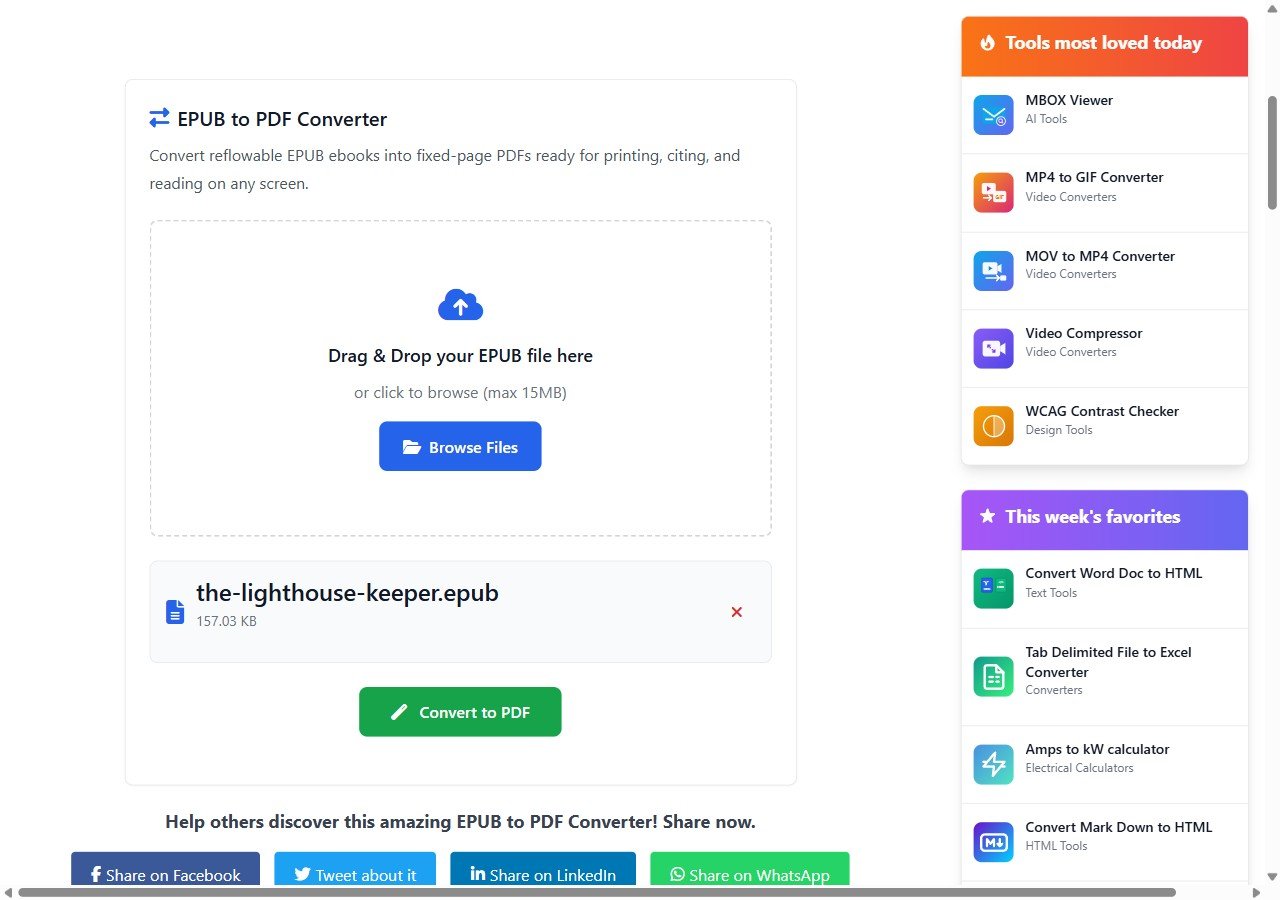
Under the hood it runs Calibre's ebook-convert with no extra options. That means you get Calibre's defaults: US Letter pages, a 72-point margin (one inch) on every side, no page numbers, and no heuristic cleanup of badly made files. It gives each book five minutes. Image-heavy books with complicated CSS sometimes run out of time, and you'll see a message saying the EPUB took too long instead of a half-finished PDF. A DRM-locked file gets its own clear error.
Open the PDF and flip through three spots: the cover, the first chapter opening, and any page with a table or image. Those three show nearly every layout problem.
Step 3: Pick a page size that matches how you'll read it
Letter is 8.5 by 11 inches. With an inch of margin all round, that leaves a text block 6.5 inches wide, which is a long line for a novel. It's the single biggest reason a converted ebook looks "wrong".
For anything beyond the default you'll want desktop Calibre, which is free. In the conversion dialog choose PDF as the output format, then open the PDF output section. The same options exist on the command line, and Calibre's ebook-convert reference lists every one with its default.
- Reading on a tablet or phone: A5 is a good middle ground. It keeps lines short and the text readable without zooming.
- Printing at home: stay on Letter or A4, but plan to shrink the margins in the next step.
- Printing as a bound paperback: use a custom size like 6x9 inches, which is a standard trim size at most print shops.
From a terminal, a paperback-sized version looks like this:
ebook-convert book.epub book.pdf --custom-size 6x9 --unit inchStep 4: Fix margins, fonts and the cover
Margins are set in points, and 72 points is an inch. On a 6x9 page an inch all round eats a third of the width. Somewhere around 36 to 45 points on the sides usually looks right. Leave the top and bottom a little larger if you turn page numbers on, since they sit in the bottom margin.
ebook-convert book.epub book.pdf --custom-size 6x9 --unit inch \
  --pdf-page-margin-left 40 --pdf-page-margin-right 40 \
  --pdf-page-margin-top 45 --pdf-page-margin-bottom 50 \
  --pdf-page-numbers --preserve-cover-aspect-ratio
Fonts are where people get surprised. If the publisher embedded a font inside the EPUB, it comes through. If the CSS only names a font, say Garamond, and doesn't include the file, the converter falls back to whatever the machine running it has installed. That's why the same book can look different from two different converters. Calibre's serif and sans-serif family options only work with fonts installed system-wide, so set them on your own computer, not on a server you don't control.
The cover is the last common complaint. Unless you add --preserve-cover-aspect-ratio, Calibre stretches the cover image to fill the whole first page. A tall, narrow cover on a Letter page ends up visibly wider. With the flag, it keeps its shape and gets white bars instead, which almost always looks better.
One more thing in this step. Tables and wide images that spill off the edge are usually set in the book's CSS with a fixed pixel width. A smaller page makes them worse. If a technical book is full of them, Letter or A4 may honestly be the better choice despite the long lines.
When EPUB to PDF won't ever look right
Some books fight back no matter what you set. Poorly made EPUBs, often scanned and OCR'd backlist titles, put a hard line break at the end of every printed line. In a PDF that shows up as ragged half-empty lines. Calibre's heuristic processing can repair some of it, but it's slow and it can hang on exactly the messy files that need it.
Footnotes are another one. In the EPUB they're links that pop up. In the PDF they become links to the end of the chapter or book, and they work fine on screen but are no help on paper.
If you just need to quote a page number in an essay, my advice is to cite the chapter and section instead, or check whether the publisher sells a print edition with real page numbers. A PDF made from an EPUB has page numbers that exist only in that one file. Change the page size and every number moves.