
WhatsApp Voice Note to MP3: A Checklist for Getting It Off Your Phone
WhatsApp voice notes are Opus audio in an Ogg file, which is why so many players and upload forms refuse them. This checklist covers finding the file on Android and iPhone, converting a WhatsApp voice note to MP3, and keeping the original safe.
That voice note isn't broken. Every WhatsApp voice message is an Opus recording packed inside an Ogg file, and a lot of software simply doesn't know what to do with it. Your phone plays it fine because WhatsApp brings its own decoder. Email it to a laptop, drop it into a car's USB stick or attach it to a form that wants MP3, and it stops working.
So the job is two parts: get the actual file off the phone, then turn the WhatsApp voice note into an MP3 without losing anything you care about. Below is the checklist I'd print and stick next to the desk, plus the few places where people trip.
Why a WhatsApp voice note won't play outside the app
Opus is a good codec. It sounds clear at very low bitrates, which is exactly why a messaging app uses it for speech. The catch is the container. The IETF's RFC 7845, which defines how Opus is stored in Ogg, recommends the .opus extension and the media type audio/ogg. Browsers and VLC handle that happily. Plenty of car stereos, older media players and "upload your audio" forms only expect MP3, WAV or M4A, and they reject it on sight.
One more wrinkle. The same voice note can show up with two different extensions. Saved from an Android phone it ends in .opus. Downloaded through WhatsApp Web or the desktop app it usually lands as .ogg. The audio inside is identical, and that matters later.
The WhatsApp voice note to MP3 checklist
Get the WhatsApp voice note off your phone
- Check the voice note isn't "view once". Those can't be forwarded, saved or exported. If that's what you've got, the only copy is the one the sender has.
- Make sure it's actually downloaded. If the play button still shows a download arrow, tap it first. A voice note you never opened may not be on the phone at all, only on WhatsApp's servers until it expires.
- Android: go straight to the folder. Open the Files app and browse to
Android/media/com.whatsapp/WhatsApp/Media/WhatsApp Voice Notes. Notes are sorted into subfolders named by year and week number, so a note from mid-October 2026 sits in something like202642. Received and sent notes live together, with names likePTT-20261012-WA0007.opus. - iPhone: share it out, one at a time. iOS doesn't give you a folder to browse. Long-press the voice note, tap Forward, then the share icon in the bottom corner, and choose Save to Files.
- Lots of notes from one chat? Export the chat. WhatsApp's help page on exporting chat history says that choosing Include media only attaches the most recent media, not the whole history. So check the export for the specific notes you need before you delete anything. The same page points out that an export is a text file and can't be imported back into WhatsApp. It's a copy, not a backup.
- Write the date down before you touch anything. The
PTT-YYYYMMDDname is often the only record of when the note was sent once it leaves the chat.
Convert the WhatsApp voice note to MP3
- Match the converter to the extension you have. An
.opusfile goes into an Opus converter. If WhatsApp Web handed you an.ogg, either use an OGG to MP3 converter or rename the file to.opus. Both names describe the same Ogg file, so renaming is safe here. - Do one file and listen to it before doing fifty. I used a 14-second test note while writing this. The Opus to MP3 converter here takes one file at a time, up to 50 MB, and runs it through FFmpeg with the LAME MP3 encoder.
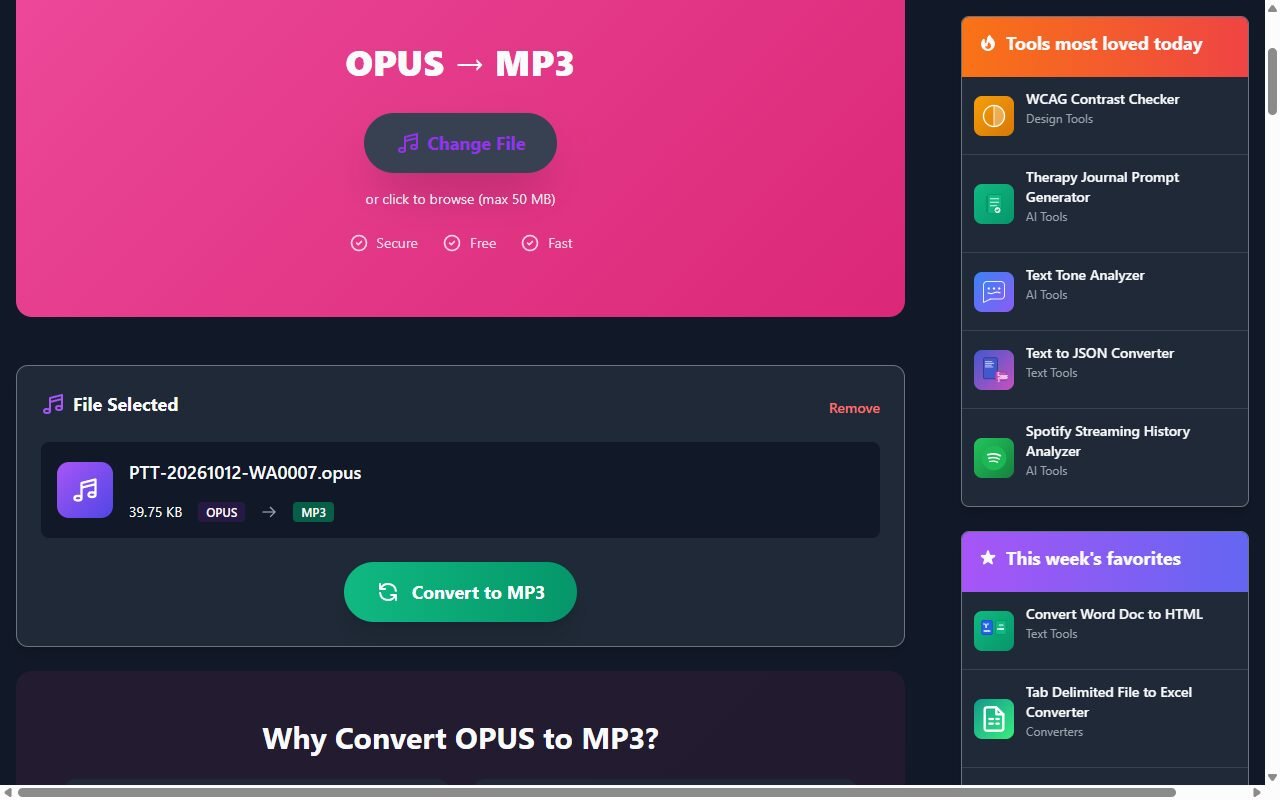
- Expect the MP3 to be bigger. My 40 KB Opus file came back as a 161 KB MP3, roughly four times the size, still mono, still 48 kHz. That's normal. Opus is just much more efficient for speech than MP3, so the same voice needs more bytes.
- Don't expect it to sound better. Converting from one lossy format to another can't add back detail the original never had. If the note was muffled or windy on the phone, it'll be muffled in the MP3 too.
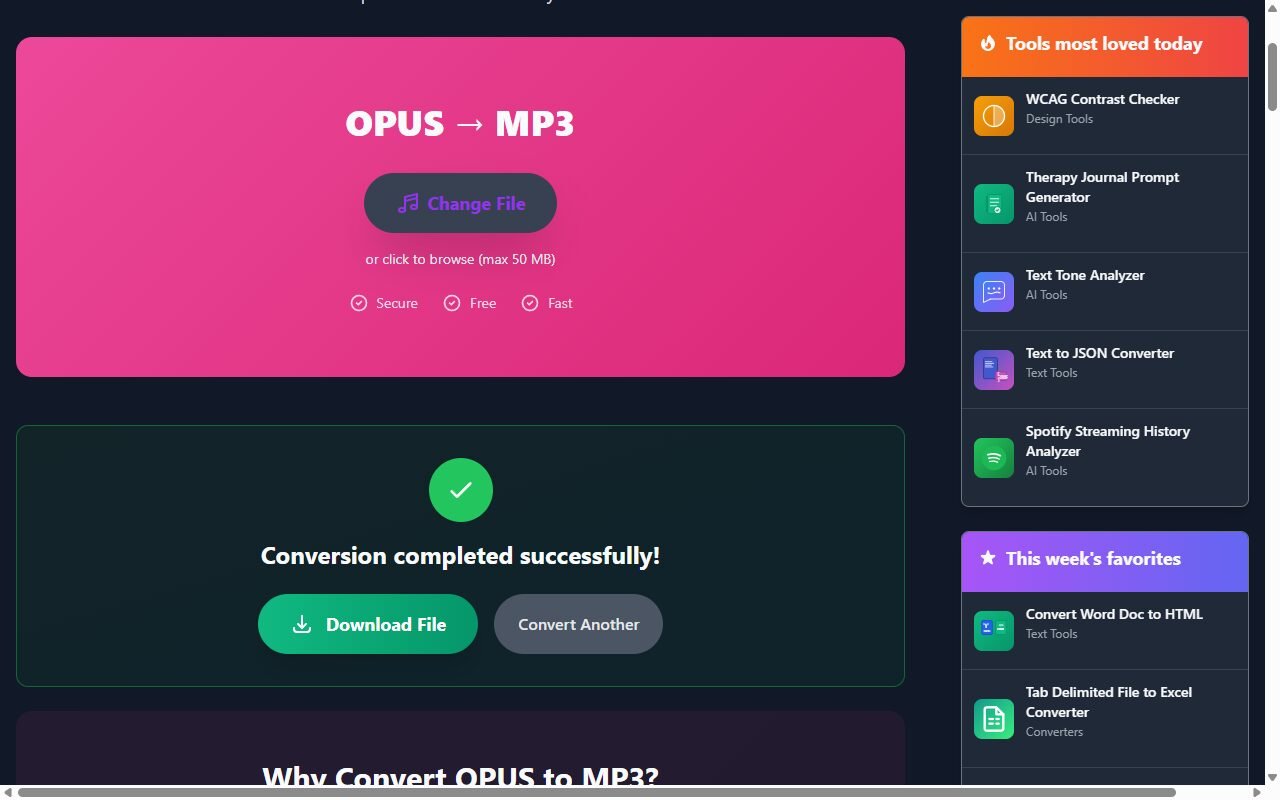
If you're comfortable with a terminal and have a folder full of notes, FFmpeg will do the lot in one go. On macOS or Linux, from inside the folder: for f in *.opus; do ffmpeg -i "$f" -codec:a libmp3lame -q:a 2 "${f%.opus}.mp3"; done. That's close to what the web tool does, minus the upload.
Keep it findable later
- Keep the date in the filename. The converter keeps your original name and adds the site's domain at the end, so
PTT-20261012-WA0007survives. If you rename, put the date first (2026-10-12 Mum birthday message.mp3) so files sort in order. - Keep the original .opus next to the MP3. It's smaller and it's the untouched source.
- Back it up somewhere that isn't the phone. WhatsApp storage cleanups and phone swaps are how most of these notes get lost.
When you shouldn't convert at all
If the voice note might end up as evidence in a dispute, a complaint or a court case, treat the original file as the exhibit and the MP3 as a convenience copy. Any conversion rewrites every byte of the file, so it won't match the original if anyone compares them later. Save the .opus untouched, note where it came from and when you copied it, and only hand over the MP3 when someone asks for something that plays easily.
And if all you want is to listen once on a laptop, skip the conversion. Open the .opus in VLC or drag it into a Chrome tab. Both play it as is.