PDF to Word Formatting Messed Up? A Cleanup Checklist
A PDF stores where text sits, not which lines form a paragraph, so converted Word files fill up with text boxes, section breaks and fixed spacing. A printable checklist for before and after you convert.
I made a two-page tenancy schedule as a PDF, nothing fancy: a title, a paragraph, two short columns, a grey note box and a page number at the bottom. Then I converted it to Word twice. One engine gave me 68 separate text boxes, roughly one for every line on the page. The other gave me no text boxes at all, but it slipped in 7 section breaks, set every line to an exact height and turned the grey note into a one-cell table.
Both files looked fine. Both were miserable to edit. That's what PDF to Word formatting messed up usually means: the page looks right and falls apart the moment you type into it.
Below is the checklist I'd pin above the desk. Run the first half before you convert and the second half on the Word file afterwards.
PDF to Word formatting messed up? Why it happens
A PDF is a set of instructions for drawing a page. It says put these characters at this spot in this font. It usually doesn't say that six lines belong to one paragraph, that two blocks are columns, or that a run of lines is a table. Microsoft's own page on opening PDFs in Word puts it plainly: most PDFs carry no information about paragraphs, tables or columns, and a table is stored as lines with no tie to the text inside the cells.
So every converter guesses. When the guess fails, a careful converter keeps each line where it was by pinning it in place, and pinning is exactly what makes the file stiff. Text boxes pin lines to coordinates. Exact line spacing and big blocks of space above a heading pin paragraphs vertically. Section breaks pin columns. None of it is a bug in the usual sense. It's the converter choosing looks over editability because the PDF gave it nothing better to go on.
Before you convert: five checks
- Is there real text in it? Try to highlight a sentence with your cursor, or press Ctrl+F and search for a word you can see. If nothing highlights and nothing is found, it's a scan. A normal converter can only give you pictures of the pages. You need OCR first.
- Is it tagged? In Adobe Reader, open File, then Properties, and look at the Tagged PDF line on the Description tab. Tags are the structure layer accessible PDFs carry. The Section 508 guide to common PDF tags lists the ones that matter here: P for paragraphs, H1 to H6 for headings, L and LI for lists. A Yes usually means the file was exported from Word or a layout app rather than printed to PDF, so an editable original probably exists somewhere.
- How busy is the layout? Plain single-column letters, contracts and reports convert well. Newsletters, brochures, forms with boxes everywhere and anything with text running around images are the ones that come back full of breaks and boxes. Lower your expectations accordingly.
- Is it password protected? If you need a password just to open it, remove the protection first. A converter can't read what it can't open.
- Do you need the layout or only the words? Be honest here. If you're going to rewrite most of it, a clean stream of paragraphs beats a pixel-perfect copy every time.
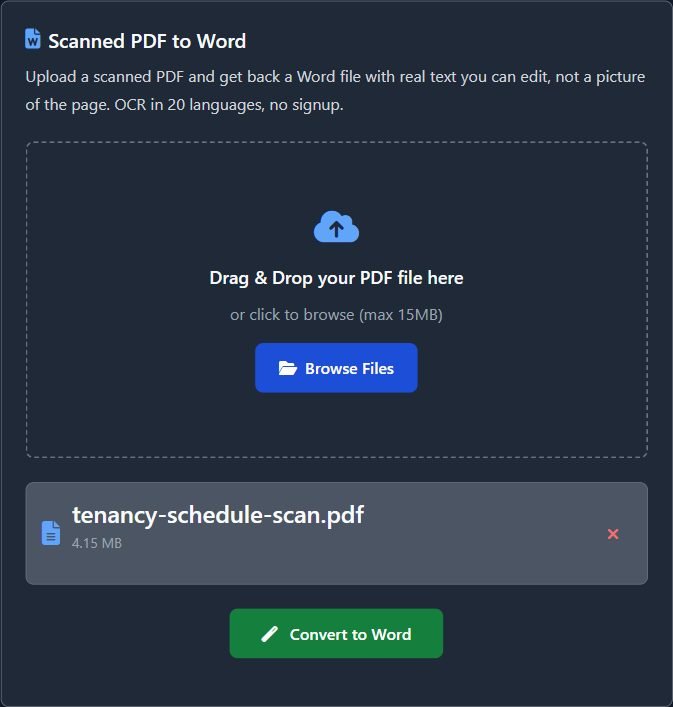
For a scan, a tool like this scanned PDF to Word converter goes the other way on purpose. It runs OCR, then writes plain paragraphs: it starts a new paragraph at a clear vertical gap, glues hyphenated words back together across line ends, and turns lines set at 1.4 times the page's usual text size into headings. You lose the layout and get text you can actually edit. It stops at 100 pages, so split anything longer first.
PDF to Word formatting messed up after converting: the cleanup checklist
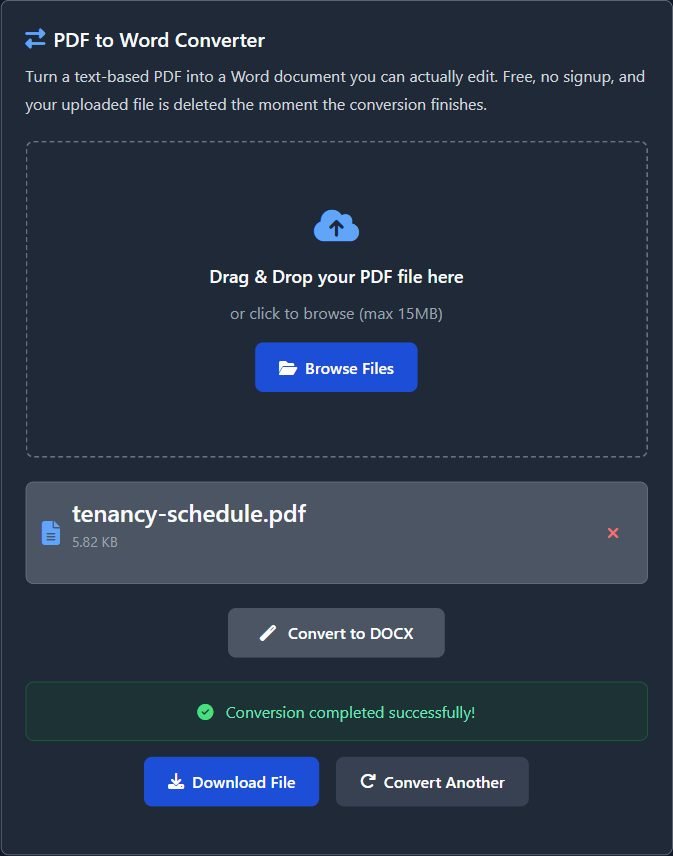
Our PDF to Word converter runs the open-source pdf2docx library first, and only falls back to LibreOffice's PDF import when pdf2docx throws an error. That split matters for cleanup, because the two leave different messes. On my test file, pdf2docx produced the section breaks, exact spacing and the table. The 68 text boxes came from LibreOffice.
Work through these in order on the converted file. Turn on Show/Hide (the paragraph mark button on the Home tab) first, or you'll be fixing things you can't see.
- Section breaks. Open Find and Replace, type ^b in Find what, leave Replace with empty, and replace all. That flattens the fake columns. Do this only if you don't need columns, since the layout of the last section spreads over everything above it.
- Fixed spacing. Press Ctrl+A, open the Paragraph dialog, set Line spacing to Single and Before and After to 0. On my test file the Payments and deposit heading carried 72 points of empty space above it purely to hold its place on the page. One pass removes all of that.
- Hard line breaks. Lines that end in a bent arrow are manual line breaks. Replace ^l with a single space. Then look for paragraphs that got split in two; my first paragraph came back as two because the converter saw a gap that wasn't really there.
- Boxes that turned into tables. Shaded notes and bordered boxes often come back as a one-cell table. Click inside it, go to Table Layout, choose Convert to Text.
- Page numbers. A PDF has no page number field, only the printed digits. My footer came back as the typed words Page 1 of 2 sitting in the body. Delete those lines and use Insert, Page Number, or your numbers will be wrong after the first edit.
- Text boxes. If every line sits in its own box, don't drag text out one box at a time. You'll be there all afternoon. Convert the PDF again with a different engine, or open it directly in Word, which uses its own rules and sometimes does better on simple files.
- Styles last. Once the text flows, apply Heading 1, Heading 2 and Normal. Until then, formatting fixes get undone by every structural fix above them.
When to stop fixing and ask for the .docx
If the PDF came from a colleague, a client or a supplier, the Word file it was exported from still exists on someone's laptop. An email asking for it takes thirty seconds. Rebuilding a 20-page brochure from text boxes takes an afternoon and still won't match.
My rule of thumb: if the cleanup list above hasn't made the document editable within fifteen minutes, it won't. At that point copy the text into a fresh document as plain text, apply your own styles, and treat the converted file as a visual reference only. It feels like giving up. It's usually the fastest way out.