
Nested JSON to Excel Comes Out Blank or Messy? Flatten It First
Excel cells hold one value each and JSON nests objects inside objects. Here's why nested JSON to Excel goes wrong, and the flattening rules that give you clean columns.
If your nested JSON to Excel conversion gave you empty columns, columns full of raw braces, or forty columns called items.0.sku through items.39.qty, the file isn't broken. A worksheet cell holds one value. JSON can hold an object inside an object inside a list. Something has to decide how that tree becomes rows and columns, and if you don't decide, the converter guesses. Flatten the JSON first and the problem goes away: nested objects become dot-path columns like customer.address.city, and lists become extra rows or a second sheet.
That's the whole answer. The rest is the detail you need to do it without losing data or double-counting money.
Why nested JSON to Excel breaks
Take a typical export from a shop or an API. Each order has an id and a total, a customer object with an address object inside it, and an items list with one entry per product. Three levels deep is normal.
I ran a small sample like that through the JSON to Excel converter here to see exactly what a straight conversion does. Every top-level key became a column header: order_id, placed, customer, items, total, and coupon. Coupon only appeared on one order, but it still got a column, left blank on the other rows. That part is fine. The customer and items columns were the problem. Both headers were there and every cell under them was empty, because the library that writes the workbook (SheetJS 0.18.5) treats an object value as a cell description instead of as data. Your text went in and nothing came out.

Other tools fail differently. Some write the nested part as a JSON string, so a single cell reads {"name":"Dana Ruiz","email":"[email protected]","address":{...}}. Our JSON to CSV converter does that, which at least keeps everything, but you can't filter by city when the city is buried in a string. Others expand every list into numbered columns, and the sheet ends up as wide as the longest order. No setting fixes this. The shape of the data is wrong for a grid.
Flattening nested JSON for Excel: three rules
Objects become dot paths. customer.name, customer.email, customer.address.city, customer.address.zip. One column per leaf value. The row count doesn't change and nothing is lost. This is safe to do every time.
Lists of objects become rows. An order with two items turns into two rows, each repeating the order fields and carrying one item.sku and item.qty. That's the layout pivot tables and SUMIFS want. Avoid the numbered-column version (items.0.sku, items.1.sku). You can't sum quantities across it, and a new order with more items than any earlier one adds columns.
Lists of plain values get joined. Tags like ["gift", "rush"] fit in one cell as gift; rush. Splitting them into rows is rarely worth it.
One trap with the second rule. Once order 1041 becomes two rows, its 47.5 total appears twice, and a SUM over that column now says 95. Either total at item level (qty times price), or count each order once with a helper column. On a month of real orders, where most baskets hold two or three products, that mistake can double or triple your revenue line, and nobody questions a number that looks good.
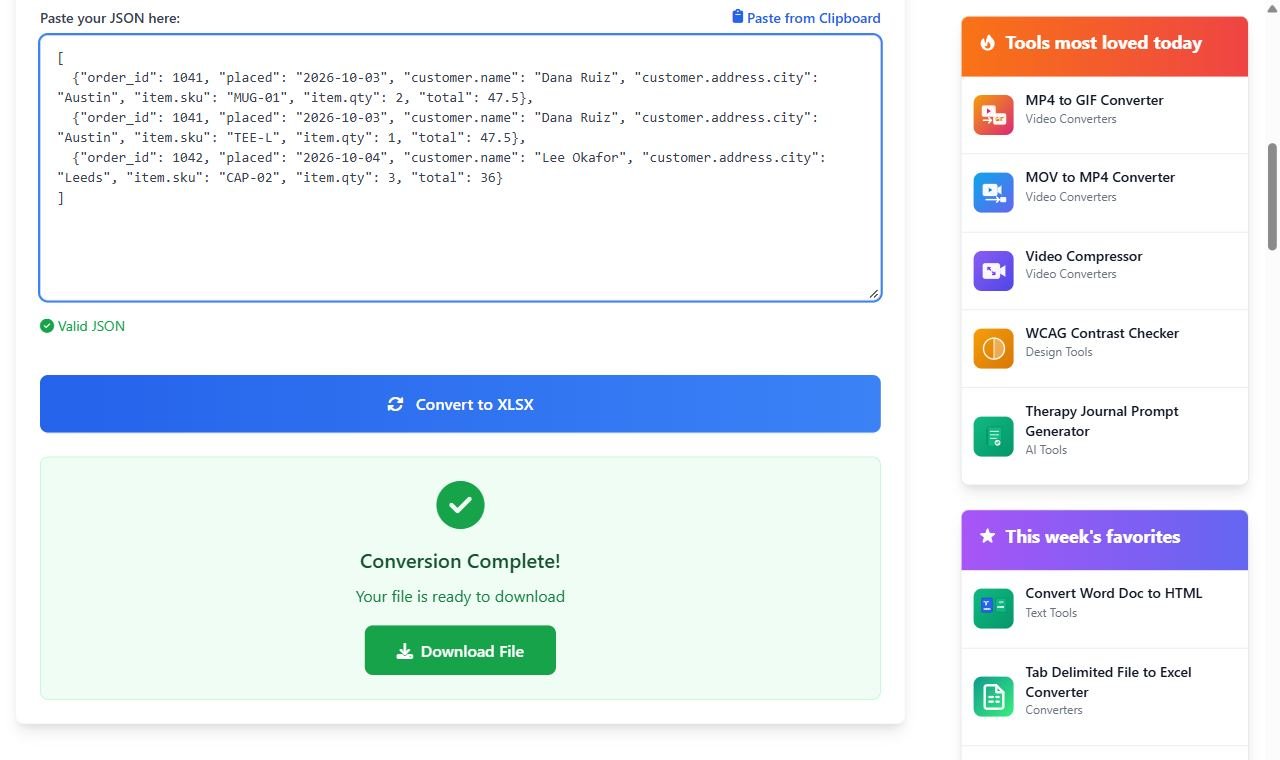
A second sheet instead of repeated rows
If you'd rather keep orders one per row, put the items on their own sheet and give every item row the order_id. In the converter mentioned above, a JSON file whose top level is an object holding arrays, like {"orders": [...], "items": [...]}, gets one worksheet per key. Sheet names are cut to 31 characters and any of : \ / ? * [ ] becomes an underscore, because Excel won't accept those in a tab name. The arrays still have to be flat for their cells to fill.
Doing nested JSON to Excel inside Excel with Power Query
In Excel for Microsoft 365 you can skip the outside step. Go to Data, Get Data, From File, From JSON. Microsoft's page on the Power Query JSON connector says it uses automatic table detection to flatten the JSON into a table, and that's mostly true for the first level. Deeper records still show up as columns with an expand button in the header. Click it, pick the fields you want, and they become customer.name style columns. For a list column, choose Expand to New Rows, which is rule two above done for you.
The query also refreshes: drop a newer export in the same path, click Refresh, and every expand step runs again. The same page also mentions that JSON Lines files (one object per line) fail with an unable to connect message and gives a short M snippet to read them line by line.
For scripts, Python's pandas does the same job in one call:
pd.json_normalize(orders, record_path="items", record_prefix="item.", meta=["order_id", "total", ["customer", "name"]])That gives one row per item, with the order fields repeated, item.sku and item.qty columns, and a customer.name column. Call .to_excel() on the result and you're done.
My advice: if it's a one-off file under a few thousand records, flatten it and convert. If it's a feed you'll pull every week, build it once in Power Query and let Refresh do the work. Pasting nested JSON straight into any converter and hoping it guesses right is how you end up with the empty columns you started with.