export.xml Too Big for Excel? Apple Health Export to CSV
Your Apple Health export.xml is too big for Excel or a text editor. Here's how to turn it into CSV files you can sort, and why your step totals look doubled.
You tapped Export All Health Data, waited, moved export.zip to your computer and unzipped it. Inside sits export.xml, and it's close to a gigabyte. Excel asks how you'd like to open an XML file and then struggles. Notepad freezes. Your data is fine. The file was simply written for software to read, not for you.
This walkthrough takes you from that file to a few CSVs you can sort and chart. Along the way it explains the one number in the export that fools nearly everyone: your step count.
Why export.xml is too big for Excel or a text editor
Under a short header, the file is mostly one flat list of Record elements inside a single HealthData root. Hundreds of thousands of them, often millions. Each one is a single reading:
<Record type="HKQuantityTypeIdentifierStepCount" sourceName="Apple Watch" unit="count" startDate="2024-03-09 07:41:22 -0500" endDate="2024-03-09 07:50:03 -0500" value="412"/>Steps, heart rate, sleep and weight all share that one list. Only the type attribute tells them apart. There's no grouping by day, no separate sheet per metric.
That's the core problem. Excel wants to turn the whole thing into one table, and a worksheet stops at 1,048,576 rows. Years of Apple Watch data often go past that. Text editors fail differently, because most of them try to hold the entire file in memory before showing you the first line.
Two smaller annoyances pile on. Type names are long identifiers like HKQuantityTypeIdentifierHeartRate. And every date ends in a time zone offset, as in 2024-03-09 07:41:22 -0500, which Excel won't recognise as a date. It treats the cell as text, so sorting and charts go wrong.
Step 1: Get export.zip off your iPhone
- Open the Health app and tap Summary.
- Tap your picture or initials at the top.
- Tap Export All Health Data. Apple's guide to sharing Health data gives the same path and confirms the export comes out in XML format.
- Confirm, then leave the phone alone with the screen on. Years of watch data can take a while.
- When the share sheet pops up, save the file to Files or AirDrop it to a Mac. I wouldn't email it. It's big, and it's your medical history.
Unzipped, you get a folder called apple_health_export. It holds export.xml, which has everything you care about here, plus export_cda.xml, a clinical document format that isn't your day-to-day readings. There's also a workout-routes folder of GPX files and, if you've ever taken an ECG on the watch, an electrocardiograms folder. You can ignore all of those for now.
Step 2: Load the zip for an Apple Health export to CSV
You don't have to unzip anything. For this part I use the Apple Health export converter on this site, mainly because it runs inside the browser tab and the file never gets uploaded. With data this personal, that matters more to me than speed.
- Drop
export.zipon the upload box. The screen shows the file name and size, a green note saying processing stays in the browser, and a Scan Export button. - Press Scan Export. A progress line counts how much of the file has been read and how many records it has found so far.

Why doesn't a multi-gigabyte export crash the tab? The page reads the XML in 4 MB slices and picks out each Record and Workout as it goes past. If an element gets cut in half at the edge of a slice, the leftover piece is carried into the next one, so nothing is lost or counted twice. With a zip, it finds export.xml inside and decompresses it while reading, using a feature built into current browsers. A browser too old for that gets a message to unzip first and pick export.xml. So does a password-protected zip. And if you grab export_cda.xml by mistake, it says so instead of guessing.
Picked the wrong file? There's a Stop button.
Step 3: Check steps per month before you trust any total
When the scan finishes, a summary line runs across the top: records, data types, workouts and the export date. My sample file showed 13,351 records, 5 data types and 3 workouts, exported May 1, 2024. Under that sits a Steps per month table with two step columns, and the gap between them matters most.
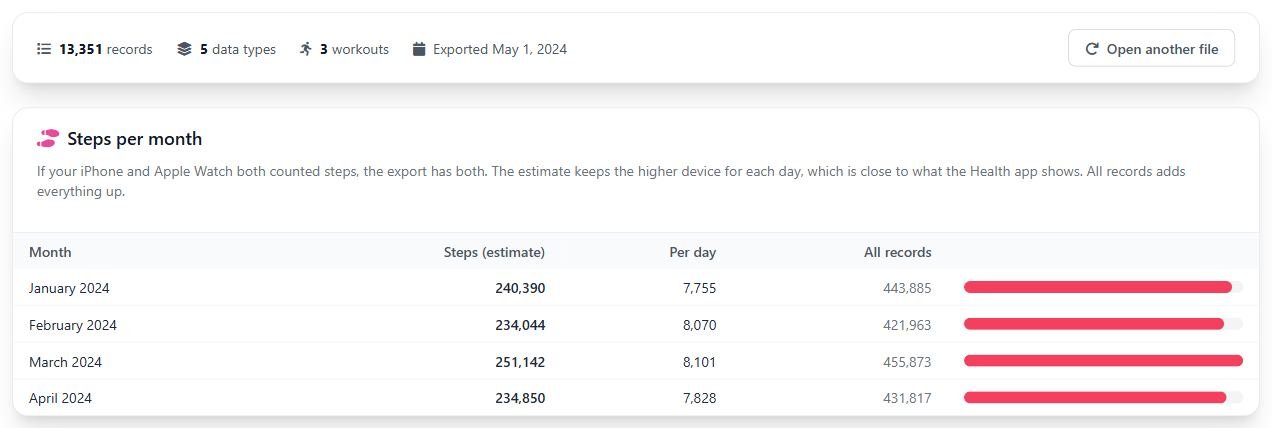
Look at January 2024 there. Steps (estimate) says 240,390. All records says 443,885. Same month, same file.
If you carry an iPhone and wear an Apple Watch, both count steps and both write records into the export. The Health app picks between sources so you see one sensible figure. A plain sum of export.xml doesn't, so most of your walks get counted twice.
- Read the estimate column first. For each day the tool totals steps per source, phone and watch separately, and keeps whichever counted more. It lands close to the Health app, though not always on the exact step, since Apple merges overlapping readings more finely than whole days.
- Use Per day as a sanity check. It's the estimate divided by the number of days that month that had any step data.
- Treat All records as the raw sum. It's there so you can see the double counting.
Step 4: Pick data types and finish the Apple Health export to CSV
- Scroll to What is in your export. Every data type is listed with its record count and its first and last date, largest first. Names read like people talk (Heart rate, Steps, Sleep, Weight), with the raw identifier in small print underneath.
- Tick the types you want. Each one becomes its own CSV file. If the list is long, the filter box narrows it.
- Set From and To dates if you only need part of your history. Leave both empty to get everything. The range checks each record's start date.
- Press Build CSV. The tool reads the file a second time and writes the rows.
- Click each file under Your CSV files to save it. They were built in the tab and vanish when you close it.
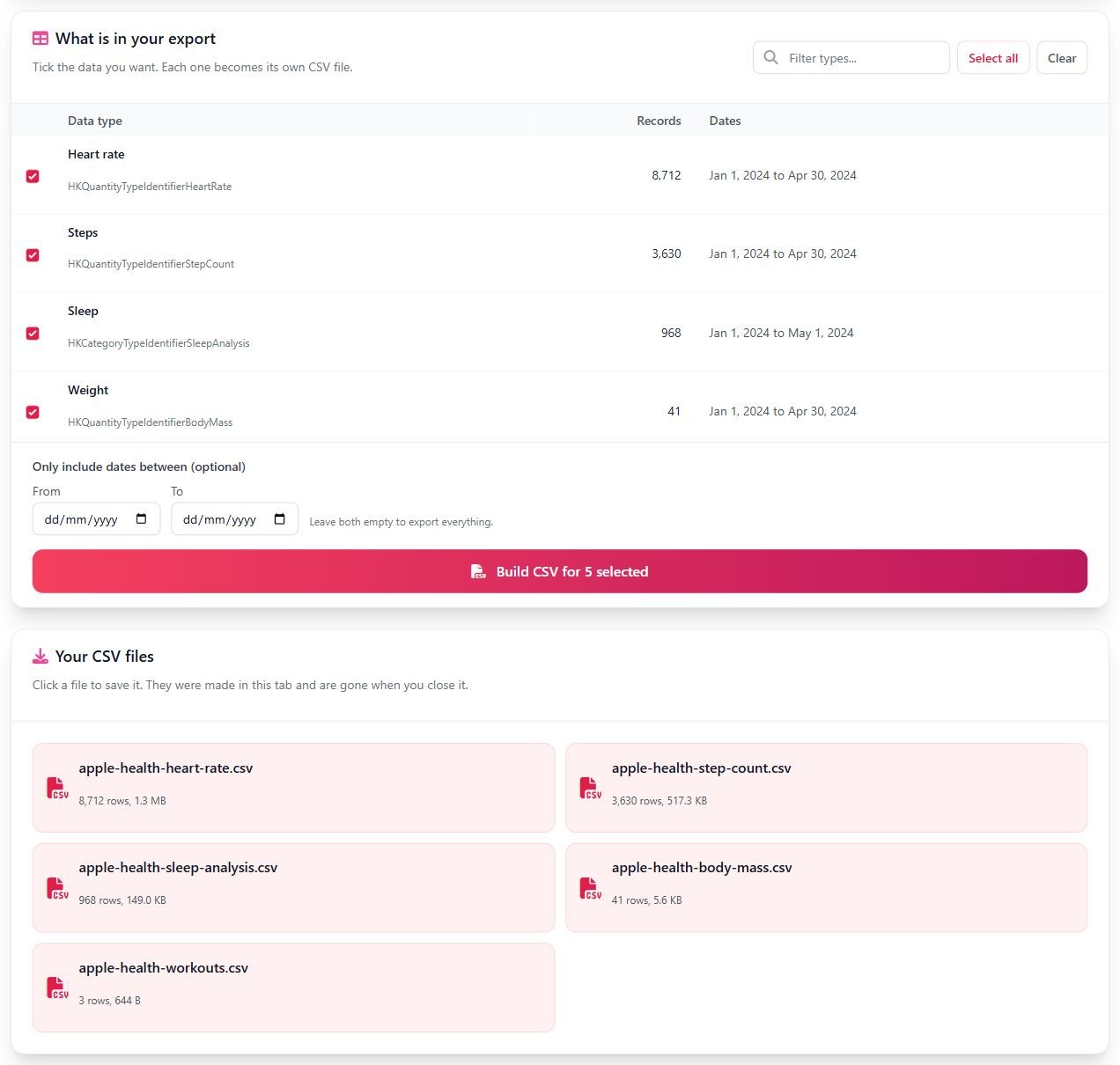
In my sample, heart rate came out as 8,712 rows at 1.3 MB. Steps gave 3,630 rows, sleep 968, weight 41 and workouts just 3.
What each CSV holds, and the Excel limit that remains
Every regular record gets the same 11 columns: start_date, end_date, utc_offset, value, unit, duration_min, source_name, source_version, device, creation_date and type. The offset is split into its own column, so start_date is a plain date and time Excel understands. Sleep values come out as words such as Asleep Core, Asleep Deep, Asleep REM and Awake, and duration_min gives each stage's length. A nightly sleep total is then one pivot table away.
Workouts get their own file with activity, start and end, duration, distance, active energy, average and max heart rate, source and device.
The files are UTF-8 with a byte order mark, so accented device names survive Excel. Any cell starting with =, +, - or @ that isn't a number gets a leading apostrophe, so an odd app name can't run as a formula when you open the sheet.
The row limit doesn't go away, though. Excel still stops at 1,048,576 rows per sheet. Sleep and weight rarely come close. Heart rate and active energy are the ones to watch on a long history. If that CSV is huge, go back to step 4 and export one year at a time with the date range. Python or R will take the full file without any fuss.
One last thing. If you build your own step totals from the steps CSV, filter source_name to one device first. Skip that and you're back to the doubled number from step 3.