
Word to Markdown Broke Your Tables or Bloated the File? What Converts Cleanly
Why a Word to Markdown conversion turns a small .docx into megabytes of base64, why tables split, shift or stay as HTML, and the fixes for each, from a real test file.
A 1.43 MB Word file went in. Out came 1,944,360 characters of Markdown that added up to just 108 words. The rest was one photo, written out as text.
That's the first surprise most people hit with a Word to Markdown conversion. The second is the tables, which look fine in Word and come out split across lines, shifted by a column, or not converted at all. Neither one is a bug in the usual sense. They're what happens when a format built for pages meets a format built for plain text, and once you know the mechanism, each one has a short fix.
I built a small test document to see exactly what goes wrong: a heading, some bold and italic text, a bullet list, a numbered list, three tables (one with a header row, one without, one with merged cells), one photo, and a Word comment. Everything below comes from converting that file.
Why Word to Markdown output gets so big
A .docx file is a ZIP archive. Your text sits in XML files inside it, and every picture is stored as its own compressed file in a folder called word/media. Word reads the two together when you open the document.
Markdown has no such container. A .md file is plain text, and plain text can't hold a JPEG or PNG. So a converter has two choices. It can write the pictures out as separate files and link to them, or it can encode each picture as text and paste it straight into the Markdown as a data URI. That second option is what you get when the conversion runs in one step with one file out. The picture becomes a line that starts 
You can see it in the stats line under the output: 108 words, 101 lines, nearly two million characters. That ratio is the tell. If the word count is tiny and the character count is huge, you're looking at embedded images, and most text editors will stutter when you scroll past them. Paste that into a CMS or a GitHub issue and you'll usually hit a size limit.
The photo also came out as ![], with nothing between the brackets. Markdown takes its alt text from those brackets, and my test picture had none set in Word, so there was nothing to carry over. If you care about alt text, add it in Word before converting (right click the picture, then View Alt Text), or fill the brackets in afterwards.
Getting the images out as files instead
There are two clean ways to do this, depending on whether you're comfortable with a terminal.
Without a terminal: rename a copy of your .docx to .zip and open it. The word/media folder has every image as a normal file, usually named image1.png, image2.jpeg and so on, in the order they were added. Copy that folder next to your Markdown file. Then in the .md file, replace each giant data line with a short path like . In most editors you can find the start of each one by searching for data:image. With a handful of images this takes five minutes.
With a terminal: Pandoc does the whole job in one command. Its user guide describes an --extract-media option that pulls images out of the source document into a folder and rewrites the references to point at them:
pandoc report.docx -t gfm --extract-media=. -o report.mdThat gives you a media folder and a Markdown file with ordinary image links. If your document is mostly pictures, this is the route I'd take.
Word to Markdown tables: three ways they break
Tables are where most of the hand fixing goes. GitHub's own GFM spec on tables defines a table as a single header row, a delimiter row of dashes, then data rows, with each row being cells of inline text separated by pipes. No cell can hold a paragraph break. No cell can span two columns. A Word table can do both, and that gap explains everything below.
Cells split across several lines
In Word, every table cell holds at least one paragraph, even if it's a single number. When the converter goes from Word to HTML and then to Markdown, those paragraph marks survive as line breaks inside the cell. So instead of | Setting | Old | New | on one line, you get a pipe, a line break, Setting, two more line breaks, another pipe, and so on.
The GFM spec says a table ends at the first empty line, so this one breaks before it starts. GitHub renders it as stray pipes and loose words. The fix is mechanical: pull each row back onto one line. For a five row table, do it by hand. For a long one, a regex find and replace in VS Code or Notepad++ that removes newlines between pipes will handle it, but check the result, because a cell that really held two paragraphs gets squashed into one.
No header row, so the table stays as HTML
My second table had no header row marked in Word. It didn't become a Markdown table at all. It came through as raw HTML, <table><tbody><tr><td><p>Owner</p> and the rest, on one long line.
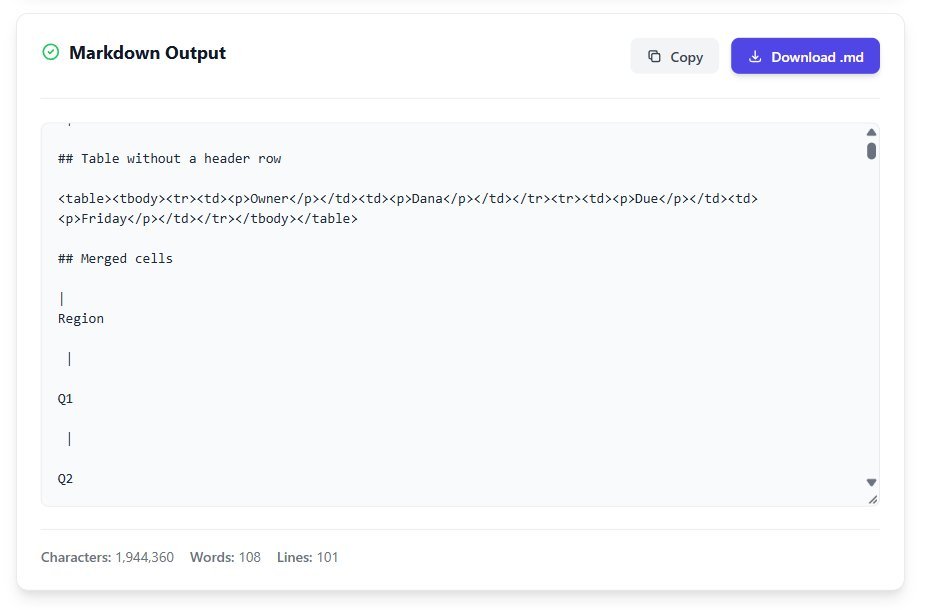
That's a deliberate choice by the table converter. GFM tables must have a header row, so a table without one can't be written as a pipe table without inventing a header. Keeping the HTML preserves the data. GitHub and most static site generators will render that HTML fine. Some stricter renderers and a few wikis escape it, and then you see the tags as text.
The fix happens in Word, before converting. Click in the first row, open the Table Layout tab, and turn on Repeat Header Rows. That flag is what marks the row as a header in the file. My first table had it set and came out as a real pipe table (still with the split cells from above, but recognisably a table). If the table genuinely has no header, like a two column list of labels and values, you're often better off turning it into a bullet list.
Merged cells shift the columns
This one is the most dangerous because it doesn't look broken. My third table had a header row of Region, Q1 and Q2. In the North row, I merged Q1 and Q2 into one cell that said "Not reported".
In Markdown, the North row came out with two cells instead of three. It also had the split cells from above, so you won't see the shift until you join the rows. Once you do, GFM fills short rows with empty cells at the end, so the rendered table shows "Not reported" under Q1 and a blank under Q2. Someone reading it would think Q1 was not reported and Q2 was simply empty. The meaning changed and nothing flagged it.
Markdown pipe tables have no syntax for spans, so there's no clean conversion. Your options: unmerge in Word and repeat the value in each cell, keep that one table as HTML (where colspan works), or, if your output goes through Pandoc, use its grid tables. The Pandoc guide says grid table cells can hold block elements and span rows and columns. GitHub won't render grid tables, though, so that only helps if Pandoc is building your final output.
What survives Word to Markdown, element by element
Here's the full result from the test file. The converter on this site does the job in your browser, so the file isn't uploaded anywhere; the table describes what it produced.
| In the Word file | What came out | What to do |
|---|---|---|
| Heading 1 and Heading 2 styles | # and ## headings | Nothing. Works as expected |
| Bold and italic | **bold** and *italic* | Nothing |
| Bullet and numbered lists | - items with three spaces after the marker, 1. items with two | Optional tidy up; renders fine as is |
| Table with a header row | Pipe table with each cell split over several lines | Join each row onto one line |
| Table without a header row | Raw HTML table | Set Repeat Header Rows in Word, or convert to a list |
| Merged cells | Short row, later columns shift or go blank | Unmerge first, or keep the table as HTML |
| Picture | Base64 data URI with empty alt text | Extract to files; add alt text |
| Comment | Gone | Copy comments out before converting |
One thing to know about headings: the converter maps Word's heading styles, not how text looks. If someone made a title by setting the font to 20 point bold instead of applying Heading 1, it comes through as a bold paragraph, not a heading. Worth a quick look at the Styles pane before you convert a document someone else wrote.
Comments, and the warnings nobody sees
The Word comment in my test file ("Check this with Sam first") vanished. The paragraph it was attached to came through; the comment didn't. Markdown has no place for margin notes, so this is expected, but it's easy to miss when the document has been through a review cycle.
The converter did notice. It produced three warnings about comment styles it couldn't map. Those warnings only went to the browser's developer console, which almost nobody opens. So if a document has comments you need to keep, get them out first. In Word, File, Print, then List of Markup under the first setting gives you every comment on its own pages, which is quicker than hunting through the margin.
Old .doc files won't convert
The file picker on the Word to Markdown converter will let you choose a .doc file, which is a little misleading. The library that reads Word documents only understands .docx, which is a ZIP file. An old .doc is a completely different binary format from before 2007. I fed it one, and the reader failed straight away with a complaint that it couldn't find the end of a ZIP directory. A pop-up then says "Error converting file. Please make sure it's a valid Word document (.docx)."
The fix takes ten seconds: open the .doc in Word or LibreOffice Writer, use Save As, and pick the .docx format. Then convert that copy.
A cleanup order that saves time
If you convert Word documents to Markdown regularly, doing the fixes in the right order means you only touch each problem once. This is the order I've settled on.
Before converting, in Word: save as .docx if needed, apply real heading styles, set Repeat Header Rows on every table that has a header, unmerge merged cells, add alt text to pictures, and copy out any comments you want to keep. All of these are faster to fix in Word than in the Markdown afterwards.
Convert. If the document has more than two or three images, use Pandoc with --extract-media instead, or plan to swap the data URIs for file paths.
After converting: join split table rows, check every table against the original for shifted columns, and search for <table to find any table that stayed as HTML. Then preview the result. If you don't have a Markdown preview handy, pasting the file into a Markdown to HTML converter shows you the rendered tables in a few seconds, which is where split rows and blank columns jump out.
Most documents need ten minutes of this, not an hour. The ones that need an hour are the ones built from complex tables, and for those, honestly, keeping the tables as HTML inside the Markdown is often the sane answer.