How to Create a WiFi QR Code for Your Home or Business
Stop spelling out your WiFi password letter by letter. Create a QR code that connects guests instantly - takes 60 seconds and works on any phone.
Every time someone visits my house, the same conversation happens:
"What's the WiFi password?"
"It's capital X, lowercase n, seven, seven, pound sign, capital P..."
"Wait, was that a seven or an L?"
"Seven. Then pound sign, capital P, lowercase..."
Five minutes later, they're still not connected. Multiply that by every guest, every Airbnb visitor, every client in your waiting room.
A WiFi QR code fixes this permanently. Guests scan with their phone camera, tap "Connect," and they're online. No spelling, no confusion, works every time.
Here's how to create one in about 60 seconds.
What You Need
Three pieces of information from your router:
- Network name (SSID) - The name that appears when you search for WiFi networks
- Password - The WiFi password you use to connect
- Security type - Usually WPA2 or WPA3 for modern routers. If your router is older, it might be WPA or WEP.
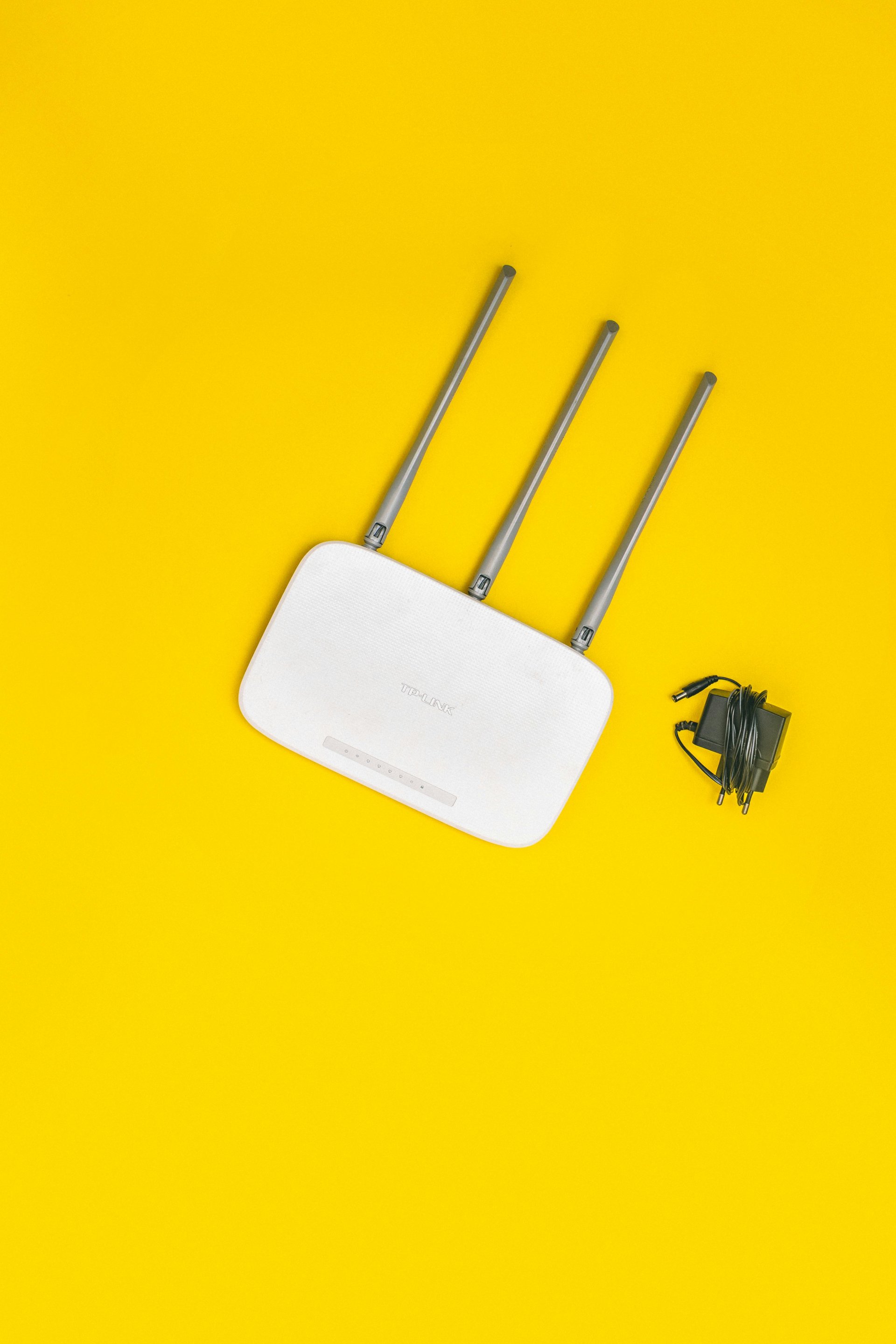
Not sure about your security type? It's almost certainly WPA2 if your router was purchased after 2010. When in doubt, try WPA2 first - it works 95% of the time.
Creating Your QR Code
The process takes about a minute:
Step 1: Open a WiFi QR generator. I use one that creates WiFi QR codes for guests without requiring an account or storing your credentials.
Step 2: Enter your network name exactly as it appears on your router. Case matters - "HomeNetwork" is different from "homenetwork."
Step 3: Enter your password exactly. Again, case sensitive.
Step 4: Select your security type (WPA2 for most networks).
Step 5: Generate and download the QR code.
Test it immediately - scan with your own phone to confirm it connects successfully before printing.
Where to Display Your QR Code
Placement matters. You want guests to find it naturally without asking.
Homes: Near the main entrance, on the fridge, or in the guest room. A small framed code on the entryway table works well. Some people add it to their welcome sign.
Airbnb/Vacation Rentals: Include in your welcome packet and display prominently in the main living area. I've seen hosts put it on a small stand on the coffee table with "Scan for WiFi" text. Guest reviews frequently mention easy WiFi setup as a positive.
Offices: Reception desk or waiting area. Conference rooms should have dedicated codes if you use separate meeting room networks.
Restaurants/Cafes: Table tents, menu cards, or wall-mounted near the ordering area. Some places print it directly on receipts.
Retail Stores: Near the register or in fitting room areas where customers often want to look up product information.
Printing Tips
QR codes need to be large enough to scan reliably. General guidelines:
- Minimum 2cm x 2cm (about 0.8 inches) for close-range scanning
- 3-4cm for typical arm's length scanning
- Larger for wall-mounted codes people will scan from several feet away
Contrast matters. Black code on white background is most reliable. Colored QR codes can work but reduce scan reliability. Avoid light colors on light backgrounds.
Laminate for durability. A laminated card lasts years. Unprotected paper gets damaged within months from handling, spills, or sunlight.
Add context. Don't just stick up a QR code - add text like "Scan for WiFi" or "Guest Network." Not everyone knows what QR codes do, especially older guests.
Security Considerations
Let's be realistic about security:
A WiFi QR code contains your password in encoded form. Someone could photograph your QR code and decode the password using free online tools. This is the trade-off of convenience.
For most home situations, this is fine. You're sharing your password with guests anyway. The QR code just makes it easier.
For businesses or if you're concerned, set up a separate guest network. Most modern routers support this - you create a second network specifically for guests that's isolated from your main network. Put the QR code for the guest network only. Your main devices and data stay on the primary network, protected by a password you never share.
Airbnb hosts should definitely use guest networks. You don't want rental guests on the same network as your security cameras or smart home devices.
Guest Network Setup (Worth the Extra 10 Minutes)
If you haven't set up a guest network, it's straightforward:
Step 1: Log into your router's admin panel (usually 192.168.0.1 or 192.168.1.1 in your browser)
Step 2: Find Guest Network settings (location varies by router brand)
Step 3: Enable guest network and set a name and password
Step 4: Ensure "isolate" or "guest isolation" is enabled - this prevents guest devices from seeing your other devices
Step 5: Create your QR code using the guest network credentials
Now guests get internet access but can't access your network shares, printers, or other devices. Best of both worlds.
Troubleshooting Connection Issues
QR code won't scan: Ensure adequate lighting and that the code isn't damaged or too small. Clean the phone camera lens. Try moving closer or further from the code.
Scans but won't connect: Double-check the password in your QR code - regenerate if uncertain. Verify the security type matches your router setting. Try forgetting the network on the phone and scanning again.
Connects but no internet: This is a router issue, not a QR code issue. Check if other devices can connect. Router might need a restart.
Old phones can't scan: Phones before 2017-2018 might not support camera-based QR scanning. They'll need to download a QR scanning app (many free options available).
Updating Your QR Code
When you change your WiFi password (which you should do periodically for security), remember to:
- Generate a new QR code with the updated password
- Replace all printed/displayed codes
- Test the new code before considering the job done
This is the one maintenance task WiFi QR codes require. Everything else is set-and-forget.
Create Yours Now
The 60 seconds you spend creating a WiFi QR code saves 5-minute conversations with every future guest. It's a minor improvement that compounds - one less friction point, one less thing to explain, one less "wait, spell that again."
For Airbnb hosts especially, it's a small touch that guests notice and appreciate. The reviews mentioning "easy WiFi setup" prove it.
Grab your network name, password, and security type, generate your code, and print it. Your next guest will thank you.